GetUSGS Script using CDA
Instructions on setting up the new getUSGS script that utilizes CDA and cwms-python can be found in the following webinar: \\wpc-netapp3.eis.ds.usace.army.mil\RMCSTORAGE5\MMC_Training_Library\2024.04-30-CWMS-Scripting. The code for this can be found in the cwms-cli repo: https://github.com/HydrologicEngineeringCenter/cwms-cli.
Step 1 Setup Location Group
Setup a location group to link the location to a USGS station number.
- Go to the "Location Group" tab in CWMS-Vue.
- Expand "Agency Aliases", then expand "USGS Station Number".
- While "USGS Station Number" is selected, hover the mouse and right click to bring up a context menu.
- Select "Edit Location".
- A pop up window titled "Edit Location Assignments" will open.
- Click in the "Location Column" and sort the Locations.
- Navigate to the Location and check the box "assigned" column. Click OK.
- Add the USGS number to the location in the "Alias" column. Double click into the box and enter the USGS number. Once entered, click out of the text box. Push the save button (bottom right of screen) to save all changes.
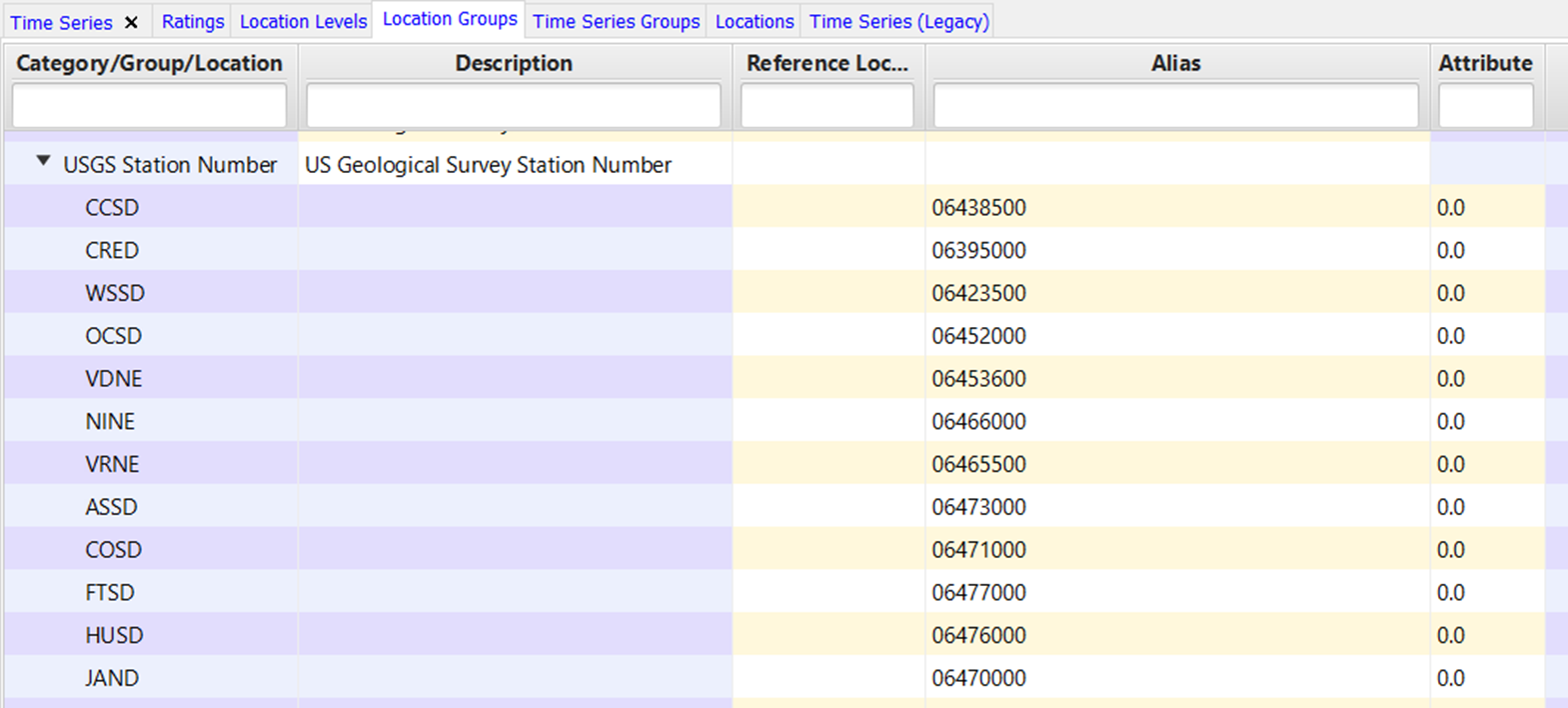
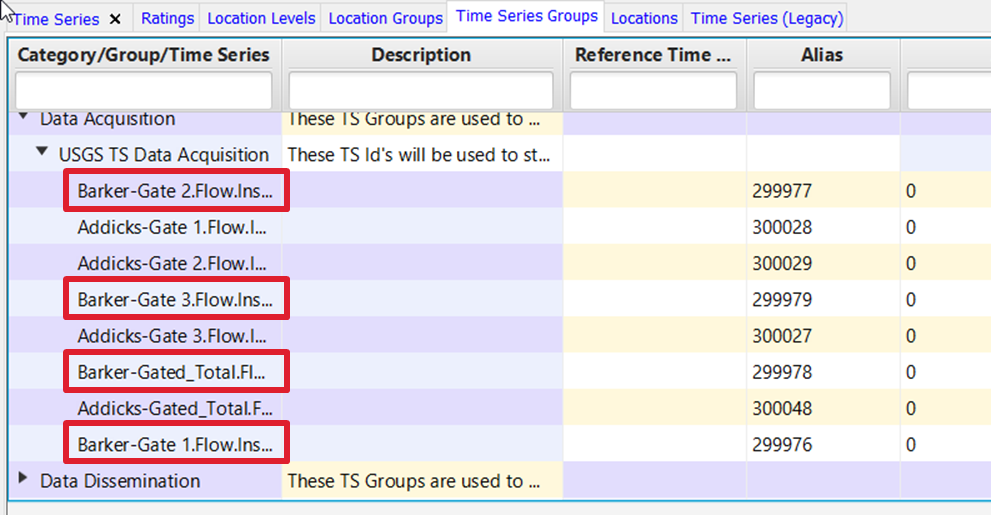
Note: If you have multiple locations (i.e base and subilocations) that reference the same USGS station number, assign the USGS station number to the Base location. An alias can only be assigned to a single location and must be unique, similar to the Location ID. The USGS script will propagate the USGS station ID to all sub-locations if one has not already been assigned to that sub-location. For example, in the below scenario the USGS ID assigned to the base location, Barker, will propagate to the sub-locations Barker-Gate 1, Barker-Gate 2, Barker-Gate 3, and Barker-Gate_Total.

Step 2 Setup Time Series Group
Setup the time series groups to link the individual CWMS time series to the USGS parameter and gage (Flow, Stage, etc).
- Go to the "Time Series Groups" tab.
- Expand "Data Acquisition" and expand "USGS TS Data Acquisition".
- While "USGS TS Data Acquisition" is selected, hover the mouse and right click to bring up the menu.
- Select "Assign Time Series".
- A pop up window titled "Assign Time Series" will open.
- Navigate to and select the Time Series to link to the USGS.
- Determine the USGS parameter code associated with that time series. If the parameter code and CWMS parameter are found in the following table, then no further action is needed. However, if the parameter code and associated CWMS parameter are not found in the standard table below then under the "Attribute" column, enter the USGS parameter code associate to the type of data being captured.
CWMS_PARAMETER
USGS_PARAMETER
USGS_Alias
Temp-Water
00010
Water Temp
Temp-Air
00021
Air Temp
Speed-Wind
00035
Wind Speed
Dir-Wind
00036
Wind Dir
Precip-Inc
00045
Precip
Precip
00045
Precip
%-Humidity
00052
RelHumidity
Flow
00060
Flow
Stage
00065
Stage
Cond
00095
Sp Cond
Conc-Salinity
00096
Salinity
Stor
72036
Res Storage
Irrad-Solar
62608
Sol Rad
Elev
63160
Elev-NAVD88
- When looking the new USGS website for the specific parameter, you can see the parameter code in the url when the parameter you want to grab is selected. In the case below, the parameter for flow is 00060 (which is in the table above). Therefore, the Attribute field can be left blank or as 0.

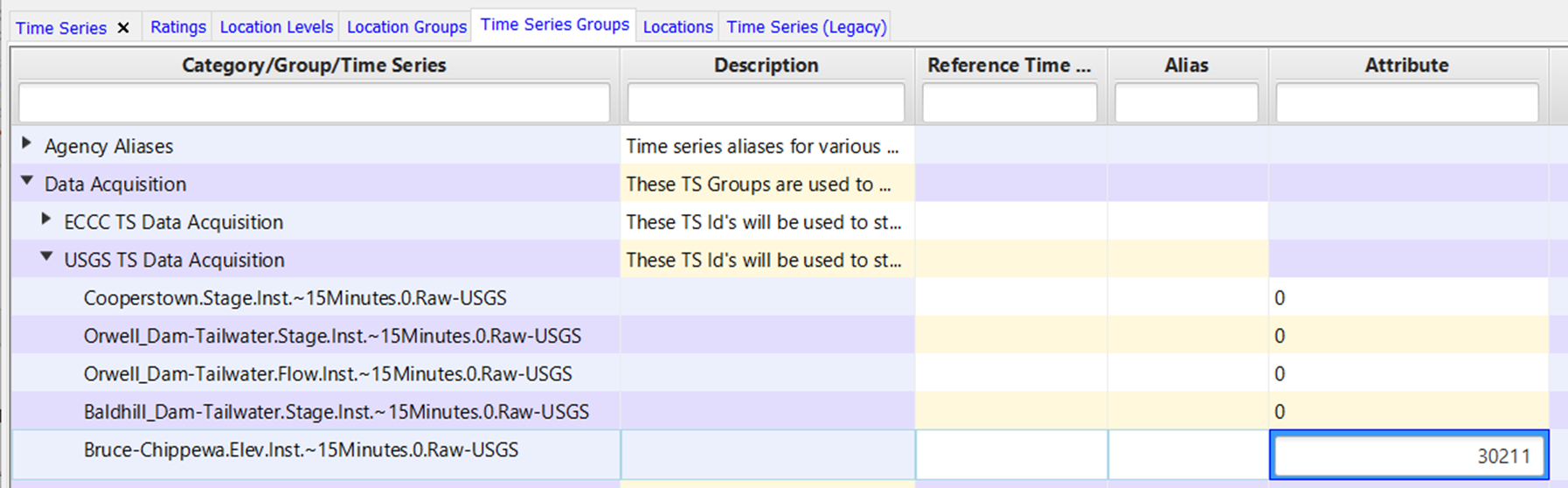
- The example below shows how the Attribute field might be filled in. The first 4 time series are left as 0. According to the table above, the Stage time series will pull from USGS parameter 00065 and the Flow timeseries will pull from 00060. For the Elevation, we want to pull the USGS parameter 30211. Elevation is in NGVD 1929 instead of the standard parameter 63160 that pulls elevation in NAVD88. Therefore, in the Attribute field we enter a value of 30211 to pull the correct USGS parameter.
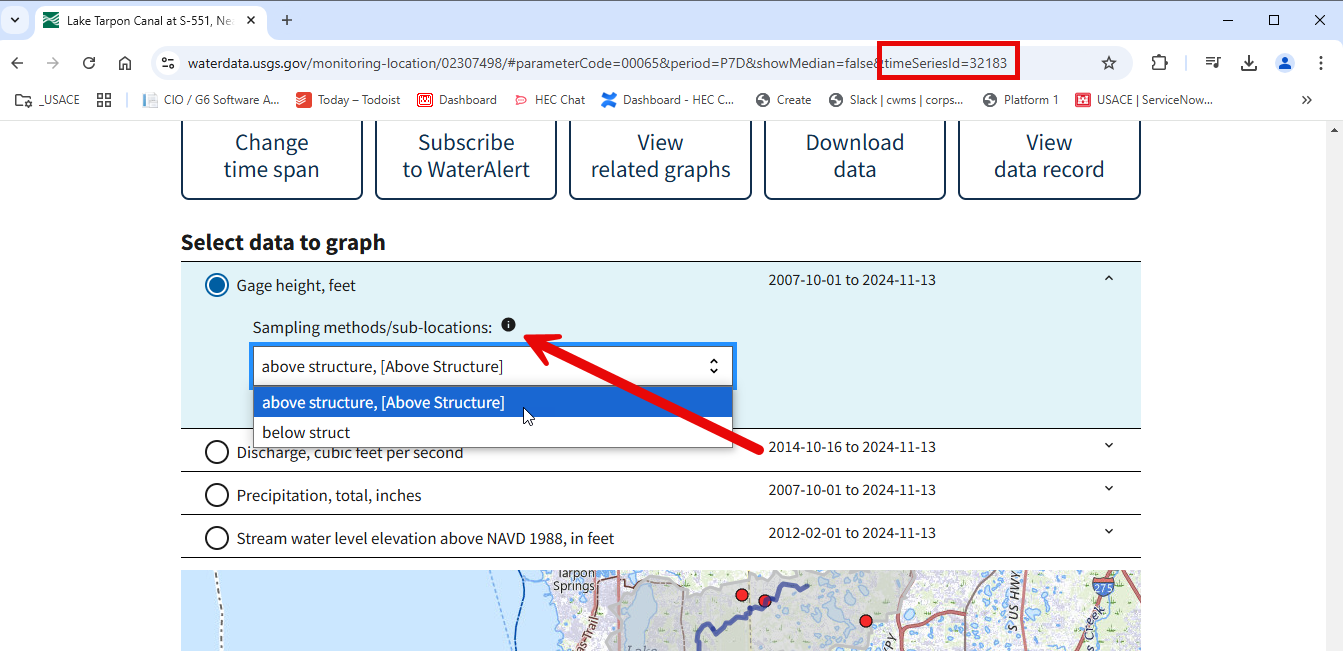
- If the USGS has multiple readings associated with a single parameter, the USGS method/tsid needs to be added to the Alias column. To get the USGS TSID, view the parameter on the USGS site. If multiple methods/time series are assigned to the parameter, select the one that you want to grab. The time series ID will then show in the URL for that specific method/sub-location.
- If the information you are looking for is not on the standard external USGS site, you can check the internal site for parameters and tsids. Update the site_no in the following URL. (https://waterdata.usgs.gov/nwis/uv?format=rdb&site_no=08072500&period=PT7D). An example of how the TSID would look in CWMS-Vue is given below.
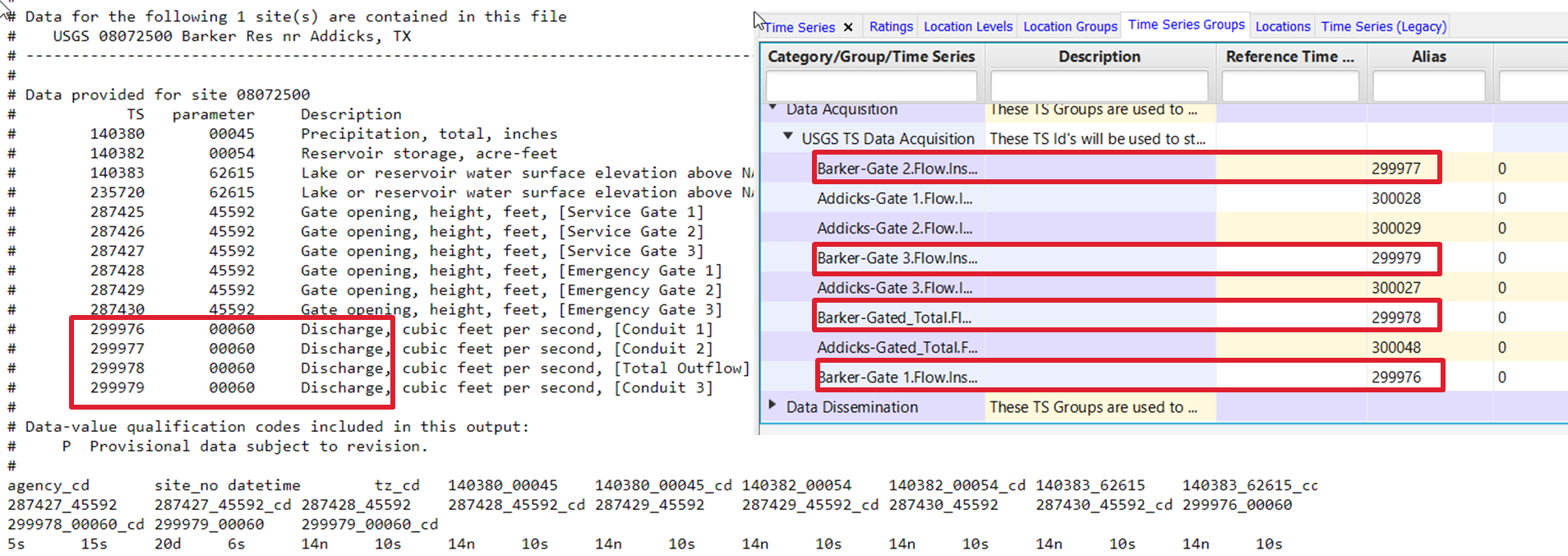
- When your entries are complete, make sure to hit the save button in the bottom right hand corner to save all of your changes.
STEP 3 Setup getUSGS script on T7 server
- Setup CDA, python3, and cwms-python on your server.
https://www.hec.usace.army.mil/confluence/display/CCM/Setting+up+CDA+writes+and+cwms-python+on+T7s
- Create an API key for your local CDA instance.
- Run pip install cwms-cli.
pip install cwms-cli

or to update

pip install -U cwms-cli
- Run cwms-cli for usgs timeseries.
cwms-cli usgs timeseries --help

Usage: cwms-cli usgs timeseries [OPTIONS]

  Get USGS timeseries values and store into CWMS database

Options:
  -o, --office TEXT        Office to grab data for  [required]
  -d, --days-back FLOAT    Days back from current time to get data.  Can be
                           decimal and integer values
  -a, --api-root TEXT      Api Root for CDA. Can be user defined or placed in
                           a env variable CDA_API_ROOT  [required]
  -k, --api-key TEXT       api key for CDA. Can be user defined or place in
                           env variable CDA_API_KEY. one of api-key or api-
                           key-loc are required
  -kl, --api-key-loc TEXT  file storing Api Key. One of api-key or api-key-loc
                           are required
  -b, --backfill TEXT      Backfill timeseries ids, use list of timeseries ids
                           (e.g. "ts_id1, ts_id2") to attempt to backfill a
                           subset of timeseries with USGS data
  --help                   Show this message and exit.


cwms-cli usgs timeseries -d 2 -o NWDM -a $CDA_API_ROOT -kl $CWMS_HOME/.cwms/cda_api_key

to run backfill of a subset of timeseries

cwms-cli usgs timeseries -d 2 -o NWDM -a $CDA_API_ROOT -kl $CWMS_HOME/.cwms/cda_api_key -b "ts_id1, ts_id2,......"