Using the Choose a Color Dialog
The Choose a Color dialog provides a flexible and intuitive way to choose colors for map layers, labels, and background elements in your watershed display. It allows you to preview your color selections before applying them and includes multiple color model options to suit different needs.
This guide shows you how to access and use the dialog to customize colors in HEC-RTS.
Step 1: Access the Dialog
You can access the Choose a Color dialog from any color dialog dropdown menu in HEC-RTS. In this guide, you will access it through the Stream Alignment Properties dialog.
- With a watershed open, go to the Setup tab and select Map Layers from the Maps menu.
- In the Map Layers tree, right-click Stream Alignment and select Properties.

- If the Stream Alignment layer is not visible in the Map Layers tree:
- Go to the Setup tab, right-click Stream Alignment and choose Display in Map Window.

- Go to the Setup tab, right-click Stream Alignment and choose Display in Map Window.
- If the Stream Alignment layer is not visible in the Map Layers tree:
- In the Stream Alignment Properties dialog, open the Stream Color dropdown and select Custom (the last option).

- The Choose a Color dialog will then open.
Step 2: Choose a Color
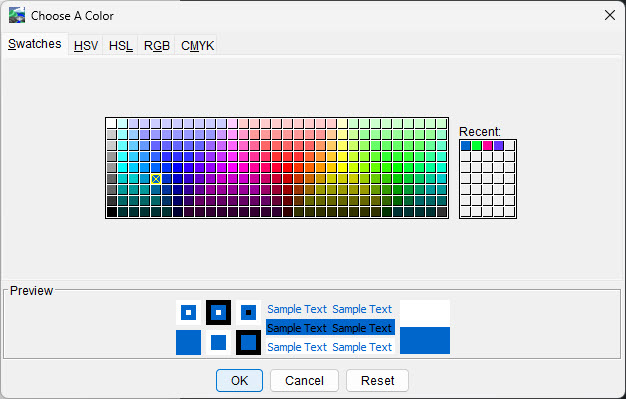
The dialog contains five tabs for selecting colors using different methods:
- Swatches
- HSV
- HSL
- RGB
- CMYK
Click the tab that matches your preferred color selection method to start customizing.
Swatches Tab
The Swatches tab displays a palette of predefined colors. Simply click a color to select it. Your recent color selections appear in the Recent area to the right side of the window.
HSV Tab
The HSV model stands for Hue, Saturation, and Value. It reflects how colors mix like paints:
- Hue determines the base color (0–360°): 0° = Red, 60° = Yellow, 120° = Green, 180° = Cyan, 240° = Blue, 300° = Magenta
- Saturation controls the intensity of the color (0–100%).
- Value adjusts brightness (0 = black, 100 = full brightness).
- Transparency controls the opacity of the color (0 = fully opaque, 100 = fully transparent).
Use the sliders or enter values directly to adjust the color and transparency. You can alternatively click the color field on the left panel of the window to adjust your selection.

HSL Tab
The HSL model stands for Hue, Saturation, and Lightness. It resembles perceptual models like the Natural Color System:
- Hue determines the base color (0–360°), same scale as HSV.
- Saturation controls color vividness (0–100%).
- Lightness adjusts the brightness (0 = black, 100 = white).
- Transparency controls the opacity of the color (0 = fully opaque, 100 = fully transparent).
Use the sliders or enter values directly to adjust the color and transparency. You can alternatively click the color field on the left panel of the window to adjust your selection.

RGB Tab
The RGB model combines Red, Green, and Blue light to produce colors. It is an additive model, meaning combining full values of all three colors produces white.
- Adjust red, green, and blue, values with sliders or by entering values directly.
- Adjust Alpha (transparency) values using the slider or by entering a value directly (0 = fully transparent, 255 = fully opaque).
You can also enter a hexadecimal Color Code to specify an exact color. You can alternatively click the color field on the left panel of the window to adjust your selection.

CMYK Tab
The CMYK model uses Cyan, Magenta, Yellow, and Black (Key) and is commonly used in printing. It is a subtractive model, where combining full values of all four colors produces black.
- Adjust the cyan, magenta, yellow, and black values with sliders or by entering values directly.
- Adjust Alpha (transparency) values using the slider or by entering a value directly (0 = fully transparent, 255 = fully opaque).
You can alternatively click the color field on the left panel of the window to adjust your selection.

Step 3: Finalize Your Selection
To close the dialog without saving changes and return to the previous screen, click Cancel.
To reset the color selection to its default without closing the dialog, click Reset.
To confirm your color choice and close the dialog, click OK. Your selected color will then appear in the dialog with the Custom label next to it.
