When HEC-RTS is updated, certain function locations or module names may change, causing your existing scripts to fail. Follow these steps to identify and fix these broken imports using the built-in JavaDocs.
This tutorial uses the Script Editor found in HEC-RTS, but any IDE will work.
Step 1: Identify the Error
- Launch HEC-RTS.
- From the Script menu, select Editor.
- Select a script from the tree on the left of the dialog.
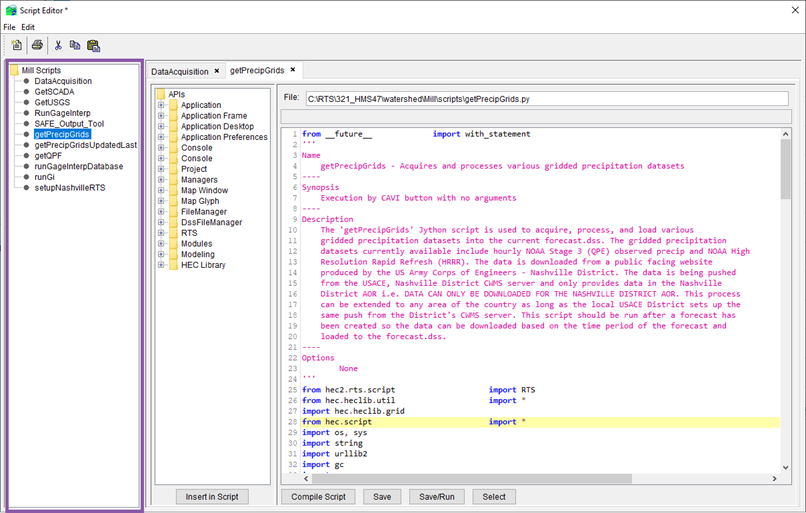
- Run the script.
- Check the console output for "undefined" or "not found" errors.
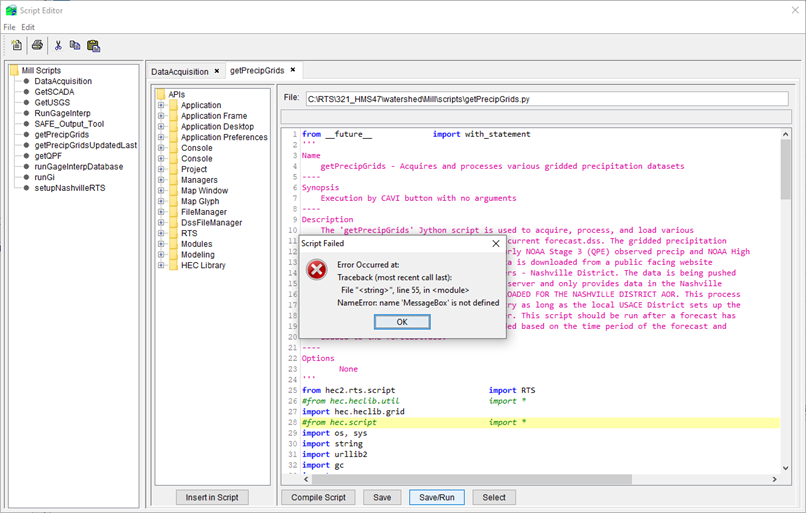
- Note the specific name of the failing function or class.
- In the example above, MessageBox is not defined.
Step 2: Locate the New Class Path
Since the script no longer knows where the function lives, you must look it up in the software's documentation.
- Navigate to the HEC-RTS installation folder on your computer.
- Open the HEC-RTS/JavaDocs folder and double-click index.html. This opens the documentation in your default browser.
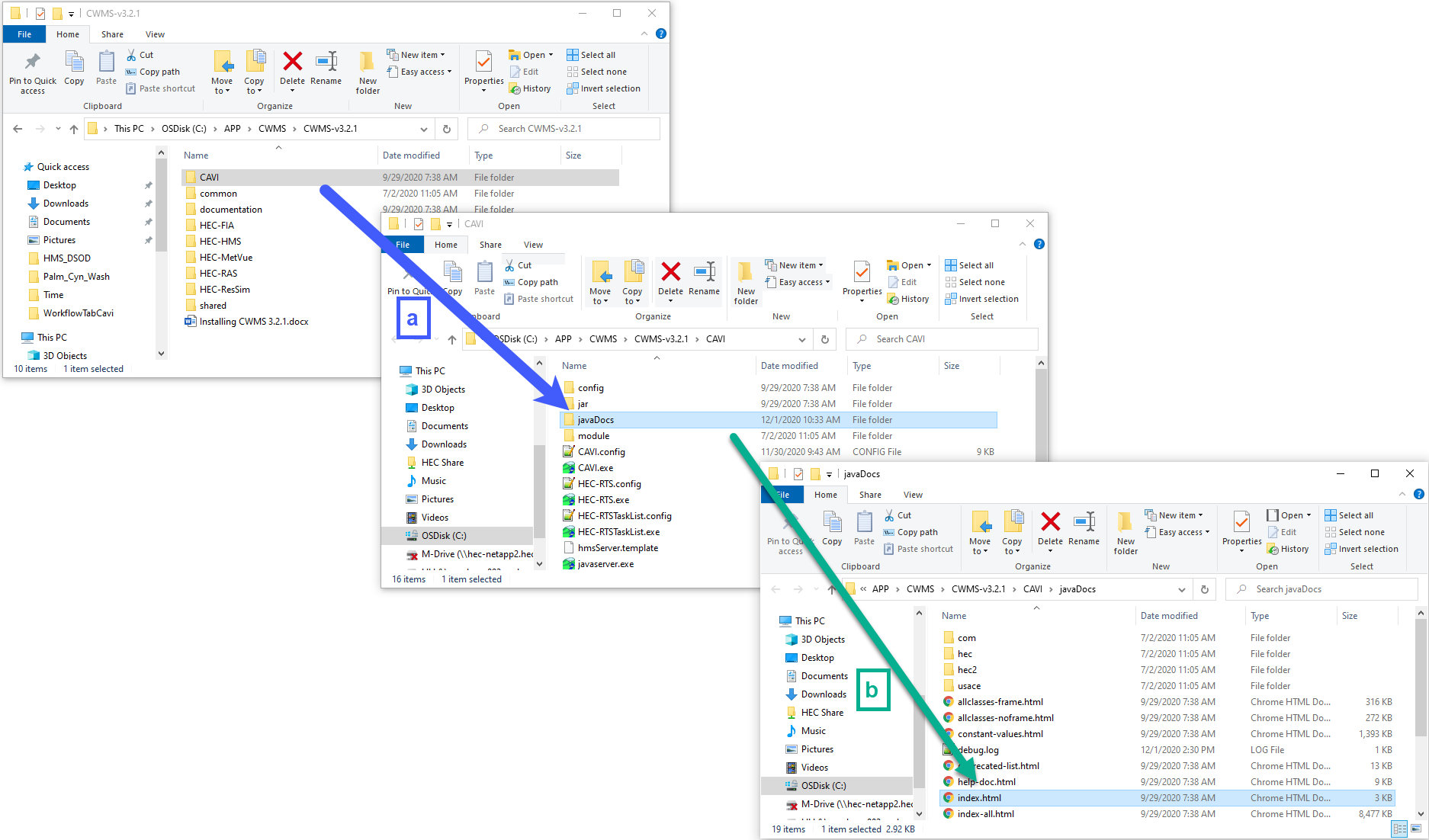
- Click INDEX at the top of the page.

- Use Ctrl+ F to search for the undefined object (e.g., MessageBox).
- Identify the Package and look for the class associated with that name.

- In the example above, MessageBox is now located under hec.script.
- Now that we have found our function of interest, we can select it and will take us to the page showing the package and class information.
- The Package will be used in the first portion of the import statement while the Class is what we are trying to import
- In this example, we could adjust out import to "From hec.script import MessageBox"

Step 3: Update and Validate the Script
Once you have the correct package path, return to the Script Editor.
- Update the import statement to reflect the new location.
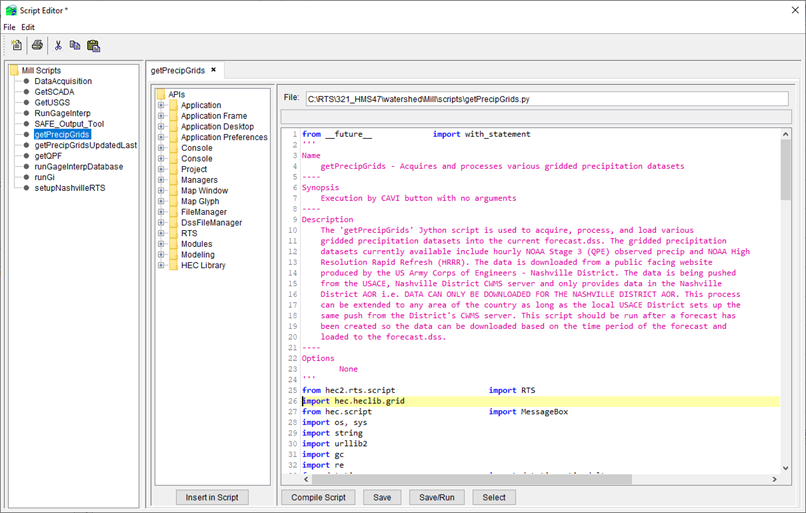
- An example of a single import: from hec.script import MessageBox
- An example of multiple imports: from hec.script import MessageBox, HecDSS
- If you are using wildcard imports (e.g., from hec.script import *), ensure the class you found in the JavaDocs actually resides within that package. If not, add a specific import line for the missing class.
- Click Save and Run to execute the script.
Step 4: Refine as Needed
If the error persists, you may have found a class shared by multiple packages. Use trial and error with the paths found in the JavaDocs until the script runs successfully.