- To compute a specific scenario, from the Study Tree, right-click on the scenario and select Compute Scenario. For example, to view the target threshold value, from the Study Tree, right-click on the without project scenario (for the correct analysis year), and select Compute Scenario. The Compute Log opens to display the compute progress.

Alternatively, users can compute multiple scenarios at once by right-clicking on Scenarios from the Study Tree and selecting Compute Scenarios. A dialog opens that provides checkboxes to select specific scenarios to compute, or use the Select All option to compute all the scenarios at once.


- Once the compute is complete, click Yes to view the results.
- Select the type of report - Expected Annual Damage or Project Performance, and select result of interest. For example, to identify the target stage for a with-project scenario, select the appropriate impact area, and the Performance outcomes. Note that the calculated Threshold value is displayed for the selected impact area.
- Then, return to the Scenario dialog and enter the identified threshold stage for the corresponding impact area.
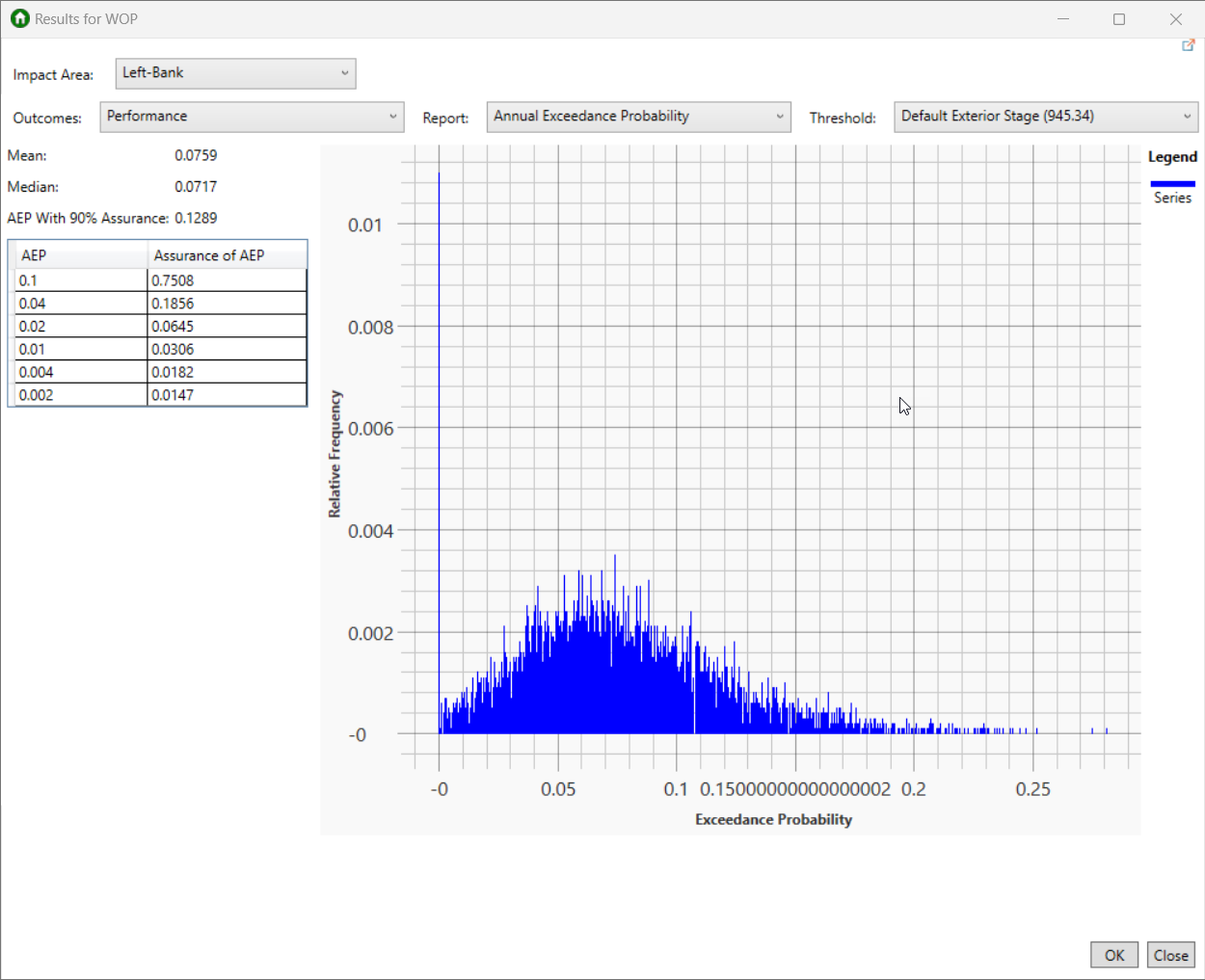
See Scenario Results for more information.