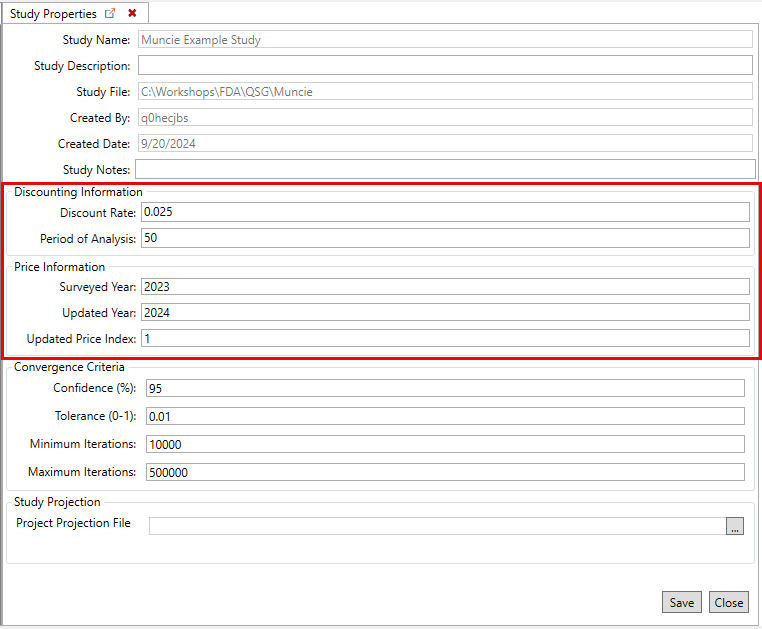
First, set the study properties, including the discount rate and period of analysis. Open the Study Propertiestab from theFilemenu.
Enter the discount rate and period of analysis from the Properties dialog. Click Save and Close to close the dialog and set the discount rate and period of analysis.
Please note that the discount rate should be in decimal form, not percentage.
Next, from the StudyTree, right-click on Alternatives and select Create NewAlternative.
Give the alternative a useful name (e.g., Without Project) and description.
From the Base Year Scenario, select the appropriate created scenario (e.g., WOP_Base) and enter the correct base year (e.g., 2024).
From the Future Year Scenario, select the appropriate corresponding future year scenario (e.g., WOP_Future) and enter the correct future year (e.g., 2054).
Note: you must be sure that the period of analysis in the Study Properties is consistent with the base and future years you select.
Click, Save and Close.
Either compute and view the alternative results, or continue creating additional project alternatives and view the summary results.
To view the results for a specific alternative, from the Study Tree, right-click on the alternative and select View Results to compute.
From the Alternative Results dialog, select the desired Report from the list which includes: Damage with Uncertainty, Damage by Impact Area, or Damage by Damage Category.
Alternatively, compute and view the results summary table. To view the summary results, from the StudyTree, right-click on Alternatives and select View Alternative Summary Results.
From the View Alternative Results dialog, select desired alternatives to include in the summary results, or click Select All and include all alternatives. Click View to open the summary results.