The Operations Support Interface (OSI) allows you to quickly edit reservoir releases and recompute the HEC-ResSim model when running a forecast in HEC-RTS. Each alternative in HEC-RTS stores its OSI configuration separately, and currently, the OSI does not provide a built-in option to copy configurations between alternatives.
This guide walks you through how to manually copy the OSI configuration from one alternative to another, assuming:
- You have completed the OSI configuration for one alternative.
- The other alternative(s) use the same network and currently DO NOT have the OSI configured.
You'll need a text editor for this process. The examples here use Notepad++, but any text editor will work.
Step 1: Copy the Configuration from the Source Alternative
- Close any open HEC-RTS watersheds before proceeding.
- Navigate to the rss folder inside your watershed directory.
- Locate the .ralt file for the source alternative (the one that already has OSI configured) and open this file using a text editor.
- For example, if the source alternative is called NormalOps, open NormalOps.ralt.
- Scroll through the file and locate the block that begins with the line: PlugIn:Operation Support. This marks the start of the OSI configuration.
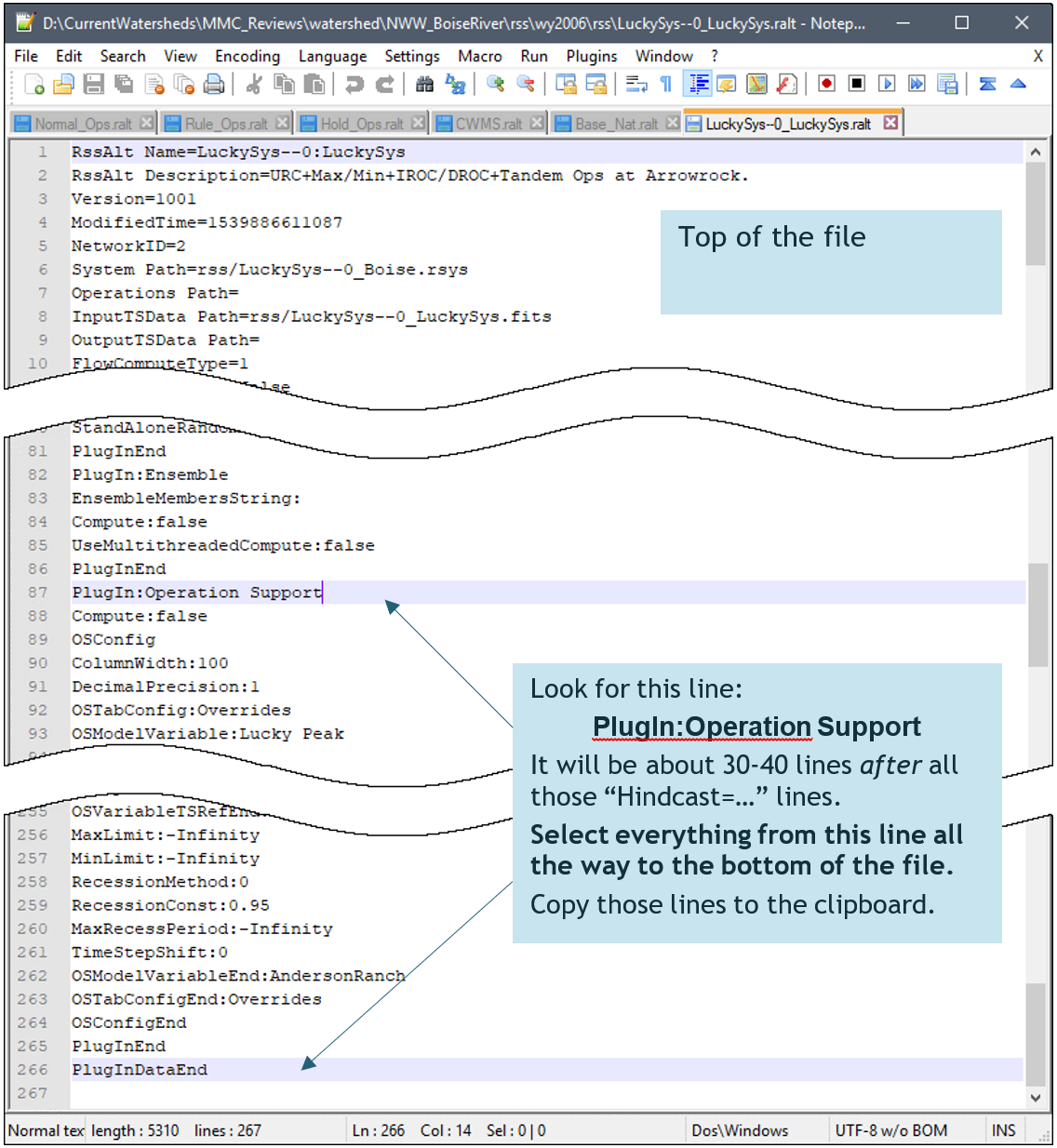
- Select and copy the entire OSI configuration block (from PlugIn:Operation Support to the end of the file).
Step 2: Paste the Configuration into the Target Alternative
- Open the .ralt file for the target alternative (the one you want to configure).
- For example, if the target alternative is named ByTheBook, open ByTheBook.ralt.
- Paste the copied lines at the end of the file.
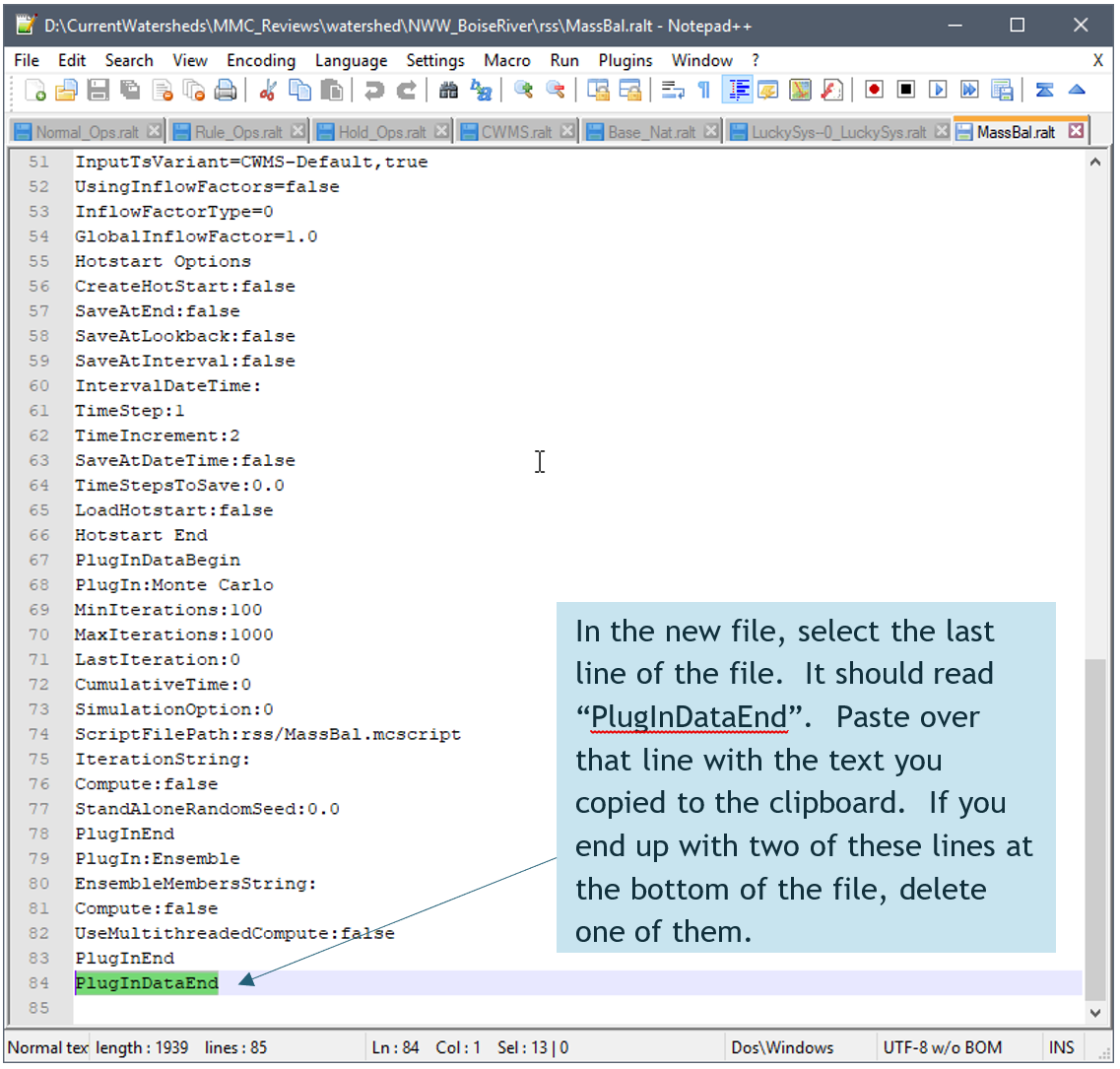
- Save the file.
- Repeat these steps for any other target alternatives in your watershed.
Step 3: Verify the Changes
- Launch HEC-RTS and open your watershed.
- In the Modeling tab, create a new forecast using the target alternative you just updated.
- Compute the forecast.
- Open the OSI and confirm that the configuration was updated and functioning as expected.