Download PDF
Download page FY24 HEC-FDA Workshop 5.
FY24 HEC-FDA Workshop 5
Levee Assessment Workshop
Last Modified: 2025-01-16 15:55:06.871
Objective
Using the HEC-FDA Version 2.0 software for Workshop (in-person 75 min) – In this hands-on workshop participants use their previously generated HEC-FDA study files to evaluate the economic feasibility and project performance of various levee alternatives. Participants recommend the “best" alternative.
Downloadable Workshop Materials

Software Version
HEC-FDA pre-release Version 2.0 will be used during the 2024 PROSPECT #209 course. (Note: the HEC-FDA Version 2.0 software is available here: FY24 Download HEC-FDA Version 2.0 Portable Package).

Note: To follow along with the instructions provided in this workshop
Unless you've already downloaded the HEC-FDA software, the Example Study Data (zipped folder contains all data needed for all HEC-FDA workshops) and the workshop datafiles then please follow the following instructions.
- Download the HEC-FDA Version 2.0 software by following the instructions provided here: FY24 Download HEC-FDA Version 2.0 Portable Package.
- Download and save the Workshop Datafiles to the specified path. (Note: the Example Study Data is the same data used for all HEC-FDA workshops, so you only need to download it once).
Download Zipped Workshop Datafiles:
- Review the FY24 HEC-FDA Example Study Data to familiarize yourself with the Muncie, Indiana study and download the study data.
- Download and save the FY24 HEC-FDA Example Study Data to the following path on your computer (same data used in all workshops, only download the data once if completing all workshops): C:\Workshops\FDA\data
- Download Initial Zipped Workshop: Muncie_WS5_Start.zip
- Save and unzip the starting workshop to the following path on your computer (and unzip the data): C:\Workshops\FDA\startingWS
- Download Solution Zipped Workshop: Muncie_WS5_Solution_4Levees.zip
Workshop Overview
The purpose of this workshop is for students to be able to:
- Evaluate two levee plans (aka. scenarios) for an impact area during analysis of the without-project condition.
- Formulate and evaluate alternative levee sizes for the impact area.
- Compute and review results for the base year and most likely future year
- Specify a recommended levee plan based on the economic and hydraulic performance formulation/evaluation results.
- Determine if the recommended plan (scenario) meets present FEMA floodplain levee certification criteria.
At the conclusion of the workshop the student will be able to perform a conventional levee analysis as required by present USACE guidance and ascertain if the recommended plan, if any, meets Federal Emergency Management Agency (FEMA) criteria for levee certification.
Introduction
The study configuration for the without-project conditions, base year and most likely future, have been defined in previous workshops. The starting workshop project file was created as a starting point for you to build and test two levees, for the base year and most likely future. The Data Description section provides details on the data entered for you and the data you are required to enter and compute during this workshop.
Data Description
To save time and provide a starting point for you to build upon a Workshop 5 HEC-FDA Version 2.0 starting project has been created for you with previously defined data (review the Previously Defined Data section for details). You will need to complete the workshop by entering the data for two levees and with-project conditions (as identified in the New Data section) for the base year.
Previously Defined Data
Study data that has been entered for you in the starting HEC-FDA project is listed in Table 1.
| Study Data | Name | Description |
|---|---|---|
| Terrain | Muncie Terrain | The Muncie terrain is the same file used the the hydraulic engineers in modeling the existing condition hydraulics. |
| Impact Areas Set | Muncie Impact Areas | Impact Area Set containing two impact areas (Left-Bank and Right-Bank) |
| Hydraulics | Existing Conditions | Existing Condition Steady HDF. The hydraulic modeling was developed in steady-state condition. The native output files have been provided for use within HEC-FDA. |
| Frequency Functions | Existing Condition LP3s | Flow-Frequency LPIII distribution for a period of record (Record Length) of 48 years |
| Stage Transform Functions | Existing Condition Relationship | This stage-discharge function represents the relationship between stage and discharge for the without-project condition. |
Economics > Occupancy Types | NSI_OccTypes | The Muncie occupancy types are the typical occupancy types referenced in the National Structure Inventory |
Economics > Structure Inventories |
|
|
Economics > Stage-Damage Functions |
|
|
Scenarios |
|
|
Alternatives |
|
|
New Data
New data must be added to the starting project so that you can perform a conventional levee analysis as required by present USACE guidance and ascertain if the recommended plan, if any, meets FEMA criteria for levee certification. Data that you will enter for Workshop 5 is listed in Table 2.
| Study Data | Name | Description |
|---|---|---|
| Stage Transform Functions | With-Project Relationship | The stage-discharge function below represents the with-project condition. Observe that some stages are higher for a given discharge. |
| Lateral Structures |
|
|
Scenarios | Base Year
Future Year
| Base Year
Future Year
|
Alternatives |
|
|
Alternative Comparison Report | Muncie Levee Comparison | alternative comparison report to provide damage reduced between the without-project condition and with-project conditions |
Instructions
Task 1 – Download the HEC-FDA Software, Study Data and Starting Workshop Project
If you've already completed these steps to download the software workshop data, and starting workshop file completed the following steps. If you have the required files, then move on to Task 2.
- Download the HEC-FDA Software (as described in the Downloadable Workshop Materials section of this page).
- Download and save the HEC-FDA Example Study Data to the following path on your computer (same data used in all workshops, only download the data once if completing all workshops): C:\Workshops\FDA\data
- If you haven't already downloaded the starting workshop file, do so now. All software and datafiles are listed in the Downloadable Workshop Materials section of this page. Download and save the starting workshop file to the following path on your computer: C:\Workshops\FDA\startingWS.
Task 2 – Open the Starting Workshop 5 Project
- Open the HEC-FDA Version 2.0 software.
- From the File menu, click Open. The Open Study dialog opens as a tab.
- Click the ellipse button in the Study Path box to open the Select File browser window.
- Navigate to the Workshop 5 starting project (e.g., C:\Workshops\FDA\startingWS\Workshop5_Start), select the *.sqlite HEC-FDA file and click Open.
- From the Open Study tab, click OK.
Note which project elements have been entered for you in the starting workshop file. Review the Previously Defined Data section for an overview of the data entered for you. Note from the New Data section, the data you will need to enter yourself to complete the workshop.
Task 3 – Enter Stage-Discharge Functions for With-project Conditions
Steps
- From the Study Tree, right-click on Stage-Discharge Functions and select Create New Stage-Discharge Relationship. The Create New Stage-Discharge Relationship opens as a tab.
Enter a name for the relationship in the Name box (e.g., With-Project Relationship), and enter a description for the relationship (e.g., The stage-discharge function below represents the with-project condition. Observe that some stages are higher for a given discharge.).
For Distribution Type, select Triangular and use the information in Table 3 to create the new stage-discharge relationships for the with-project condition.
Table 3{"name":"Stage-Discharge_Function_With-Project.xlsx","page":"FY24 All HEC-FDA 2.0 Workshop Files","type":"xlsx","pageID":"173934355"}Loading
- Click Save.
Task 4 – Enter the Two Lateral Structures
For each levee, follow the instructions below to create two new lateral structures.
From the Study Tree, right-click on Lateral Structures and select, Create New Lateral Structure. The Create New Lateral Structure dialog opens as a tab. Enter the appropriate levee system name, description, top of levee elevation, and system response curve, and Save each levee.
- Use the Create New Lateral Structure dialog to add the following two levees:
- Name: Levee_1; Description: With-project scenario for proposed levee 1 for the left-bank with a top elevation of 946 feet.
- Top of Levee Elevation: 946
- System Response Curve: User Defined
- Distribution Type: DeterministicLevee 1{"col":"B","name":"WS5_Levee_ProbabilityOfFailure_FY24.xlsx","sheet":"WS5_Levee1","page":"FY24 All HEC-FDA 2.0 Workshop Files","row":"10","type":"xlsx","pageID":"173934355"}
Loading
- Click Save to add Levee_1 to the project's Study Tree.
- Name: Levee_2; Description: With-project scenario for proposed levee 2 for the left-bank with a top elevation of 948 feet.
- Top of Levee Elevation: 948
- System Response Curve: User Defined
- Distribution Type: DeterministicLevee 2{"col":"B","name":"WS5_Levee_ProbabilityOfFailure_FY24.xlsx","sheet":"WS5_Levee2","page":"FY24 All HEC-FDA 2.0 Workshop Files","row":"10","type":"xlsx","pageID":"173934355"}
Loading
- Click Save to add Levee_2 to your project's Study Tree.
- Name: Levee_1; Description: With-project scenario for proposed levee 1 for the left-bank with a top elevation of 946 feet.
Task 4 (A) – Create Base Year Scenarios for the Two Proposed Levees
The Without Base Year and Without Future Year scenarios have been created for you, but now you need to create two new scenarios for the base year, one for each levee. Table 4 provides an overview table of the two new base year levee scenarios.
| Scenario | Year | Impact Area | Stage-Damage | Frequency Relationship | Stage-Discharge | Lateral Structure | Threshold Stage |
|---|---|---|---|---|---|---|---|
| Levee1_Base | 2024 | Left-Bank | Existing Stage-Damage | Existing Condition LP3s | With-Project Relationship | Levee_1 | (set by selected lateral structure) |
| Right-Bank | Existing Stage-Damage | Existing Condition LP3s | With-Project Relationship | 945.22 | |||
| Levee2_Base | 2024 | Left-Bank | Existing Stage-Damage | Existing Condition LP3s | With-Project Relationship | Levee_2 | (set by selected lateral structure) |
| Right-Bank | Existing Stage-Damage | Existing Condition LP3s | With-Project Relationship | 945.22 |
Create With-Project Levee 1 Base Year Scenario
- From the Study Tree, right-click on Scenarios and select Create New Scenario. The Create New Scenario dialog opens as a tab.
- Enter a name for the new scenario in the Name box (e.g., Levee1_Base), and enter a description (e.g., Base year with-project scenario for proposed levee 1 for the left-bank with a top elevation of 946 feet.).
- Enter the Year: 2024
- From the Impact Area list select: Left-Bank, and from the Stage-Damage list select: Existing Stage Damage.
- Recall that the left-bank impact area contains the proposed levee, so you need to select the appropriate levee created in Task 4. Also, this is a with-project condition so select the appropriate stage-discharge function that you created in Task 3.
Select the following for the Left-Bank impact area:

- From the Impact Area list select: Right-Bank (Stage-Damage function selection can stay to Existing Stage Damage previously selected).
- The right-bank impact area does not contain the levee; therefore, do not add a lateral structure. However, the right-bank still requires the with-project condition stage-discharge function imported in Task 3.
Select the following for the Right-Bank impact area:

The default Damage Category selection is RES and Asset Category selection is Structure. Click Preview Compute.
- Click Save, and click Close.
Create With-Project Levee 2 Base Year Scenario
- From the Study Tree, right-click on Scenarios and select Create New Scenario. The Create New Scenario dialog opens as a tab.
- Enter a name for the new scenario in the Name box (e.g., Levee2_Base), and enter a description (e.g., Base year with-project scenario for proposed levee 2 for the left-bank with a top elevation of 948 feet.).
- Enter the Year: 2024
- From the Impact Area list select: Left-Bank, and from the Stage-Damage list select: Existing Stage Damage.
- Recall that the left-bank impact area contains the proposed levee, so you need to select the appropriate levee created in Task 4. Also, this is a with-project condition so select the appropriate stage-discharge function that you created in Task 3.
Select the following for the Left-Bank impact area:

- From the Impact Area list select: Right-Bank (Stage-Damage function selection can stay to Existing Stage Damage previously selected).
- The right-bank impact area does not contain the levee; therefore, do not add a lateral structure. However, the right-bank still requires the with-project condition stage-discharge function imported in Task 3.
Select the following for the Right-Bank impact area:

The default Damage Category selection is RES and Asset Category selection is Structure. Click Preview Compute.
- Click Save, and click Close.
Task 4 (B) – Create Future Year Scenarios for the Two Proposed Levees
Now you need to create two new scenarios one for each of the two levees for the Future Year conditions. Table 5 provides an overview table of the two base year levee scenarios.
| Scenario | Year | Impact Area | Stage-Damage | Frequency Relationship | Stage-Discharge | Lateral Structure | Threshold Stage |
|---|---|---|---|---|---|---|---|
| Levee1_Future | 2054 | Left-Bank | Existing_Future | Existing Condition LP3s | With-Project Relationship | Levee_1 | (set by selected lateral structure) |
| Right-Bank | Existing_Future | Existing Condition LP3s | With-Project Relationship | 945.22 | |||
| Levee2_Future | 2054 | Left-Bank | Existing_Future | Existing Condition LP3s | With-Project Relationship | Levee_2 | (set by selected lateral structure) |
| Right-Bank | Existing_Future | Existing Condition LP3s | With-Project Relationship | 945.22 |
Create With-Project Levee 1 Future Year Scenario
- From the Study Tree, right-click on Scenarios and select Create New Scenario. The Create New Scenario dialog opens as a tab.
- Enter a name for the new scenario in the Name box (e.g., Levee1_Future), and enter a description (e.g., Future year with-project scenario for proposed levee 1 for the left-bank with a top elevation of 946 feet.).
- For Levee 1, future year scenario use Table 5 to define the user-inputs for the both impact areas. Click Save and Close.
Threshold Stage (Right-Bank)
Turning on the Calculate Default Threshold option will set the threshold to the stage at which the impact area realizes 5% damage in the 1% annual chance exceedance event without-project condition. In order for all performance results to be comparable, they need to use the same threshold stage in both the base year and the future year. This means the threshold calculated for the base year needs to be manually entered into the future year. Here, that threshold stage is the "Target Stage" (or project performance threshold value) calculated for the Without Base Year scenario, for the right-bank impact area. To view the Threshold Value, right-click on Scenarios, and click View Summary Results. From the Summary Results tab, view the Performance Parameters, Threshold Values for the Right-Bank impact area (displayed in the bottom two tables).
Create With-Project Levee 2 Future Year Scenario
- From the Study Tree, right-click on Scenarios and select Create New Scenario. The Create New Scenario dialog opens as a tab.
- Enter a name for the new scenario in the Name box (e.g., Levee2_Future), and enter a description (e.g., Future year with-project scenario for proposed levee 2 for the left-bank with a top elevation of 948 feet.).
- For Levee 2, future year scenario use Table 5 to define the user-inputs for the both impact areas. Click Save and Close.
Task 5 – Compute All Scenarios
Compute all 6 scenarios:
- From the Study Tree, right-click on Scenarios and click Compute Scenarios.
- From the Compute Scenarios tab, click the checkbox to select the four new scenarios, and then click Compute. A message box opens asking if you'd like to view the results. Click Yes.
- The Summary Results tab opens. Close the Compute Log tab.
Task 6 – Create and Compute Two Alternatives for the Two Levees
Create and Compute Levee 1 Alternative
- From the Study Tree, right-click on Alternative and select Create New Alternative. The Create New Alternative dialog opens as a tab.
Enter a name for the new alternative in the Name box (e.g., Levee_1), and enter a description (e.g., Levee 1 with-project conditions for the Base Year and Most Likely Future Year).
- From the Base Year Scenario box, select the Levee1_Base scenario you created in Task 4. From the Year box, enter: 2024.
- From the Future Year Scenario box, select the Levee1_Future scenario you created in Task 4. From the Year box, enter 2054.
- Click Save. Click Close.
From the Study Tree, right-click on the created alternative, and click View Results. Close the Compute Log.

Create and Compute Levee 2 Alternative
- From the Study Tree, right-click on Alternative and select Create New Alternative. The Create New Alternative dialog opens as a tab.
- Enter a name for the new alternative in the Name box (e.g., Levee_2), and enter a description (e.g., Levee 2 with-project conditions for the Base Year and Most Likely Future Year).
- From the Base Year Scenario box, select the Levee2_Base scenario you created in Task 4. From the Year box, enter: 2024.
- From the Future Year Scenario box, select the Levee2_Future scenario you created in Task 4. From the Year box, enter 2054.
- Click Save. Click Close.
- From the Study Tree, right-click on the created alternative, and click View Results. Close the Compute Log.
Task 7 – Create and Compute Alternative Comparison Report
- From the Study Tree, right-click on Alternative Comparison Report and select Create New Alternative Comparison Report. The Create New Alternative Comparison Report dialog opens as a tab.
- Enter a name for the new alternative comparison report in the Name box (e.g., Muncie Levee Comparison), and enter a description (e.g., alternative comparison report to provide damage reduced between the without-project condition and with-project conditions).
- From the Without Project list select: Without-Project Existing Conditions.
- From the With Project list select: Levee_1.
- Click Add Comparison. From the newly added With Project list select: Levee_2.
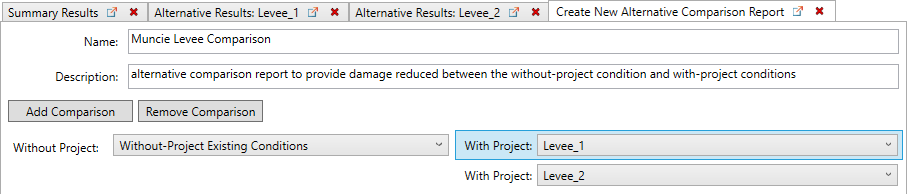
- Click Save. Click Close. The new comparison report is added to the Study Tree.
- From the Study Tree, right-click on the created Muncie Levee Comparison, and click View Results. Close the Compute Log.
Workshop Discussion Questions
Project Performance
Review the Project Performance reports to answer the following questions.
Test Your Knowledge - Question 1
Pursuant to ECB 2019-11 (hold Ctrl while clicking to open in another tab), do any of the levee plans meet FEMA’s criteria for NFIP levee accreditation?
You will have to identify the computed assurance of the 1% AEP event using the Annual Exceedance Probability report under Performance outcomes for both levees. The following ranges of assurance determine the accreditation recommendation:
Assurance for the 1% AEP | Recommendation |
|---|---|
Assurance < 65% | Do not accredit |
Assurance > 85% | Accredit |
65% ≤ Assurance ≤ 85% | More evidence is needed to accredit |
Test Your Knowledge - Question 2
Nonfederal sponsors and members of the vertical team are often interested in knowing what a levee's level of risk reduction is in terms of return interval years (e.g., A team with a levee providing 1% annual chance flood risk reduction could say "This is a 100-year levee"). If the criteria for this statement is having 90% assurance that the event would not exceed the levee height, what statement could be said about Levee 2?
Test Your Knowledge - Question 3
What is the probability that Levee 2 will experience overtopping in the next 30 years?
Hint: Look for the Long-Term Exceedance Probability in the Levee2_Base Scenario results.
Evaluation Results
Test Your Knowledge - Question 4
What is the incremental inundation damage reduced between the two levee plans for the base year condition 2024?
Hint: Look at how damage reduced changes as levee heights increase.
Test Your Knowledge - Question 5
Without regard to cost, what can be said about constructing the increment of levee from five feet to 7.5 feet, and the next increment from 7.5 feet to ten feet? Considering typical cost per foot of levee height, how would the costs typically affect the net benefits?
Hint: Think benefits, and then net benefits.
Test Your Knowledge - Question 6
What is the fifty percent exceedance probability average annual equivalent (AAEQ) damage reduced value for Levee_1?
Hint: Take a look at the Alternative Comparison Report results tables.
Test Your Knowledge - Question 7
Is it always correct to assume that the without-project conditions and with-project conditions stage-discharge (rating) function is the same for a levee project? Why? How would you account for a difference using HEC-FDA.
Hint: For a flood-level volume of water, if the water cannot spread out into the floodplain, what does it do?
Test Your Knowledge - Question 8
Using an alternative comparison report, complete the following table and answer the following questions.
| Average Annual Equivalent Damage | |||||
Alternatives | Total W/O Project | Total With Project | Damages Reduced | Annual Project Cost | Annual Net Benefits |
|---|---|---|---|---|---|
Without-Project Existing Conditions | $0.00 | ||||
Levee_1 | $200,000 | ||||
Levee_2 | $1,350,000 | ||||
Hint: Find the Alternative Comparison Report results, average annual equivalent (AAEQ) damage summary report.
Test Your Knowledge - Question 9
Based on only the analysis of the base condition year of inundation reduction benefits, which levee plan would be identified as the National Economic Development (NED) plan?
Hint: What is the federal objective?
Test Your Knowledge - Question 10
What other factors should be considered in selecting a levee plan?
Hint: What are the 4 accounts?
Conclusion
That's it! Download the solution project (provided at the top of this page) and review the best answers to test your FDA knowledge questions and compare with yours to see how you did! You can close the HEC-FDA software when you are finished reviewing the project (click the red X at the top right to close the software).
Best Answers to Test Your FDA Knowledge Questions
Note: Your results may not exactly match the results shown here. That's a product of variation in the software since this workshop was created and does not indicate that you did something wrong. Your results should follow the same trends and the values should be somewhat close to the ones shown below.
Pursuant to ECB 2019-11 (hold Ctrl while clicking to open in another tab), do any of the levee plans meet FEMA’s criteria for NFIP levee accreditation?
You will have to identify the computed assurance of the 1% AEP event using the Annual Exceedance Probability report under Performance outcomes for both levees. The following ranges of assurance determine the accreditation recommendation:
Assurance for the 1% AEP | Recommendation |
|---|---|
Assurance < 65% | Do not accredit |
Assurance > 85% | Accredit |
65% ≤ Assurance ≤ 85% | More evidence is needed to accredit |
Answer: No. For both Levee 1 and Levee 2, there is 0% assurance that a 0.01 AEP event won't exceed the levee thresholds.

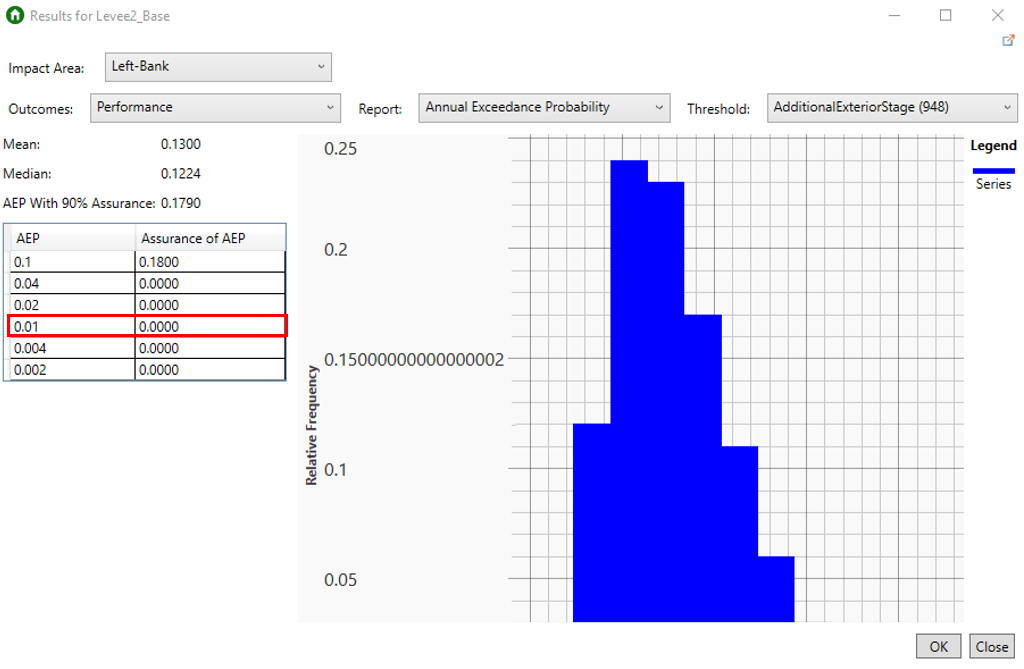
Nonfederal sponsors and members of the vertical team are often interested in knowing what a levee's level of risk reduction is in terms of return interval years (e.g., A team with a levee providing 1% annual chance flood risk reduction could say "This is a 100-year levee"). If the criteria for this statement is having 90% assurance that the event would not exceed the levee height, what statement could be said about Levee 2?
Answer: "Levee 2 is a 5-year levee."
The annual exceedance probability (AEP) with 90% assurance has been computed as 0.1790. Translated to a return interval year, 0.1790 is a 5.6-year event (1/0.1790=5.58). Another way to say this is "we have 90% assurance that a 5-year event will not exceed the levee threshold". This method of communication is considered outdated and not compliant with current policy, but is important to know how to compute.
The policy-compliant simplified communication (per paragraph 8j(5) of ER 1105-2-101) would be : “Given irreducible uncertainties inherent in flood frequency analysis, the Levee 2 Plan will pass the 17% event with 90% assurance.”

What is the probability that Levee 2 will experience overtopping in the next 30 years?
Hint: Look for the Long-Term Exceedance Probability in the Levee2_Base Scenario results.
Answer: 0.9847 or 98.47%

It is often important to be able to provide an analysis of the incremental benefits and costs of different measures to prove efficiency or optimization has been reached. Assuming the only difference between Levee1 and Levee 2 is the height of the levee, they can be considered different increments of the same measure. What is the monetary incremental benefit between Levee 1 and Levee 2?
Answer: $325,923. This is the monetary benefit of buying up from Levee 1 with a top of levee elevation of 946 to Levee 2 with a top of levee elevation of 948.

Without regard to cost, what can be said about constructing the increment of levee from 946 feet to 948 feet? Considering typical cost per foot of levee height, how would the costs typically affect the net benefits?
Answer: Benefits increase but at some point the rate of increase of the benefits decreases while the rate increase of the cost increases.
What is the fifty percent exceedance probability average annual equivalent (AAEQ) damage reduced value for Levee 1?
Hint: Take a look at the Alternative Comparison Report results tables.
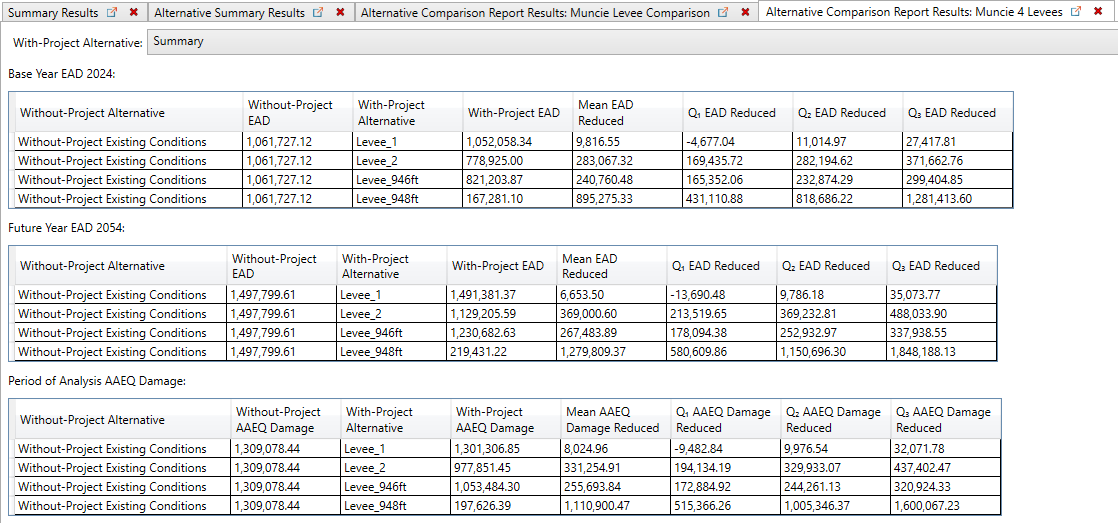
Answer: $9,976
Is it always correct to assume that the without-project conditions and with-project conditions stage-discharge (rating) function is the same for a levee project? Why? How would you account for a difference using HEC-FDA.
Answer: No, it is not always correct to assume that the without-project stage-discharge (rating) function will be the same as the with-project stage-discharge (rating) function for a levee feature. If the levee feature greatly confines the flood flows, a higher stage will be realized and therefore to more accurately evaluate the “correct” levee height, one must change the stage-discharge (rating) curve. If a levee system is significant, it may also affect the discharge-exceedance probability function by reducing natural storage, decreasing the roughness, and shortening the travel time. This effect is normally most noticeable immediately downstream of the project.
Using the same report, complete the following table and answer the following questions.
| Average Annual Equivalent Damage | |||||
Alternatives | Total W/O Project | Total With Project | Mean Damages Reduced | Annual Project Cost | Annual Net Benefits |
|---|---|---|---|---|---|
Without-Project Existing Conditions | $1,309,078 | $1,309,078 | 0 | $0.00 | 0 |
Levee 1 | $1,309,078 | $1,301,306 | $8,024 | $200,000 | -$191,976 |
Levee 2 | $1,309,078 | $977,851 | $331,254 | $275,000 | $56,254 |
Based on only the analysis of the base condition year of inundation reduction benefits, which levee plan would be identified as the National Economic Development (NED) plan?
Answer: Levee 2
What other factors should be considered in selecting a levee plan?
Answer: The values represent only the inundation damage reduced for the base year. While normally a good indicator of the project justification, other factors such as future conditions, other primary and secondary benefits, and social and environmental impacts must also be considered in the analysis and evaluation process. For levees especially, residual risk should play an important role in selecting a final levee height. The issue is not if the capacity of the levee will be exceeded, but when. Due consideration should be given to the conditions that will exist when the capacity is exceeded. These include: identifying the population at risk, what is the warning time, the velocities and depth of flooding, what are the escape routes, etc.?