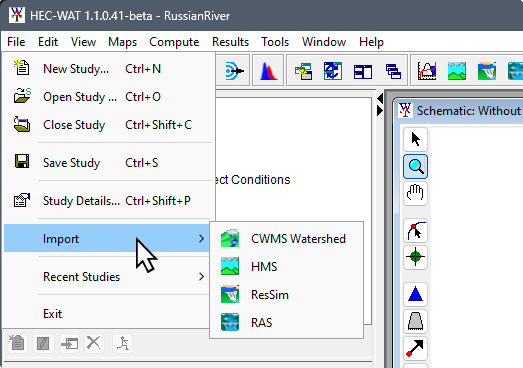
From the HEC-WAT main window, from the File menu, point to Import, and click HMS.
The HEC-HMS application will open with the Select Project File browser already open.
Browse to the folder RR_Models; double-click on the RR_HMS_Model folder, select Russian_River.hms and, then click Select.
Creating an HEC-WAT study automatically creates an hms subfolder which contains default files that are generated when an HEC-HMS project is created. Therefore, when the HEC-HMS import process finds that a project already exists, a warning window opens. Click Yes, to close the warning message and import the selected HEC-HMS model to replace the existing default HMS project.
The import process begins (please be patient – this could take a few seconds), the import is finished when the study pane in the HEC-HMS main window contains a study tree. From the HEC-HMS main window, from the File menu, click Exit.
The user has now completed the import of the RussianRiver HEC-HMS model.