HEC-WAT allows for a flexible set of programs, computation order, and data flow through the establishment of a program order.

Once a program order has been chosen for an HEC-WAT simulation, changes should not be made to the program order as this could cause a disruption in the flow of data and invalidate any existing work. For further details on Program Order, review Program Order of the HEC-WAT User's Manual.

If a program order needs to be changed after it is used by a simulation, we recommend creating a new program order and changing the simulation to use the new program order.

To create a program order:

  1. From the HEC-WAT main window, from the WAT Tools toolbar, click the Program Order Editor button.
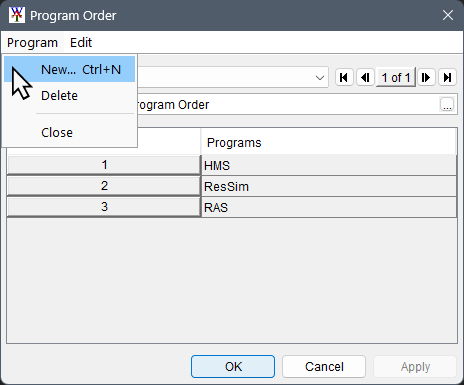
  2. From the Program Order dialog box, from the Program menu, click New

    Program Order Dialog - Program Menu - Commands


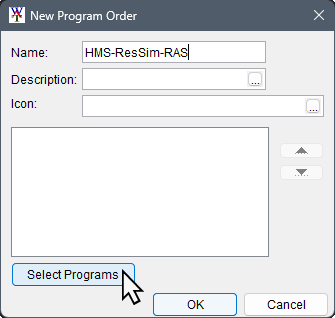
  3. The New Program Order dialog box opens.

    New Program Order Dialog


  4. Enter a name for the program order in the Name box (e.g., HMS-ResSim-RAS). Description and Icon are optional.
  5. Click Select Programs to open the Selection Editor. Select the software applications that are required for the program order from the Available list.

    Selection Editor Dialog


  6. Double-click a program in the Available box, or select an available program and click Add, and the name of the selected software applications is added to the Selected list. 

    The order that items are added in this step will define the compute sequence; if adjustments are desired, programs can be reordered in the New Program Order dialog after selection. To have a program appear in the program order more than once, it must be added to the program order in this step as many times as desired.

  7. Once all the software applications have been selected (HMS, ResSim and then RAS), click OK to close the Selection Editor.
  8. The New Program Order dialog box now displays the names of the selected software applications. Click OK to close the New Program Order dialog box.
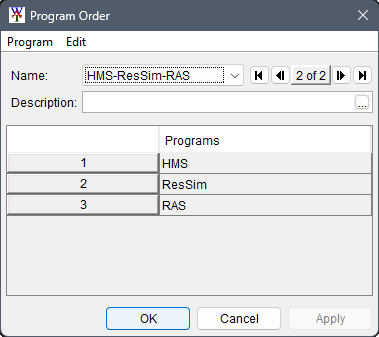
  9. The Program Order dialog box Name list now contains the name of the new program order and the table displays the sequence for the selected software applications. The created program order (e.g., HMS-ResSim-RAScan now be selected by simulations.

    Program Order Editor - Example for HMS-ResSim-RAS


  10. Click OK to close the Program Order dialog.