Download PDF
Download page Create an HEC-WAT Study from Existing Models.
Create an HEC-WAT Study from Existing Models
Downloads
| Software | 
HEC-WAT Version 1.1.0 was used to develop this guide. If you haven't done this already, please review the Download and Install HEC-WAT page to download, install, open and configure the HEC-WAT. |
|---|---|
| Example Watershed Data | The Russian River watershed is the example WAT watershed used in the HEC-WAT Version 1.1 quick start guide. Please review the Example Watershed page for an overview of the study watershed. Zipped dataset required for this guide: RussianRiver_Maps.7z and RR_Models.7z |
This quick start guide provides instructions for creating an HEC-WAT study from scratch using existing HEC-ResSim, HEC-HMS, and HEC-RAS models.If you want a guide for creating an HEC-WAT study from scratch and building the schematic for the default alternative, please review the Create an HEC-WAT Study from Scratch page.
Create an HEC-WAT Study
To create a new study:
From the HEC-WAT main window, from the File menu, click New Study.

- The Create New Study dialog opens. In the Study Name box, enter a name (e.g., RussianRiver), and in the Description box, enter a description for the new study.

- In the Directory box, either enter the name of the directory where to store the HEC-WAT study, or click
 , and an Open browser window opens. Navigate to the directory to store the HEC-WAT study, click Open. The Open browser closes and the Directory box updates with the path to the selected folder.
- The Unit System for the study defaults to English (which is correct for the RussianRiver study). The other choice from the list is SI (metric).
- Next, the projected coordinate system of the study needs to be set. From the Create New Study dialog, click Edit (by the Coordinate System box), the Map Coordinate Information dialog opens.

- For the RussianRiver study the associated map layers have the correct projected coordinate system. So, one of those map layers can be used to set the projected coordinate system for the study. From the Map Coordinate Information dialog, click Load from file (lower left corner of dialog); an Open browser window opens.
- The map layers for the RussianRiver study are located in a folder titled RussianRiver_Maps, from that folder, click on RussianSubbasins.prj (any of the map layers will work).
- Click Open and the Map Coordinate Information dialog updates with the information about the projected coordinate system.
- Click OK, the Map Coordinate Information dialog closes. Now in the Create New Study dialog the Coordinate System box contains the name of the projected coordinate system (i.e., USA_Continguous_Albers_Equal_Area_Conic_USGS_version) for the study.
- HEC-WAT creates a default alternative - Without Project Conditions. If the user wants the default alternative to have a different name, several choices are available, including Other which allows the user to manually enter the name for the default alternative. For the RussianRiver study the default alternative is used.
At this point users have the option to add map layers that the PDT team has gathered for defining the study area. This step can be skipped if existing models will be imported which include an HEC-ResSim model with the stream alignment, all of the common computation points (CCPs), and the reservoirs necessary to model the study area. Otherwise, when building a study from scratch it is useful to add map layers when the study is created. To continue and create the study without adding map layers, click OK and the Create New Study dialog closes and the HEC-WAT main window updates.

Import Models
The following sections describe the import process for specific plugins.
Import an HEC-ResSim Model
Import Entire ResSim Watershed
If there is an HEC-ResSim model available, the user should import that model first.
Why?
Because the HEC-ResSim model will contain a stream alignment, all of the common computation points (CCPs), and the reservoirs necessary to model the study area.
To import the entire HEC-ResSim watershed for the Russian River:
- From the HEC-WAT main window, from the File menu, point to Import, and click ResSim.
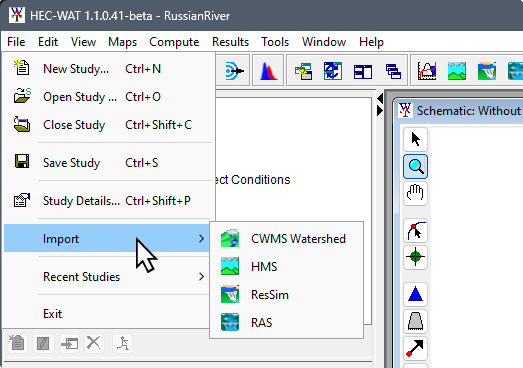
- The Select Watershed File to Import From browser opens. Browse to the folder RR_Models; double-click on the RR_ResSim_Model folder. The Files of Type list should display ResSim Watershed Files; click RR_ResSim_Model.wksp; and, then click Open.

- A ResSim Import window opens showing the progress of the HEC-ResSim import.

- The HEC-WAT Schematic Editor opens. From the Measures area of the Schematic Editor, click Select All. All of the reservoirs listed in the table are now selected. Click OK, the Schematic Editor closes.

- The imported stream alignment, common computation points, reservoirs, and any available map layers from the HEC-ResSim model display in the HEC-WAT Schematic Map Window. For all of the map layers to appear, close the Schematic Map Window, from the message window click Yes. To re-open the Schematic Map Window, from the Study Tree, double-click on Schematic: Without Project Conditions, the Schematic Map Window will appear in the Desktop Area of the HEC-WAT main window.


- The user has now completed the import of the RussianRiver HEC-ResSim model.
Setup ResSim Lookback Information
The time window for an HEC-ResSim simulation has two parts, a "lookback period" and a "simulation or forecast period". The lookback period is used by HEC-ResSim to "warm up" a HEC-ResSim model alternative. During this period, routing of flows through the river and reservoir network are performed but no release decisions are made nor are any mass balance computations evaluated. The user should think of the lookback period as the time to establish the state of the river network and the starting conditions of the reservoirs. The simulation period is the portion of the time window during which HEC-ResSim simulates reservoir operations, and makes release decisions based on the operation scheme defined by the user. Releases are then routed through the river network, combining with local inflows along the way.
Since HEC-WAT and most of the models treat the analysis period as a single, continuous time window, a setup step is required for each HEC-ResSim alternative in an HEC-WAT study. The setup step lets each HEC-ResSim model alternative know how much of the analysis period to use for the lookback period.
To setup the lookback period:
- From the HEC-WAT main window, from the Edit menu, point to ResSim, click Lookback Window.

- The Lookback Window dialog opens. The table in the Lookback Window displays the HEC-ResSim alternatives that are available in the HEC-WAT study. Each alternative that is being used in an HEC-WAT simulation will need to have a lookback window set.

- The time step can be selected from the TimeStep column, in each cell there is a list of available time steps for the user to choose from.
The selected time step has to match the time step that was specified for the HEC-ResSim alternative as part of the alternative's original run control data (which is located in the HEC-ResSim Alternative Editor). The number of lookback steps must be entered in a cell in the Lookback Steps column. At least one lookback time step is required for a HEC-ResSim alternative to compute, however more lookback steps may be needed, depending on a variety of factors in the HEC-ResSim alternative's operating scheme. The HEC-ResSim modeler should be consulted to determine the minimum lookback window needed by each alternative.
- For each ResSim alternative the Russian River example study, (e.g., calibrate), set the TimeStep to 1 Hour and the Lookback Steps to 6.
- Click OK.
- Note: A Missing Lookback Info window will open if any of the ResSim alternatives do not have lookback information entered. (e.g., if C:calibrate and B:calibrate had missing lookback information).
- Click OK and the Missing Lookback Info message window and Lookback Window dialog will both close. If lookback information is not entered, reopen the Lookback Window dialog to enter the missing information.

Import an HEC-HMS Model
Next, import the HEC-HMS Russian River model.
- From the HEC-WAT main window, from the File menu, point to Import, and click HMS.
- The HEC-HMS application will open with the Select Project File browser already open.

- Browse to the folder RR_Models; double-click on the RR_HMS_Model folder, select Russian_River.hms and, then click Select.
- Creating an HEC-WAT study automatically creates an hms subfolder which contains default files that are generated when an HEC-HMS project is created. Therefore, when the HEC-HMS import process finds that a project already exists, a warning window opens. Click Yes, to close the warning message and import the selected HEC-HMS model to replace the existing default HMS project.

- The import process begins (please be patient – this could take a few seconds), the import is finished when the study pane in the HEC-HMS main window contains a study tree. From the HEC-HMS main window, from the File menu, click Exit.
- The user has now completed the import of the RussianRiver HEC-HMS model.
Import an HEC-RAS Model
Next, import the HEC-RAS Russian River model.

Important: The HEC-RAS import does not include copying external files, such as terrain files and HEC-DSS files containing boundary conditions, to the "ras" folder within the HEC-WAT study directory. The user will need to determine how to manage these files, including whether to make them local to the HEC-WAT study directory in order to easily copy the study from one computer to another.
- From the HEC-WAT main window, from the File menu, point to Import, and click RAS.
- The Select RAS project to import from browser window opens. Browse to the folder RR_Models; double-click on the RR_RAS_Model folder, select RussianRiver.prj and, then click Open.

- The Select RAS project to import from browser window closes and an Importing RAS window opens; when the HEC-RAS model import is complete this window will close.

- The user has now completed the import of the RussianRiver HEC-RAS model.
Add Map Layers
Now that the base models are in the watershed let's add some map layers:
- From the HEC-WAT main window, from the Maps menu, click Add Map Layers, the Select Map to Add browser window opens.

- Click Create Copy. Browse to the folder RussianRiver_Maps, select the following map layer:
- Find the map layer which represents the Common Computation Points- RR_CommonComputationPoints.shp. These Common Computation Points represent the locations where models will hand off data during the simulation.
- Click Open, the Select Map to Add browser closes and the HEC-WAT Schematic Map Window will display the added map layer.
- The user can now make adjustments to the map layers. From the HEC-WAT main window, click the Maps tab.

- From the Map Layers tree:
- Right-click on the Stream Alignment layer, from the shortcut menu, click Move to Top.
- Right-click on the Without Project Conditions layer, from the shortcut menu, click Move to Top.
- Un-check the Raingages_Albers_ft.shp map layer (this will cause the map layer to no longer display in the active map window).
- Right-click on the RussianRiverSA.shp map layer, from the shortcut menu, click Properties. The Edit Polygon Properties opens. From the Fill tab, change the color to "darkcyan", and adjust the Transparency. Click Apply to view the changes in the active map window. Click OK to close the Edit Polygon Properties dialog and keep the adjusted map layer properties.

- The user can adjust the view of the study area in the active map window. Using the Zoom Tool,
 zoom the study area in the active map window to the appropriate area that the user would like displayed. From the HEC-WAT main window, from the Maps menu, click Default Map Properties, the Default Map Properties for dialog opens.
 - Click Set Map Extents to Display, click OK to close the Default Map Properties for dialog and set the extents for the Map Window so that when the study is opened the next time the Map Window will be zoomed in to the tighter area.

Create an Analysis Period
An HEC-WAT compute requires an HEC-WAT alternative, an analysis period, a program order, and model alternatives.
To create an analysis period:
- From the HEC-WAT main window, from the Study Tab, from the Study Tree, right-click on the Analysis Periods folder. From the shortcut menu click New.

- The Create New Analysis Periods dialog opens. In the Name box enter a name (RR_Feb1986). In the Time Window box enter the information required for the time window.

For the Start Date and End Date, enter in the format ddmmmyyyy. The Start Time and End Time should be entered as military time - e.g. 0000, 0600, 1300 (1 p.m.), 2400 (midnight).
- Click OK to close the Create New Analysis Periods dialog and create the analysis period. The HEC-WAT main window, will show the new analysis period name in the Study Pane, under the Analysis Periods folder.
Program Order
HEC-WAT allows for a flexible set of programs, computation order, and data flow through the establishment of a program order.

Once a program order has been chosen for an HEC-WAT simulation, changes should not be made to the program order as this could cause a disruption in the flow of data and invalidate any existing work. For further details on Program Order, review Program Order of the HEC-WAT User's Manual.
If a program order needs to be changed after it is used by a simulation, we recommend creating a new program order and changing the simulation to use the new program order.
To create a program order:
- From the HEC-WAT main window, from the WAT Tools toolbar, click the Program Order Editor
 button.
 - From the Program Order dialog box, from the Program menu, click New.
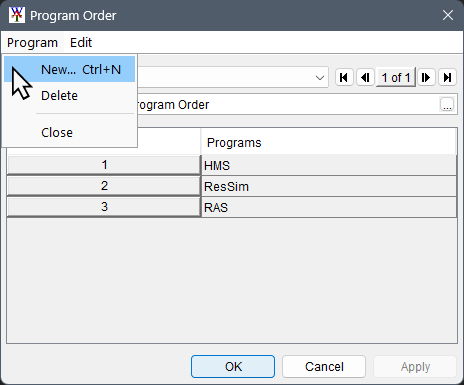
- The New Program Order dialog box opens.
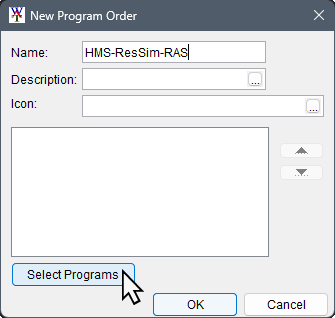
- Enter a name for the program order in the Name box (e.g., HMS-ResSim-RAS). Description and Icon are optional.
- Click Select Programs to open the Selection Editor. Select the software applications that are required for the program order from the Available list.

- Double-click a program in the Available box, or select an available program and click Add, and the name of the selected software applications is added to the Selected list.
The order that items are added in this step will define the compute sequence; if adjustments are desired, programs can be reordered in the New Program Order dialog after selection. To have a program appear in the program order more than once, it must be added to the program order in this step as many times as desired.
- Once all the software applications have been selected (HMS, ResSim and then RAS), click OK to close the Selection Editor.
- The New Program Order dialog box now displays the names of the selected software applications. Click OK to close the New Program Order dialog box.
- The Program Order dialog box Name list now contains the name of the new program order and the table displays the sequence for the selected software applications. The created program order (e.g., HMS-ResSim-RAS) can now be selected by simulations.
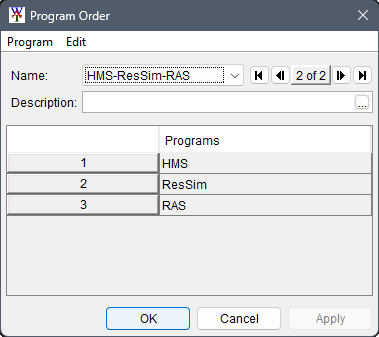
- Click OK to close the Program Order dialog.
Create a Simulation
Now that all of the building blocks have been configured (alternative, analysis period, program order, models), the user can now create an HEC-WAT simulation. To create an HEC-WAT simulation:
- From the HEC-WAT main window, from the WAT Tools toolbar, click the Alternative and Simulation Manager button
 .
. - The Alternative and Simulation Manager opens. From this dialog box the user can create/modify alternatives, analysis periods, simulations, program orders, link models, and make runs.
- To create a simulation, from the table right-click on the intersection of an alternative and analysis period. From the shortcut menu click Create Simulation.

- The Create New Simulation dialog opens.
HEC-WAT has defined a default name for the simulation (Without Project Conditions-RR_Feb1986) in the Name box. The name is a combination of the HEC-WAT alternative name and analysis period name, where the intersection was in the table (name can be changed). Also, in the Alternative and Analysis Period lists the selections have already been made based on the intersection in the table. The selected Alternative cannot be changed, but the selected Analysis Period can be changed.

- Select the program order you created earlier (HMS-ResSim-RAS).
- In the F Part box, the default F Part is displayed that was generated by HEC-WAT based once again on the alternative and analysis period names.
- In the Models table, the software applications that were defined in the program order appear the Programs column in the order defined in the selected program order. Now the user must select the appropriate model alternatives (plan, run) for each software application. From the Alternative column, from the list for HMS, select the appropriate HMS model alternative ((RUN)Feb_1986).
- Repeat the process for the other software applications. Below is the list of the appropriate model alternatives for the RussianRiver study:
- HMS - (RUN)Feb_1986
- ResSim - calibrate
- RAS - Base for Real Time forecasting
- Now that all of the model alternatives have been selected, click OK. T to close the Create New Simulation dialog and return to the Alternative and Simulation Manager. Note that the intersection of an HEC-WAT alternative and analysis period now provides information about the created simulation.

- Click OK to close the Alternative and Simulation Manager and add the created simulation to the Study Tree, under the Simulations folder.

- The Content Pane displays information about the selected simulation.

- From the Study Tree, double-click on the simulation name (Without Project Conditions-RR_Feb1986), a Select Map dialog opens.
- Click New Map Window, and click OK. The Select Map dialog closes and the new map window will contain the schematic elements that represent the simulation.

Model Linking
The next step is to have the models of a simulation communicate with each other. This is accomplished by linking (DSS mapping) the models thru DSS and using a simulation name. From HEC-WAT, the Model Linking Editor provides an easy way to link models including observed data, and provides a mechanism where the linking will have to be done once per alternative.

Open the editor from the HEC-WAT main window. from the WAT Tools toolbar, by clicking the Model Linking Editor button  . The Model Linking Editor opens. From the Simulation list the user will need to select a simulation. For this example the user will be selecting the Without Project Conditions-RR_Feb1986 (default) simulation.
Now let's link the individual model alternatives that are part of the selected simulation as described in the following sections.
Linking the HMS Model Alternative
- From the Model Linking Editor, from the Model to Link list select HMS-(RUN)FEB_1986. The Model Linking Editor table updates to contain all of the locations for the HMS model alternative.

- Since HEC-HMS wants precipitation and flow data that is not provided by another software application, HEC-WAT reads the linking from the HMS model alternative and displays that linking in the Model Linking Editor table.
- The table displays the linking from a DSS file for the HMS model alternative which is the correct linking.
Linking the ResSim Model Alternative
- From the Model Linking Editor, from the Model to Link list select ResSim-calibrate. The Model Linking Editor table updates and displays all of the locations for the ResSim model alternative that need to be linked.

- The current linking that is displayed for the ResSim model alternative is correct, so the linking does not need to be done.
Linking the RAS Model Alternative
- From the Modeling Linking Editor, from the Model to Link list select RAS-Base for Real Time forecasting. The Model Linking Editor table updates and displays all of the locations for the RAS model alternative that need to be linked. The current linking that is displayed is the HEC-RAS linking for the standalone model.

- RAS model alternative linking will be the results from the HMS and ResSim model alternatives.
- There are two locations in the RAS linking that need to be linked to the ResSim model alternative:
- For the Russian CoyoteToDC RS 527387.7 (Lake Mendocino O) row, ResSim-calibrate should be changed from default (Lake Mendocino-Pool - Outflow) to Lake Mendocino Outflow JCT - Flow.
- For the DryCreek DryCreek RS 74716.8 (Sonoma Outflow J) row, ResSim-calibrate should be changed from default (Lake Sonoma-Pool - Outflow) to Lake Sonoma Outflow JCT - Flow.
- There are two locations in the RAS linking that need to be linked to the ResSim model alternative:
- Refer to the printout (RussianRiverLinking.pdf; located in a folder titled RussianRiver_Data) for the linking for each of the model alternatives.

- Once the linking is finished for the RAS model alternative, from the Model Linking Editor click
 , this will save the linking.
 - That completes the linking for the Without Project Conditions-RR_Feb1986 simulation. Close the the Model Linking Editor and return to the HEC-WAT main window.
Compute and Results
Now that a simulation has been defined, the linking of model alternatives has been completed for the simulations, and model alternatives have been imported into HEC-WAT, the user is now ready to compute the Russian River watershed.
- From the HEC-WAT main window, from the Study Tree, from the Simulations folder, right-click Without Project Conditions-RR_Feb1986. From the shortcut menu point to Compute, hold down the Ctrl key, click Simulation.

- The Compute Progress dialog opens; the left side of the dialog displays the models in the simulation based on the program order. The first to compute is the HMS model.
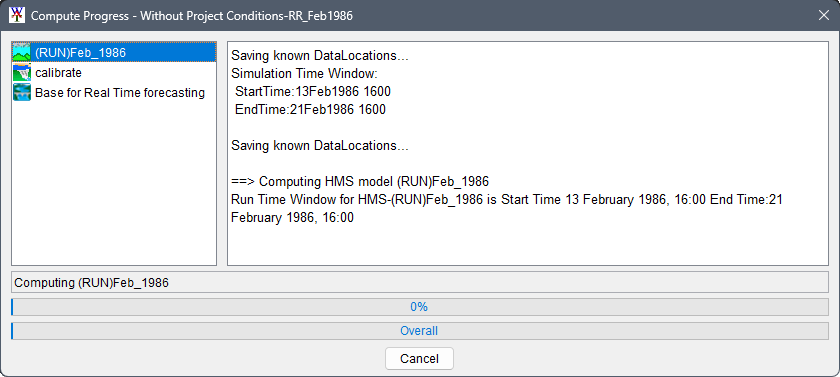
- Next, the ResSim model will compute.

- Finally, the RAS model will compute. If the geometry pre-processor is required to be computed, a dialog box for this or several progress bars may show up on the screen.

- When the compute is finished, click Close, to close both the HEC-RAS Finished Computations dialog and the Compute Progress dialog box will close. The compute for the Russian River study takes about 12 minutes.

For instructions on opening simulation results, access the Reviewing Results page.