Next, import the HEC-RAS Russian River model.

Important: The HEC-RAS import does not include copying external files, such as terrain files and HEC-DSS files containing boundary conditions, to the "ras" folder within the HEC-WAT study directory. The user will need to determine how to manage these files, including whether to make them local to the HEC-WAT study directory in order to easily copy the study from one computer to another.

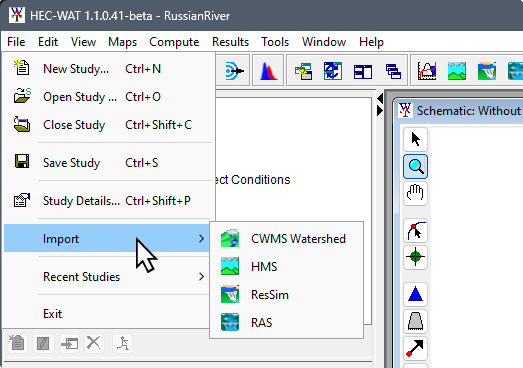
  1. From the HEC-WAT main window, from the File menu, point to Import, and click RAS.

    File Menu - Import Submenu Options


  2. The Select RAS project to import from browser window opens. Browse to the folder RR_Models; double-click on the RR_RAS_Model folder, select RussianRiver.prj and, then click Open

    Select RAS project to import from Browser Window


  3. The Select RAS project to import from browser window closes and an Importing RAS window opens; when the HEC-RAS model import is complete this window will close.

    HEC-RAS Importing Progress Window


  4. The user has now completed the import of the RussianRiver HEC-RAS model.