If there is an HEC-ResSim model available, the user should import that model first.
Why?
Because the HEC-ResSim model will contain a stream alignment, all of the common computation points (CCPs), and the reservoirs necessary to model the study area.
To import the entire HEC-ResSim watershed for the Russian River:
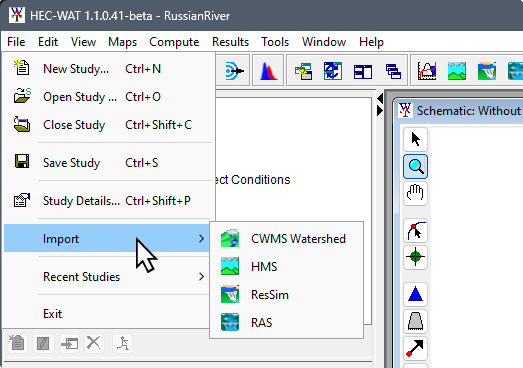
From the HEC-WAT main window, from the File menu, point to Import, and click ResSim.
The Select Watershed File to Import From browser opens. Browse to the folder RR_Models; double-click on the RR_ResSim_Model folder. The Files of Type list should display ResSim Watershed Files; click RR_ResSim_Model.wksp; and, then click Open.
A ResSim Import window opens showing the progress of the HEC-ResSim import.
The HEC-WAT Schematic Editor opens. From the Measures area of the Schematic Editor, click Select All. All of the reservoirs listed in the table are now selected. Click OK, the Schematic Editor closes.
The imported stream alignment, common computation points, reservoirs, and any available map layers from the HEC-ResSim model display in the HEC-WAT Schematic Map Window. For all of the map layers to appear, close the Schematic Map Window, from the message window click Yes. To re-open the Schematic Map Window, from the Study Tree, double-click on Schematic: Without Project Conditions, the Schematic Map Window will appear in the Desktop Area of the HEC-WAT main window.
The user has now completed the import of the RussianRiver HEC-ResSim model.