HEC-HMS Plugin
Details About Plugin That User Should Know
Link to HEC-HMS User's Documentation.
Default HEC-HMS Version: 4.13
Known Issues For Plugin
- HEC-HMS does not work with the Distributed Compute in HEC-WAT. The workaround is to first run HEC-HMS (as of 4.13 has parallel compute in the Uncertainty Analysis) to generate the hydrograph outputs. Then pass the outputs using the Stochastic Data Importer Plugin.
- When HEC‑HMS is the first model in the Program Order of a Deterministic Simulation and HEC‑DSS is used as the file linked to HEC‑HMS, don't use the Model Linking Editor to map DSS Records into a deterministic simulation's HMS model, but instead HMS's native timeseries DSS pathname selector. DSS link is established within the HEC‑HMS project rather than through Model Linking. A future fix will allow the Model Linking Editor to link DSS files to HMS.


HOW TO: Change Plugin Software Version
HEC-HMS will often have new version available and user's may build their projects in later versions than what is currently in HEC-WAT. HEC-WAT 1.1 comes with HEC-HMS version 4.13. Previous version of HEC-HMS cannot open later version of HEC-HMS. To update a software version in HEC-WAT:
- Navigate to HEC-HMS download page: https://www.hec.usace.army.mil/software/hec-hms/downloads.aspx. Under the Windows box, download the Portable Version of HEC-HMS.

- Navigate to the HEC-WAT package. The HEC-WAT package contains an apps folder

- Once the software is downloaded, extract the software and replace the HEC-HMS folder in the apps folders

- Ensure the folder name is titled HEC-HMS
- Open HEC-WAT and check the HEC-HMS project has been properly updated by click on the HEC-HMS icon. The HEC-HMS software should open. Navigate to Help → About HEC-HMS to review the version.

HOW TO: Missing Reference Files
When importing an HEC-HMS project that contains external files that are linked outside of the HEC-HMS project directory, a Missing File Reference table will appear. Before importing an HEC-HMS project to HEC-WAT ensure all external files (HEC-DSS files, *.asc, etc.) are contained within the HEC-HMS project folder (i.e. within the data folder).
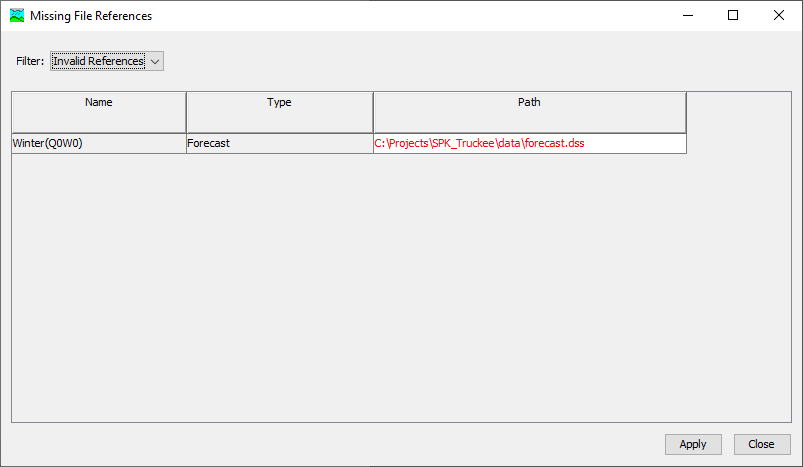
You can also fix the file reference path by entering the correct path in the Missing File References table. This table provides the file name, file type, and its reference path. Locate the external file and place it in your HEC-HMS project folder. Enter the correct path to the HEC-DSS file in the Missing File References table. Additional information can be found in the version 4.9 Release Notes.