To perform math functions on your selected datasets:
Select the dataset(s) on which you want to perform a math function.
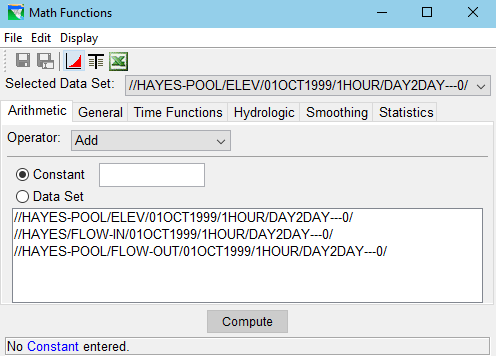
Click the Math Functions tool or select Math Functions from the Tools menu. The Math Functions editor will open, as shown in "Figure: HEC-DSSVue Math Functions Editor".
Figure: HEC-DSSVue Math Functions Editor
Select one of the six tabs (Arithmetic, General, Time Functions, Hydrologic, Smoothing, and Statistics). "Figure: HEC-DSSVue Math Functions - Statistics Tab" shows the Statistics tab of the Math Functions Editor—these basic statistics on a dataset can be very useful when analyzing data and results.
Figure: HEC-DSSVue Math Functions - Statistics Tab
After you have selected the appropriate math function (tab and Operator) and the required parameters for the function, click Compute. DSSVue will perform the selected math on the dataset shown in the Selected Data Set selector.
To view the results, click the Plot or Tabulate button. The computed results from the selected math function will be displayed.
To save the new values in place of the original values, click the Save button (or select Save from the File menu). HEC-DSSVue will ask you to confirm that you wish to replace the original data.
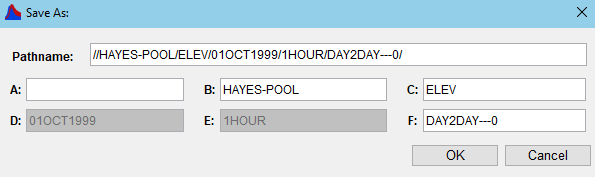
To save the new values as a new record, click the SaveAs button or select Save As from the File menu. A Save As dialog will open ("Figure: HEC-DSSVue Save As Dialog").
Figure: HEC-DSSVue Save As Dialog
Enter the new pathname information then click OK to save the record.
There are many very useful math functions available in HEC-DSSVue. This Appendix only covers the basic functionality for accessing the functions. The HEC-DSSVue User's Manual (HEC, 2009) is the primary reference for further information and details for using the Math Functions Editor.