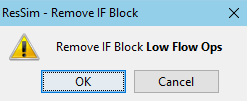
HEC-ResSim 3.5 User's Manual Advanced Features IF_Blocks Managing IF_Blocks Current: Removing an IF_Block PDF Download PDF Download page Removing an IF_Block. Current page All pages Removing an IF_Block Removing an IF_Block from the rule set of a zone or conditional block is the same as removing a rule. To do so:Right-click on the IF_Block node in the Zone-Rules tree.Select Remove from the context menu.The Remove IF_Block confirm dialog will open ("Figure: Remove IF_Block Confirm Dialog").Figure: Remove IF_Block Confirm DialogClick OK to proceed with removing the selected IF_Block from the rule set.To remove an IF_Block from all zones in the current operation set:Right-click on the IF_Block node in the Zone-Rules tree.Select Remove IF_Block from All Zones from the context menu.The Remove IF_Block confirm dialog will open ("Figure: Remove IF_Block from All Zones Confirm Dialog").Figure: Remove IF_Block from All Zones Confirm DialogClick OK to proceed with removing the selected IF_Block from the rule sets of all the zones of the current operation set.To remove all IF_Blocks from a zone in the current operation set:Right-click on the zone in the Zone-Rules tree.Select Remove all IF_Block from this Zone from the context menu.The Remove All IF_Blocks… confirm dialog will open ("Figure: Remove All IF_Blocks... Confirm Dialog").Figure: Remove All IF_Blocks... Confirm DialogClick OK to proceed with removing the selected IF_Block from the rule sets of all the zones of the current operation set. ×