Download PDF
Download page FY24 HEC-FDA Workshop 6.
FY24 HEC-FDA Workshop 6
Plan Formulation Workshop
Last Modified: 2024-08-04 11:40:48.104
Objective
Using the HEC-FDA Version 2.0 software for Workshop (in-person 120 min) – In this hands-on workshop participants, use their previously generated HEC-FDA study files to formulate and evaluate flood risk management alternatives for the Muncie, Indiana study area. The workshop emphasizes formulation and evaluation of several flood risk management plans including levee only, detention only, nonstructural measures only, joint detention and levee, levee and nonstructural, and detention and nonstructural plans (or scenarios).
Downloadable Workshop Materials

Software Version
HEC-FDA pre-release Version 2.0 will be used during the 2024 PROSPECT #209 course. (Note: the HEC-FDA Version 2.0 software is available here: FY24 Download HEC-FDA Version 2.0 Portable Package).

Note: To follow along with the instructions provided in this workshop
Unless you've already downloaded the HEC-FDA software, the Example Study Data (zipped folder contains all data needed for all HEC-FDA workshops) and the workshop datafiles then please follow the following instructions.
- Download the HEC-FDA Version 2.0 software by following the instructions provided here: FY24 Download HEC-FDA Version 2.0 Portable Package.
- Download and save the Workshop Datafiles to the specified path. (Note: the Example Study Data is the same data used for all HEC-FDA workshops, so you only need to download it once).
Download Zipped Workshop Datafiles:
- Review the FY24 HEC-FDA Example Study Data to familiarize yourself with the Muncie, Indiana study and download the study data.
- Download and save the FY24 HEC-FDA Example Study Data to the following path on your computer (same data used in all workshops, only download the data once if completing all workshops): C:\Workshops\FDA\data
- Download Initial Zipped Workshops:
- Part 1 – No starting workshop file provided. You get to create your own HEC-FDA project from scratch!
- Part 2 – (note this is the same as the Part 1 Solution file provided below)
- Download Solution Zipped Workshops:
- Part 1 – Muncie_WS6_Part1_Solution.zip
- Part 2 – Muncie_WS6_Solution_PART2.zip
Introduction
In your final HEC-FDA Version 2.0 workshop, you'll pull everything together to create and evaluate the results for 14 scenarios (aka. plans), this includes the evaluation of the base and most likely future year. This workshop will consist of two parts.
Part 1 Overview Table
Part 1 requires you to create an HEC-FDA Version 2.0 project from scratch with the data defined in Table 1.
| Study Data | Name | Description |
|---|---|---|
| Terrain | Muncie Terrain | The Muncie terrain is the same file used the the hydraulic engineers in modeling the existing condition hydraulics. |
| Impact Areas Set | Muncie Impact Areas | Impact Area Set containing two impact areas (Left-Bank and Right-Bank) |
| Hydraulics | Existing Conditions | Existing Condition Steady HDF. The hydraulic modeling was developed in steady-state condition. The native output files have been provided for use within HEC-FDA. |
| Frequency Functions | Existing Condition LP3s | Flow-Frequency LPIII distribution for a period of record (Record Length) of 48 years |
| Regulated-Unregulated Transform Functions* | With-Project Transform | This regulated-unregulated transform function represents the attenuation of flashy flows provided by the modeled detention basin in the with-project condition that would be located just upstream of the impact area set. |
| Stage Transform Functions > Stage-Discharge Functions |
|
|
| Lateral Structures | Levee | This system response function is tied to a modeled levee in the with-project condition that is proposed for the Left-Bank impact area with a top elevation of 946 feet. |
Economics > Occupancy Types | NSI_OccTypes | The Muncie occupancy types are the typical occupancy types referenced in the National Structure Inventory |
Economics > Structure Inventories |
|
|
Economics > Stage-Damage Functions |
|
|
*NEW function you have not entered in previous workshops. This is the first workshop with a Detention plan and the Regulated-Unregulated Transform Function represents the attenuation of flashy flows provided by the modeled detention basin. So, you'll need this new function for the Detention Plan.
Part 2 Overview Table
Part 2 requires you to continue your project creating by adding (or creating and computing) the study data defined in Table 2.
| Study Data | Name | Description |
|---|---|---|
Scenarios |
|
|
Alternatives |
|
|
Alternative Comparison Report |
Part 1
Part 1 – Instructions
- Open the HEC-FDA Version 2.0 software
Create a new study and set study properties.
- From the File menu, click New.
- In the Study Name box, enter a name for the study (e.g., Workshop6). Select the browser ellipse button to set the study path in the Select Folder browser window.
- Navigate to the desired location for saving the new study (e.g., C:\Workshops\FDA\myWS) and click Select Folder.
- Enter a description in the Description box (e.g., This is the sixth workshop) and click OK.
- From the File menu, click Properties. The Study Properties dialog opens as a tab.
From the Units of Measurement box select Thousands from the Monetary Unit list.
- Enter the correct discount rate for the current Fiscal Year in decimal form. The current rate can be found in EGM24-01-2.pdf.
- Set the Convergence Criteria with the Minimum Iterations at 1000 and the Maximum Iterations at 10000.
- Set the Study Projection file. From the Study Projection box, in the Project Projection File, click the browser ellipse button to open the Select File browser window. Navigate to the location of the terrain projection file (e.g., C:\Workshops\FDA\data\MuncieFinal\Terrain), select the file "NAD 1983 StatePlane Indiana East FIPS 1301 (US Feet).prj", and then click Open.
- Click Save to save your edits. Click close.
- From the File menu, click New.
Import the Muncie Terrain file ("Terrain.hdf").
- From the Study Tree, right-click Terrain and select Import Terrain. The Import Terrain dialog opens as a tab.
- Enter a name for the terrain (e.g., Muncie Terrain).
- From the Terrain Path box, click the ellipse button to open the Select File browser window.
- Navigate to the location of the terrain file (e.g., C:\Workshops\FDA\data\MuncieFinal\Terrain), select the file "Terrain.hdf" and click Open.
- From the Import Terrain dialog, click OK.
- From the Study Tree, right-click Terrain and select Import Terrain. The Import Terrain dialog opens as a tab.
Import the Muncie Impact Areas file ("ImpactAreaFinal.shp").
- From the Study Tree, under Impact Areas, right-click on Impact Area Set, and click Import Impact Area Set. The Import Impact Area Set dialog opens as a tab.
- Enter a name in the Impact Area Name box (e.g., Muncie Impact Areas). Enter a description in the Description box (e.g., Workshop 6 impact areas for Muncie dataset).
- From the Shapefile Path box, click the ellipse button to open the Select File browser window.
- Navigate to the location of the terrain file (e.g., C:\Workshops\FDA\data\MuncieFinal\ImpactAreaSet), select the file "ImpactAreaFinal.shp" and click Open.
- From the Unique Name list select, Name. Note the names of the two impact areas in the Muncie dataset.
- Click OK to import the impact areas.
- From the Study Tree, under Impact Areas, right-click on Impact Area Set, and click Import Impact Area Set. The Import Impact Area Set dialog opens as a tab.
Import the Steady State Muncie HEC-RAS Native Output hydraulics data ("Muncie.p10.hdf").
From the Study Tree under Hydraulics right-click on Study HDF, and click Import Hydraulics. The Import Hydraulics dialog opens as a tab.
- From the importer enter a name for the hydraulics profile (e.g., Existing Conditions) and enter a description for the profile (e.g., Existing conditions hdf).
- From the Source File box select the ellipse button to open the Select File browser window.
- Navigate to the folder containing the existing conditions hydraulic data (e.g., C:\Workshops\FDA\data\MuncieFinal\Hydraulics\Native Output), select the file "Muncie.p10.hdf" and click Open.
The importer tab updates with a table displaying the name of the profiles, the annual exceedance probability and the return interval. The return interval will need to be corrected. Manually, enter the appropriate interval value based on Table 3.
Table 3 Name Return Interval 2 2.00 5 5.00 10 10.00 25 25.00 50 50.00 100 100.00 200 200.00 500 500.00 - Note that the Annual Exceedance Probability column updates based on the Return Interval. Check that your entered values are correct and click Save. The hydraulic data is added to the Study Tree.
- Click Close to close the Import Hydraulics tab.
Create Flow-Frequency Function.
- From the Study Tree, right-click on Frequency Functions and select Create New Frequency Function. The Create Frequency Function opens as a tab.
- Enter a name for the function in the Name box (e.g., Existing Condition LP3s), and enter a description for the frequency function (e.g., Flow-frequency function for the existing condition).
Select the Analytical radio button and enter the LPIII Parameters listed below.
Mean Standard Deviation Skew Period of Record 3.707 0.24 -0.475 48 - Click Save. The flow-frequency function is added to the Study Tree.
- Click Close to close the Create Frequency Function tab.
- From the Study Tree, right-click on Frequency Functions and select Create New Frequency Function. The Create Frequency Function opens as a tab.
Enter the Regulated-Unregulated Transform Function (data displayed in Table 4).
- From the Study Tree, right-click on Regulated-Unregulated Transform Functions and select Create New Regulated-Unregulated Relationship. The Create New Regulated-Unregulated Relationship opens as a tab.
Enter a name for the relationship in the Name box (e.g., With-Project Transform), and enter a description for the relationship (e.g., This regulated-unregulated transform function represents the attenuation of flashy flows provided by the modeled detention basin in the with-project condition that would be located just upstream of the impact area set.).
Select the Triangular Distribution Type and copy the data displayed in Table 4 into the table in HEC-FDA.
Inflow (cfs) Min Outflow (cfs) Most Likely Outflow (cfs) Max Outflow (cfs) 1000 1000 1000 1000 2000 2000 2000 2000 4000 4000 4000 4000 7000 7000 7000 7000 10000 7100 8000 10000 12000 8000 10000 12000 13000 9000 11000 13000 15000 11500 13000 15000 17000 17000 17000 17000 20000 20000 20000 20000 Table 4 - With-project Transform (Regulated-Unregulated Transform Function- Click Save.
- From the Study Tree, right-click on Regulated-Unregulated Transform Functions and select Create New Regulated-Unregulated Relationship. The Create New Regulated-Unregulated Relationship opens as a tab.
Enter the Without-project Condition Stage-Discharge Function (data in Table 5).
- From the Study Tree, right-click on Stage-Discharge Functions and select Create New Stage-Discharge Relationship. The Create New Stage-Discharge Relationship opens as a tab.
Enter a name for the relationship in the Name box (e.g., Existing Condition Relationship), and enter a description for the relationship (e.g., This stage-discharge function represents the relationship between stage and discharge for the without-project condition.).
Use the information in Table 5 to create the new stage-discharge relationships for the without-project condition.
Table 5 - Without-project Stage Discharge Function{"name":"Stage-Discharge_Function_Without-Project.xlsx","page":"FY24 All HEC-FDA 2.0 Workshop Files","type":"xlsx","pageID":"173934355"}Loading
- Click Save.
- From the Study Tree, right-click on Stage-Discharge Functions and select Create New Stage-Discharge Relationship. The Create New Stage-Discharge Relationship opens as a tab.
Enter the With-project Condition Stage-Discharge Function (data in Table 6).
- From the Study Tree, right-click on Stage-Discharge Functions and select Create New Stage-Discharge Relationship. The Create New Stage-Discharge Relationship opens as a tab.
Enter a name for the relationship in the Name box (e.g., With-Project Relationship), and enter a description for the relationship (e.g., The stage-discharge function below represents the with-project condition. Observe that some stages are higher for a given discharge.).
Use the information in Table 6 to create the new stage-discharge relationships for the with-project condition.
Table 6 - With-project Stage Discharge Function{"name":"Stage-Discharge_Function_With-Project.xlsx","page":"FY24 All HEC-FDA 2.0 Workshop Files","type":"xlsx","pageID":"173934355"}Loading
- Click Save.
- From the Study Tree, right-click on Stage-Discharge Functions and select Create New Stage-Discharge Relationship. The Create New Stage-Discharge Relationship opens as a tab.
Create Lateral Structure for the Levee Plan.
- From the Study Tree, right-click on Lateral Structures and select, Create New Lateral Structure. The Create New Lateral Structure dialog opens as a tab. Use the Create New Lateral Structure dialog to add the Levee Plan:
- Name: Levee Plan; Description: With-project scenario for proposed levee for the left-bank with a top elevation of 946 feet.
- Enter the Top of Levee Elevation: 946
- Select the System Response Curve: User Defined
- Distribution Type: Deterministic
- Enter the data in Table 7.Table 7{"col":"B","name":"WS6_Levee_ProbabilityOfFailure_FY24.xlsx","sheet":"WS5_Levee2","page":"FY24 All HEC-FDA 2.0 Workshop Files","row":"10","type":"xlsx","pageID":"173934355"}
Loading
- Enter the data in Table 7.
- Click Save to save the Levee Plan and add it to your project's Study Tree.
- From the Study Tree, right-click on Lateral Structures and select, Create New Lateral Structure. The Create New Lateral Structure dialog opens as a tab. Use the Create New Lateral Structure dialog to add the Levee Plan:
Import Occupancy Types ("MuncieOccTypes.txt").
- From the Study Tree, under Economics, right-click on Occupancy Types and select Import Occupancy Types from Tab-Delimited Text File. The importer opens as a tab.
- From the importer enter a name in the Base Name box (e.g., NSI_OccTypes), and enter a description for the relationship (e.g., The Muncie occupancy types are the typical occupancy types referenced in the National Structure Inventory.).
- From the Tab Delimited File box select the ellipse button to open the Select File browser window.
- Navigate to the folder containing the occupancy types file (e.g., C:\Workshops\FDA\data\MuncieFinal\OccupancyTypes), select the file "MuncieOccTypes.txt" and click Open.
From the importer, click Import and view the Import Log.
- Did you import 41 occupancy types? Close the Import Log when finished.
- From the Study Tree, under Economics, right-click on Occupancy Types and select Import Occupancy Types from Tab-Delimited Text File. The importer opens as a tab.
Import the Without-project Base Structure Inventory ("BaseMuncieStructsFinal.shp").
- From the Study Tree, under Economics, right-click on Structure Inventories and select Import From Shapefile. The Import Structure Inventory opens as a tab.
- From the importer enter a name in the Name box (e.g., Existing_BaseSI), and enter a description for the relationship (e.g., base inventory for the Existing Conditions (without-project inventory)).
- From the Structure Inventory Shapefile box select the ellipse button to open the Select File browser window.
- Navigate to the folder containing the structure inventory file (e.g., C:\Workshops\FDA\data\MuncieFinal\StructureInventories\base-year_without-project), select the file "BaseMuncieStructsFinal.shp" and click Open.
- The importer is a two part import wizard. From the first window select the following in the Required Attributes:
- Select the Ground Elevation and Foundation Height radio button. The wizard updates to provide options for defining the ground elevation.
- Set the Ground Elevation Source by selecting the From Structures File radio button.
Make the following selections for the Import Attributes:
Name
Import Attributes Selection
Structure ID TARGET_FID Occupancy Type occtype Foundation Height found_ht Ground Elevation Value ground_elv Structure Value val_struct Content Value val_cont Vehicle Value val_vehic - Click Next to access the next window in the import wizard.
- The import wizard updates to display selection criteria for assigning the occupancy types for the structure inventory. When and HEC-FDA project contains multiple occupancy types the Load Occupancy Types from the Following Sets panel contains a list of the imported occupancy types.
- The second import wizard window also displays the Default Occupancy Type Assignments. Review the default selections and confirm that the default selection matches the imported Occupancy Types.
- When finished reviewing the default assignments, click Finish. The import wizard closes and the imported structure inventory displays in the Study Tree.
- From the Study Tree, under Economics, right-click on Structure Inventories and select Import From Shapefile. The Import Structure Inventory opens as a tab.
Import the Future Without-Project Structure Inventory ("BaseMuncieStructsFinalFuture.shp").
- From the Study Tree, under Economics, right-click on Structure Inventories and select Import From Shapefile. The Import Structure Inventory opens as a tab.
- From the importer enter a name in the Name box (e.g., Future_WithoutSI), and enter a description for the relationship (e.g., future without-project inventory for the without-project future conditions (In the future year, the number of commercial structures has been doubled to reflect an economic forecast suggesting significant growth in the concentration of commercial activity in Muncie, In between the base and most likely future years.)
- From the Structure Inventory Shapefile box select the ellipse button to open the Select File browser window.
- Navigate to the folder containing the structure inventory file (e.g., C:\Workshops\FDA\data\MuncieFinal\StructureInventories\future-year_without-project), select the file "BaseMuncieStructsFinalFuture.shp" and click Open.
- The importer is a two part import wizard. From the first window select the following in the Required Attributes:
- Select the Ground Elevation and Foundation Height radio button. The wizard updates to provide options for defining the ground elevation.
- Set the Ground Elevation Source by selecting the From Structures File radio button.
Make the following selections for the Import Attributes:
Name
Import Attributes Selection
Structure ID TARGET_FID Occupancy Type occtype Foundation Height found_ht Ground Elevation Value ground_elv Structure Value val_struct Content Value val_cont Vehicle Value val_vehic Number Of Structures NumStructs - Click Next to access the next window in the import wizard.
- The import wizard updates to display selection criteria for assigning the occupancy types for the structure inventory. When and HEC-FDA project contains multiple occupancy types the Load Occupancy Types from the Following Sets panel contains a list of the imported occupancy types.
- The second import wizard window also displays the Default Occupancy Type Assignments. Review the default selections and confirm that the default selection matches the imported Occupancy Types.
- When finished reviewing the default assignments, click Finish. The import wizard closes and the imported structure inventory displays in the Study Tree.
- From the Study Tree, under Economics, right-click on Structure Inventories and select Import From Shapefile. The Import Structure Inventory opens as a tab.
Import the Nonstructural Inventory for the Base Year ("NonstructuralMuncieStructsFinal.shp").
- From the Study Tree, under Economics, right-click on Structure Inventories and select Import From Shapefile. The Import Structure Inventory opens as a tab.
- From the importer enter a name in the Name box (e.g., With-projectSI), and enter a description for the relationship (e.g., base year with-project inventory).
- From the Structure Inventory Shapefile box select the ellipse button to open the Select File browser window.
- Navigate to the folder containing the structure inventory file (e.g., C:\Workshops\FDA\data\MuncieFinal\StructureInventories\base-year_with-project), select the file "NonstructuralMuncieStructsFinal.shp" and click Open.
- The importer is a two part import wizard. From the first window select the following in the Required Attributes:
- Select the Ground Elevation and Foundation Height radio button. The wizard updates to provide options for defining the ground elevation.
- Set the Ground Elevation Source by selecting the From Structures File radio button.
Make the following selections for the Import Attributes:
Name
Import Attributes Selection
Structure ID TARGET_FID Occupancy Type occtype Foundation Height NewFunHt Ground Elevation Value ground_elv Structure Value val_struct Content Value val_cont Vehicle Value val_vehic - Click Next to access the next window in the import wizard.
- The import wizard updates to display selection criteria for assigning the occupancy types for the structure inventory. When and HEC-FDA project contains multiple occupancy types the Load Occupancy Types from the Following Sets panel contains a list of the imported occupancy types.
- The second import wizard window also displays the Default Occupancy Type Assignments. Review the default selections and confirm that the default selection matches the imported Occupancy Types.
- When finished reviewing the default assignments, click Finish. The import wizard closes and the imported structure inventory displays in the Study Tree.
- From the Study Tree, under Economics, right-click on Structure Inventories and select Import From Shapefile. The Import Structure Inventory opens as a tab.
Import the Nonstructural Inventory for the Future Year ("NonstructuralMuncieStructsFinalFuture.shp").
- From the Study Tree, under Economics, right-click on Structure Inventories and select Import From Shapefile. The Import Structure Inventory opens as a tab.
- From the importer enter a name in the Name box (e.g., With-project_FutureSI), and enter a description for the relationship (e.g., future year with-project inventory (In the future year, the number of commercial structures has been doubled to reflect an economic forecast suggesting significant growth in the concentration of commercial activity in Muncie, In between the base and most likely future years.)).
- From the Structure Inventory Shapefile box select the ellipse button to open the Select File browser window.
- Navigate to the folder containing the structure inventory file (e.g., C:\Workshops\FDA\data\MuncieFinal\StructureInventories\future-year_with-project), select the file "NonstructuralMuncieStructsFinalFuture.shp" and click Open.
- The importer is a two part import wizard. From the first window select the following in the Required Attributes:
- Select the Ground Elevation and Foundation Height radio button. The wizard updates to provide options for defining the ground elevation.
- Set the Ground Elevation Source by selecting the From Structures File radio button.
Make the following selections for the Import Attributes:
Name
Import Attributes Selection
Structure ID TARGET_FID Occupancy Type occtype Foundation Height NewFunHt Ground Elevation Value ground_elv Structure Value val_struct Content Value val_cont Vehicle Value val_vehic Number Of Structures NumStructs - Click Next to access the next window in the import wizard.
- The import wizard updates to display selection criteria for assigning the occupancy types for the structure inventory. When and HEC-FDA project contains multiple occupancy types the Load Occupancy Types from the Following Sets panel contains a list of the imported occupancy types.
- The second import wizard window also displays the Default Occupancy Type Assignments. Review the default selections and confirm that the default selection matches the imported Occupancy Types.
- When finished reviewing the default assignments, click Finish. The import wizard closes and the imported structure inventory displays in the Study Tree.
- From the Study Tree, under Economics, right-click on Structure Inventories and select Import From Shapefile. The Import Structure Inventory opens as a tab.
Create and Compute four Stage-Damage Functions for the without and with-project the Base Year functions and the without and with-project Future Year functions. Use the information in Table 7 to create and compute the four new stage-damage relationships.
Table 7 – Configuration Selections for Four Stage-Damage Functions Stage-Damage Function Name Analysis Year Water Surface Elevation Structures Frequency Function Stage-Discharge Function Existing Stage-Damage 2024 Existing Condition Existing_BaseSI Existing Condition LP3s Existing Condition Relationship Existing_Future 2054 Existing Condition Future_WithoutSI Existing Condition LP3s Existing Condition Relationship Nonstructural 2024 Existing Condition With-projectSI Existing Condition LP3s Existing Condition Relationship Nonstructural_Future 2054 Existing Condition With-project_FutureSI Existing Condition LP3s Existing Condition Relationship - From the Study Tree, under Economics, right-click on Aggregated Stage-Damage Functions and select Create New Stage-Damage Functions. The Create New Stage-Damage Functions opens as a tab.
- Enter a name for the new function in the Name box (e.g., Existing Stage-Damage), and enter a description for the relationship (e.g., HEC-FDA Version 2.0 Workshops Existing Conditions Function).
- Select the Computed radio button and enter the information identified below (if you've been following the naming convention identified in the workshops your options should be the same).

- After you complete the configuration, click Compute Curves. Wait until HEC-FDA generates the curves. Scroll through the list of computed curves (you should generate 28 curves, 16 for the Left-Bank and 12 for the Right-Bank).
- Click Save and the created stage-damage functions for the without-project base conditions displays in the Study Tree.
- Repeat these steps to create the other three stage-discharge functions using the information provided in Table 7 (see example below for Nonstructural). Each function should generate 28 curves, 16 for the Left-Bank and 12 for the Right-Bank.

- From the Study Tree, under Economics, right-click on Aggregated Stage-Damage Functions and select Create New Stage-Damage Functions. The Create New Stage-Damage Functions opens as a tab.
Part 1 – Discussion Questions
Test Your Knowledge - Question 1
Why do we use the existing condition stage-discharge function as part of the stage-damage compute?
Hint: Consider what the summary relationships represent and how they're used.
Test Your Knowledge - Question 2
What would happen if the with-project stage-discharge function were used as part of the stage-damage function compute?
Hint: Consider your response to Question 1.
Test Your Knowledge - Question 3
If structures were acquired instead of being elevated, how would the stage-damage function look?
Hint: Consider how damage will change as stage changes.
Part 1 – Conclusion
That's it for Part 1! Download the solution project (file available from the Downloadable Workshop Materials section at the top of this page) and review the best answers to test your FDA knowledge questions and compare with yours to see how you did! You can close the HEC-FDA software when you are finished reviewing the project (click the red X at the top right to close the software).
Test Your Knowledge - Question 1
Why do we use the existing condition stage-discharge function as part of the stage-damage compute?
Hint: Consider what the summary relationships represent and how they're used.
Answer: We use the existing condition stage-discharge to be consistent with the hydrologic and hydraulic conditions being used for the stage-damage calculation.
Test Your Knowledge - Question 2
What would happen if the with-project stage-discharge function were used as part of the stage-damage function compute?
Hint: Consider your response to Question 1.
Answer: Damage for a given stage in the floodplain would be misaligned with the appropriate stage in the channel.
Test Your Knowledge - Question 3
If structures were acquired instead of being elevated, how would the stage-damage function look?
Hint: Consider how damage will change as stage changes.
Answer: The stage-damage function will shift in a similar way.
Part 2
Part 2 – Instructions
- Open the HEC-FDA Version 2.0 software.
- Open your create study for Part 1 (or alternatively, download the Part 1 Solution file available from the Downloadable Workshop Materials section of this page).
- Create the without-project scenarios for the two analysis years. Use the information in Table 8 to create and compute the Without Base Year and Without Future Year scenarios.
- Compute the two without-project scenarios and view the summary results.
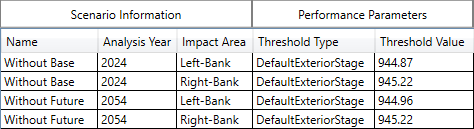
- Record the Without Base Year and Without Future Year the Performance Parameters, Threshold Value for the following each analysis year (2024 and 2054) and impact area (Left-Bank and Right-Bank).
Create the remaining 12 Scenarios. Using the recorded Threshold Values calculated in Step 5 and the information in Table 8 to create and compute the 12 with-project scenarios.
Table 8 - Scenarios for Workshop 6Scenario Analysis Year Stage-Damage Functions Frequency Relationship* Regulated-Unregulated Flow* Stage-Discharge* Lateral Structures Without Base Year 2024 Existing Stage-Damage Existing Condition LP3s None Existing Condition Relationship None Without Future Year 2054 Existing_Future Existing Condition LP3 None Existing Condition Relationship None Levee Plan Base Year 2024 Existing Stage-Damage Existing Condition LP3 None With-Project Condition Levee (Left-Bank Only) Levee Plan Future Year 2054 Existing_Future Existing Condition LP3 None With-Project Condition Levee (Left-Bank Only) Detention Plan Base Year 2024 Existing Stage-Damage Existing Condition LP3 With-Project Transform Existing Condition Relationship None Detention Plan Future Year 2054 Existing_Future Existing Condition LP3 With-Project Transform Existing Condition Relationship None Nonstructural Plan Base Year 2024 Nonstructural Existing Condition LP3 None Existing Condition Relationship None Nonstructural Plan Future Year 2054 Nonstructural_Future Existing Condition LP3 None Existing Condition Relationship None Levee & Detention Plan Base Year 2024 Existing Stage-Damage Existing Condition LP3 With-Project Transform With-Project Condition Levee (Left-Bank Only) Levee & Detention Plan Future Year 2054 Existing_Future Existing Condition LP3 With-Project Transform With-Project Condition Levee (Left-Bank Only) Levee & Nonstructural Plan Base Year 2024 Nonstructural Existing Condition LP3 None With-Project Condition Levee (Left-Bank Only) Levee & Nonstructural Plan Future Year 2054 Nonstructural_Future Existing Condition LP3 None With-Project Condition Levee (Left-Bank Only) Detention & Nonstructural Plan Base Year 2024 Nonstructural Existing Condition LP3 With-Project Transform Existing Condition Relationship None Detention & Nonstructural Plan Future Year 2054 Nonstructural_Future Existing Condition LP3 With-Project Transform Existing Condition Relationship None * Unless noted (e.g., "Left-Bank Only") the above files are assigned to both impact areas (Left-Bank and Right-Bank).
- From the Study Tree, right-click on Scenarios and select Create New Scenario. The Create New Scenario dialog opens as a tab.
- Complete the appropriate setup for each scenario. Make sure you assign the correct information for both impact areas (Left-Bank and Right-Bank).
- For example, as displayed in Table 8, the following information would need to be selected to create the Without Base Year scenario.
- Click Save, and click Close.
- Repeat the above steps to create the Without Future Year scenario.
- Right-click on the Scenarios, and click View Summary Results, select the two created scenarios and Compute. Click Yes, to view the results. Record the Without Base Year and Without Future Year the Performance Parameters, Threshold Value for the following each analysis year (2024 and 2054) and impact area (Left-Bank and Right-Bank).
- Repeat these steps and enter the Threshold Value to all with-project scenarios that do not contain the levee (note, the levee is only on the Left-Bank, so you will need to manually enter the appropriate Threshold Value to all Right-Bank impact areas).
- Compute all remaining 12 with-project scenarios.
- From the Study Tree, right-click on Scenarios and select Create New Scenario. The Create New Scenario dialog opens as a tab.
Create 7 Alternatives. Use the information in Table 9 to create and compute the 7 alternatives.
Table 9 - Scenarios for Workshop 6Alternative Name Base Year Scenario Future Year Scenario Without Project Without Base Year (2024) Without Future Year (2054) Levee Only Plan Levee Plan Base Year (2024) Levee Plan Future Year (2054) Detention Only Plan Detention Plan Base Year (2024) Detention Plan Future Year (2054) Nonstructural Only Plan Nonstructural Plan Base Year (2024) Nonstructural Plan Future Year (2054) Levee and Detention Plan Levee & Detention Plan Base Year (2024) Levee & Detention Plan Future Year (2054) Levee and Nonstructural Plan Levee & Nonstructural Plan Base Year (2024) Levee & Nonstructural Plan Future Year (2054) Detention and Nonstructural Plan Detention & Nonstructural Plan Base Year (2024) Detention & Nonstructural Plan Future Year (2054) - From the Study Tree, right-click on Alternatives and select Create New Alternative. The Create New Alternative dialog opens as a tab.
- Repeat until all 7 alternatives have been created.
- Right-click on Alternatives and click View Alternative Summary Results. Select All and click View.

Known Issue
At this point in time (February 2024) an Uncaught Exception will occur if all new alternatives are selected. To avoid this exception, right-click on an alternative (e.g., Without Project) and click View Results. Then right-click on Alternatives and click View Alternative Summary Results. Select All and click View.
Create Alternative Comparison Report. Use the information in Table 10 to create the alternative comparison report.
Table 10 - Alternative Comparison ReportWithout Project Selection With Project Selection Without Project
Levee Only Plan Detention Only Plan Nonstructural Only Plan Levee and Detention Plan Levee and Nonstructural Plan Detention and Nonstructural Plan - From the Study Tree, right-click on Alternative Comparison Report and select Create New Alternative Comparison Report. The Create New Alternative Comparison Report dialog opens as a tab.
- Enter a name for the new alternative comparison report in the Name box (e.g., Muncie Comparison), and enter a description (e.g., alternative comparison report to provide damage reduced between the without-project condition and with-project conditions).
- From the Without Project list select: Without Project.
- From the With Project list select: Levee Plan.
- Continue to add the With Project sections, by clicking the Add Comparison button and selecting the alternatives provided in Table 10.
- Click Save. Click Close. The new comparison report is added to the Study Tree.
- From the Study Tree, right-click on the created Alternative Comparison Report, and click View Results. Close the Compute Log.
- From the Study Tree, right-click on Alternative Comparison Report and select Create New Alternative Comparison Report. The Create New Alternative Comparison Report dialog opens as a tab.



Part 2 – Discussion Questions
Test Your Knowledge - Question 4
If the local sponsor is most concerned about impacts to residential structures, which plan might become the locally preferred plan?
Test Your Knowledge - Question 5
Why does the levee performance not change from the base year to the future year?
Test Your Knowledge - Question 6
Why is AAEQ negative on the right-bank for the levee-only plan?
Hint
View the Alternative Comparison Report, for the Levee Only Plan, AAEQ damage measure, and the Damage by Impact Area report.
Test Your Knowledge - Question 7
If the levee is to be included as a measure in the selected plan, which plan might be chosen? Hint: induced damages must be mitigated.
Part 2 – Conclusion
That's it! Download the solution project (provided at the top of this page) and review the best answers to test your FDA knowledge questions and compare with yours to see how you did! You can close the HEC-FDA software when you are finished reviewing the project (click the red X at the top right to close the software).
AAED Tests and Calculations
We have a suite of tests to confirm that the software behaves as it should. One of our tests is to confirm that the software calculates average annual equivalent damage correctly. A corresponding spreadsheet replicates the calculations. You can review both at the below links:
- Test
- Link to Google Spreadsheet
- Spreadsheet file
Best Answers to Test Your FDA Knowledge Questions
Note: Your results may not exactly match the results shown here. That's a product of variation in the software since this workshop was created and does not indicate that you did something wrong. Your results should follow the same trends and the values should be somewhat close to the ones shown below.
If the local sponsor is most concerned about impacts to residential structures, which plan might become the locally preferred plan?
Answer: Nonstructural-Only, because it exclusively protects residential homes and none of the project costs go to anything else.
Why does the levee performance not change from the base year to the future year?
Answer: The only change from base to future year is the number of structures. Performance is not dependent on the assets in the study area.
Why is AAEQ negative on the right-bank for the levee-only plan?
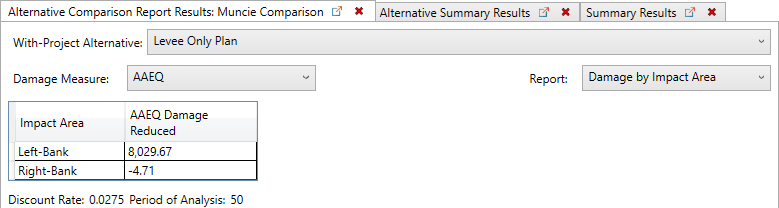
Answer: Because the levee causes increased stages for a given discharge.
If the levee is to be included as a measure in the selected plan, which plan might be chosen? Hint: induced damages must be mitigated.
Answer: Levee + DB, because the DB (Detention Basin) is the only measure that reduces damages on the right-bank, which is where the levee induces damages.