Importing a CWMS or HEC-RTS Watershed
CWMS (Corps Water Management System) and HEC-RTS (Real Time Simulation) link together models much like HEC-WAT, but typically for the purpose of forecasting events in the relative near term instead longer-term planning analyses. The HEC-WAT software has the ability to import a pre-existing CWMS or HEC-RTS watershed. With the CWMS National Implementation Plan, there are many CWMS models available within USACE districts which can be useful to start the process of building an HEC-WAT model. CWMS and HEC-RTS models are developed for real-time forecasting, so the user must evaluate changes necessary to support iterative Monte Carlo simulations within an HEC-WAT Flood Risk Analysis (FRA) simulation. The instructions below outline the basic process of importing models from CWMS watersheds. Once the import is finished, the study team will need to review the models and make adjustments as needed.
To import a CWMS or HEC-RTS watershed:
- Create a basic HEC-WAT study.
- From the File menu in the HEC-WAT main window, select Import > CWMS Watershed to elicit the Import CWMS Watershed dialog box.

- In the CWMS Watershed File box, click the
 browse to button to open the Select Workspace File browser window. Browse to the directory where the CWMS or HEC-RTS watershed is located and select the watershed file (*.wtrshd). The watershed filename (e.g., RussianRiver.wtrshd) will appear in the File name box. Click the Import button, to start the import and close the Select Workspace File browser.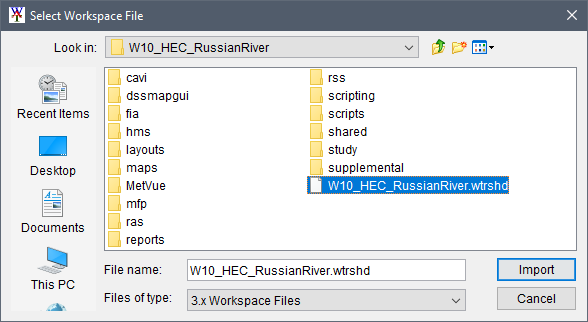
- A Continue Import? warning dialog opens alerting the user that the import process will overwrite any existing data in the HEC-WAT study. Click Yes to continue to import and overwrite existing data in the WAT study, and close the warning dialog.

- The Import CWMS Watershed dialog box displays the name of the CWMS or HEC-RTS watershed file in the CWMS Watershed File box. As the import proceeds, the Import Progress panel displays the progress of the import. The table located at the bottom of the Import CWMS Watershed dialog box displays which CWMS or HEC-RTS watershed components have finished, whether the import was successful or not, and the number of model alternatives that were imported.

By default, when an HEC-WAT study is created HEC-HMS project files are generated and saved in the created hms sub-folder. When the HMS watershed component import process finds that an HEC-HMS project already exists, then a Replace Existing HEC-HMS Project message dialog opens.

Note
The Replace Existing HEC-HMS Project message dialog might open behind the HEC-WAT main window. If this happens, the import progress will seemingly hang. To see the Replace Existing HEC-HMS Project message dialog, press Alt+Tab, click Yes, and the warning window will close.
- If the HEC-HMS model was created using a previous version of HEC-HMS, a Convert HEC-HMS Project window opens. This window lets the user know that the HEC-HMS model will be converted from one version of HEC-HMS to another version of the HEC-HMS model. Click Convert Project, the Convert HEC-HMS Project window closes, and the import of the watershed continues.
If a HEC-HMS project was created in a later version of the HEC-HMS software than the version include in HEC-WAT, the HEC-HMS project cannot be opened without first updating the HEC-HMS software version in HEC-WAT.
- Once the import process is finished, from the Import CWMS Watershed dialog box click Close. The Import CWMS Watershed dialog box closes, and the HEC-WAT main window displays the map layers and the stream alignment of the imported CWMS or HEC-RTS watershed.
- From the File menu, click Save Study, or click
 Save the Study tool from the toolbar.

The study team should review the imported CWMS or HEC-RTS models and make adjustments as needed.