Computing Flood Risk Analysis Simulations
HEC-WAT provides the user with several ways to compute a Flood Risk Analysis (FRA) simulation. Regardless of the method to compute the FRA simulation, users access the Run FRA Simulation dialog box for setting the compute parameters before computing an FRA simulation.
Compute from the Individual Simulation Shortcut Menu
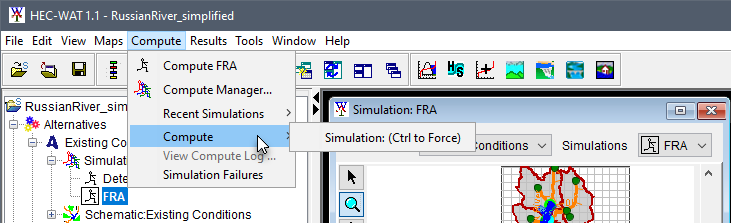
Users can compute an FRA simulation from the Study Tree, the Alternative and Simulation Manager dialog box, or from the Compute menu. From the Study Tree or the Alternative and Simulation Manager dialog box, users can compute by right-clicking a simulation of interest and from the individual simulation shortcut menu point to Compute and select Simulation (Ctrl to Force) from the shortcut sub-menu.

Compute from the Compute Menu
From the Compute menu in the HEC-WAT main window, the user can compute an FRA simulation from different commands.
Compute Active Simulation
If an FRA simulation is active (displayed in a Simulation Map Window in the Desktop Pane), then the first item in the Compute menu will be that FRA simulation's name (e.g., Without Project Conditions-TimeWindow). Hold down the Ctrl key, click the FRA simulation, and the Run FRA Simulation dialog box opens.
Compute Recent Simulation
From the Compute menu, point to Recent Simulations, a list of recently computed simulations will display, click on an FRA simulation that is to be computed. The Run FRA Simulation dialog box opens.
Compute Simulation Sub-menu
From the Compute menu, point to Compute, click Simulation, and the Run FRA Simulation dialog box opens. This will compute the active simulation (displayed in a Simulation Map Window in the Desktop Pane).
Compute from the Study Pane
From the Study Pane, from the Study Tree, from the Simulations folder, right-click on a simulation (e.g., FRA). From the shortcut menu, point to Compute, click Simulation: (Ctrl to Force). Alternatively, from the Study Pane toolbar, click the Compute  button.
Compute Options
The following sections describe in detail the compute options for how to compute FRA simulations in HEC-WAT.
Compute
The Compute > Simulation sub-menu command is available from the simulation shortcut menu, the Compute menu, and from the Study Pane toolbar, by selecting the  Compute tool. The Run FRA Simulation dialog box opens.
Compute (Ctrl to Force)
The Compute > Simulation (Ctrl to Force) sub-menu command is available from the simulation shortcut menu, the Compute menu, and from the Study Pane toolbar, by selecting the Compute tool. To use this option, point to Compute and then hold down the Ctrl key and click Simulation. The Run FRA Simulation dialog box opens.

Forcing A Re-compute
Holding down the Ctrl key forces all model alternatives in the compute sequence to compute, and is the recommended way to compute until additional coordination between HEC-WAT and software application teams has been completed. For example, users can recompute the previously computed Hydrologic Sampler model alternative (e.g., Flow_only).
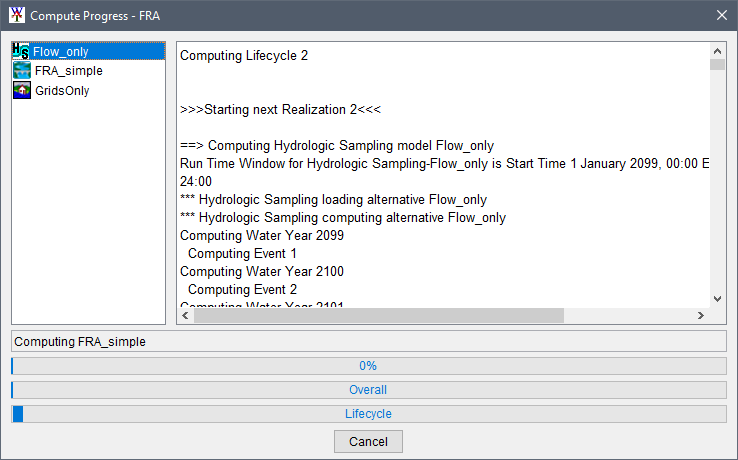
Alternatively, point to Compute and click Simulation. When Simulation is selected without holding down the Ctrl key, then the compute progress will start at the model alternative in the compute sequence that has not been computed yet. In other words, if previous model alternatives in the compute sequence have been computed and not changed, those model alternatives will be skipped (e.g., the Hydrologic Sampling model alternative Flow_only was skipped in the example Compute Progress - FRA).

Run FRA Simulation Dialog Box
- From the Run FRA Simulation dialog box, the Name box is the name of the simulation selected when the compute menu item was selected (e.g., FRA). The number of realizations (e.g. 10) in the Max. Number of Realizations box comes from the definition of the simulation when it was created.

- Select an option between Start At Lifecycle 1 or Run Specified.
- Start at Lifecycle 1 - default starting point of an FRA compute, this option computes the entire simulation from the first event to the last event.
- Run specified - this option provides the ability to run a specific event, lifecycle, realization, or a range of, events, lifecycles, or realizations. For example, the user can select Lifecycles in the drop down box and enter 2-5, 22 to run Lifecycles 2 through 5 and then Lifecycle 22.
The Save Lifecycle DSS Files check box provides the option to save all of the lifecycle DSS files. All HEC software applications - HEC-HMS, HEC-RAS, HEC-ResSim, and HEC-FIA - write time-series results to the lifecycle DSS files during an FRA compute. If the user does not want the time-series results to be saved, the user should not select Save Lifecycle DSS Files.
Note
It is a good practice to turn on the Save Lifecycle DSS Files option when initially setting up an FRA simulation and evaluating results. Once the user is comfortable that results are reasonable, then the lifecycle DSS option can be turned off. Also, the individual software applications have options for limiting the amount of data written to the lifecycle DSS files. The user could ensure that only necessary information is saved to the lifecycle DSS files and then choose to keep these files.The Save Model Folders option allows model alternative files to be saved. Model alternative files by event are not saved by default; if they are desired for each event (or a recomputed single event), check the Save Model Folders checkbox and compute. The event level output from the plugins can aid in the debugging of any issues that might occur when attempting to run an FRA compute. As mentioned for the Save Lifecycle DSS Files option, this option should be turned off after the user verifies model alternative results are reasonable.
- By default, an FRA compute requires that at least one output variable be selected. However, if Output Variables Optional is selected, then output variables are not required for the FRA compute. This is only useful to turn off if Save Model Folders is turned on and the FRA simulation is small enough to fit on your local hard drive.
Select the Continue to Next Event on Model Error option to allow the FRA compute to continue to the next event in the lifecycle if any kind of error is detected during the simulation compute.
Best Practice when Performing Production Simulations.
When performing final production simulations, it is best practice to let the simulation continue running through all the events, even though issues might have stopped an individual event from completing. For example, when an HEC-RAS model alternative goes unstable due to initial conditions, the error is detected, and the simulation continues to the next model alternative in the compute sequence. It is likely that the next model alternative will fail as well since adequate boundary conditions were not computed by the previous model alternative. Eventually, the simulations will get through all the model alternatives within the compute sequence and then start the next event. The simulation failures option in the simulation shortcut menu provides a report to summarize all failures, and the ability to recompute a single event provides the ability to go back and recompute any failed events to fill in the failed events after the majority of the events have been computed.
The Stop Simulation Compute on Error option causes the FRA compute to stop when any kind of error is detected during the simulation compute.
The Restart WAT After Model Errors option becomes enabled if Stop Simulation Compute on Error has not been selected. If Restart WAT After Model Errors option is selected, the user can set the consecutive number of errors that will make HEC-WAT restart and the maximum number of restarts. This option is a way to restart HEC-WAT and all software applications computing within an FRA simulation. When HEC-WAT is restarted, the FRA simulation will restart after the last successful lifecycle.
The Restart Plugins option allows the user to decide which software applications to restart during an FRA compute at the end of any lifecycle. Restart Plugins should be enabled if the user notices the compute runtimes slowing down for each model alternative in the compute sequence as the simulation progresses. The software applications are restarted at the end of each lifecycle, which frees up any virtual memory the software applications might be utilizing that needs to be cleared from RAM.
Click Next, the Run FRA Simulation Information dialog box opens. This dialog box provides summary information about the FRA simulation that is about to be computed. Information includes the time window, when the simulation will be stopped, whether results will be saved, lifecycles that will be run, model sequence information, time window modifiers; and output variable time windows.
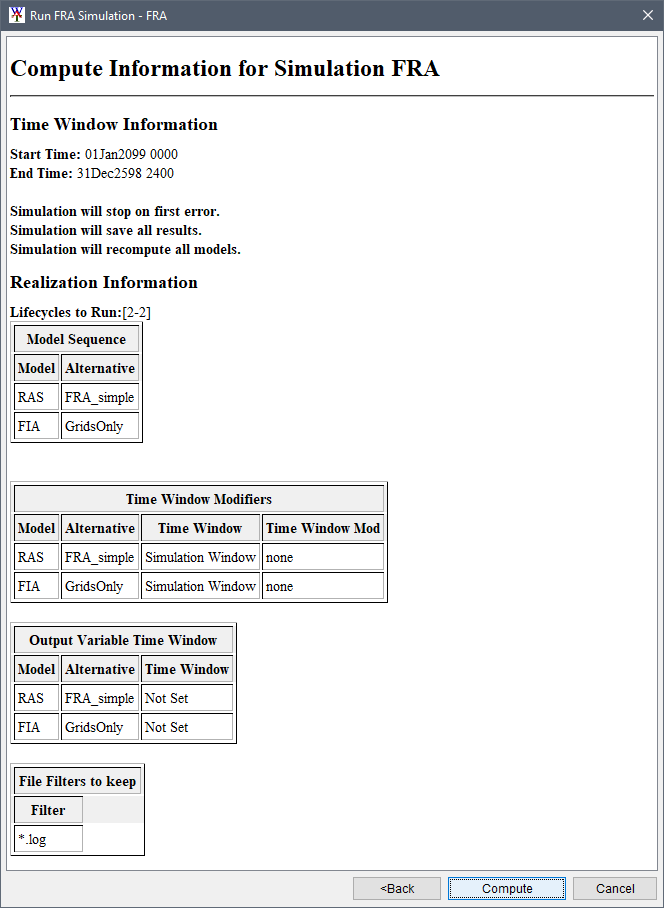
Click Compute, the Compute Progress dialog box opens. When the compute is finished, click Close to close the Compute Progress dialog box.