Download PDF
Download page Creating and Managing Reservoir Networks.
Creating and Managing Reservoir Networks
ResSim provides three ways to create a reservoir network:
- create a new network,
- make a copy of an existing network, and
- Import a network from another watershed. For more information on importing Networks or Network Elements, see "The Reservoir Network Importers."
But, before you start creating reservoir networks, it is important to understand how they relate to watershed configurations and the watershed schematic(s) you created in the Watershed Setup module.
ResSim was designed to fully implement the shared schematic concepts that are the basis of the Watershed Setup module and watershed configurations. To that end, ResSim's reservoir networks were designed to be created using a watershed configuration as a template. Using a configuration as a template means that ResSim will create model elements in the reservoir network for each watershed schematic element it recognizes in the selected configuration. Thus…
- For each reservoir in the configuration, ResSim will create a reservoir with the same name and position on the stream alignment in the new network.
- For each diversion from a stream in the configuration, ResSim will create a diversion with the same name, shape, location, and connectivity in the new network.
- For each diversion from a reservoir in the configuration, ResSim will create a diverted outlet the associated reservoir in the new network. The diverted outlet will have the same name, shape, location, and connectivity as the diversion in the selected configuration.
In addition, for each computation point defined in the watershed schematic, ResSim will create junctions in the reservoir network when a reservoir network is created based on a configuration.
Each of the network elements that were created based on a watershed schematic or configuration element stores a reference or link to the element it was based on. By maintaining this information, a network can be updated to reflect any changes that have been made to the watershed schematic or configuration since the network was first created.
Once the preliminary model schematic for a new network appears in the Map Display, you will need to add routing reaches (and possibly other network elements) to complete the connectivity of your reservoir network schematic.
Creating a New Network
When you create a new reservoir network, you can (and should) identify which projects will be included in your network by selecting an appropriate watershed configuration. After creating the network (based on a configuration), you will need to add additional elements to complete the connectivity and to represent any additional features that were not identified by the configuration.
To create a new reservoir network:
From the Network menu, select New.
The Create New Reservoir Network dialog will appear ("Figure: Create New Reservoir Network").
Figure: Create New Reservoir Network
Enter a Name and a Description for the network.
- From the Configuration list, select the configuration on which this network will be based.
Click New.
If no configuration was selected, a warning dialog will ask you to confirm that the network will not be based on a configuration ("Figure: Creating a New Network with no Configuration Selected").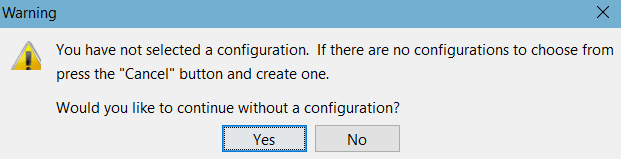
Figure: Creating a New Network with no Configuration Selected
- Click Yes to proceed without a configuration. If you do not use a configuration when creating your network, you will have to create all the model schematic elements for your network.
- Click No to return to the Create New Reservoir Network dialog so that you can select a configuration.
After you (and ResSim) complete the process of creating a new network, you will see the name of your new network and the configuration it was based on displayed below the Module Toolbar. Also, the reservoirs, junctions, and diversions that ResSim created in your network based on the configuration will appear in the Map Display area.

Note: A reservoir network can be created without specifying or selecting a configuration. If you do so, you will have to add each model schematic element into your network by drawing them, one by one, in the Map Display area. And, networks created without a configuration cannot be updated based on changes in made to a configuration nor can a configuration be applied to or imposed on them.