Incorporating Ensemble Forecasts into HEC-RTS Watersheds
The overall goal of this tutorial is to provide a step-by-step guide to acquiring ensemble streamflow data shared by the National Weather Service (NWS), setting it up in HEC-RTS, running simulations using ensemble forecast datasets, and reviewing the results.
Upon completion of this tutorial, you will be able to:
- Acquire meteorological gridded data from the National Blend of Models (NBM) and ensemble forecast streamflow data from the National Weather Service River Forecast Center in your region.
- Set up your watershed to forecast rainfall-runoff responses:
- considering only the HEC-HMS model –without ensemble, and
- considering ensemble forecast streamflow as input at a selected forecast location.
- Forecast streamflow and reservoir operations using the National Blend of Models gridded precipitation data and the ensemble forecast streamflow, selecting any ensemble member of interest, such as minimum volume, maximum volume, average volume, and percentile volume over a specified number of days.
- Review the results and customize ensemble plots.
Necessary Data
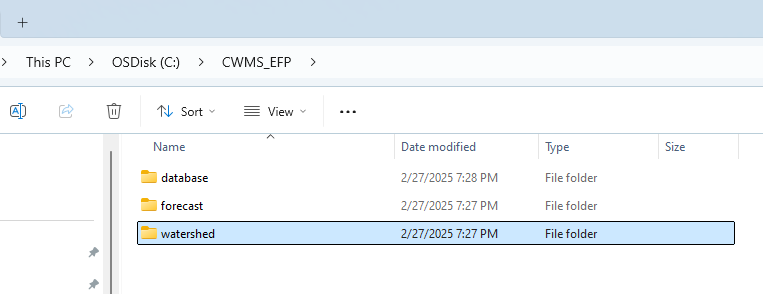
Download and unzip this CWMS_EFP.zip file within the C:\CWMS_EFP directory on your computer.

Software Version
CWMS 3.5 was used to create this tutorial.
These models includes a small portion of the Russian River Basin in California. Therefore, forecasts using the models in this tutorial will not be comparable with other similar tutorials presented in the HEC-RTS resources.
Background
The accuracy of streamflow predictions in any hydrologic model is influenced by several critical factors. These include the type of model used—whether lumped, distributed, or database-driven—the quality of input variables and parameters, and the precision of boundary condition data, particularly precipitation measurements. Additionally, the model’s performance is significantly affected by how well initial hydrologic conditions are established and the accuracy of weather forecasts.
Climatic and meteorological inputs such as temperature, precipitation, wind speed, and solar radiation are often subject to inaccuracies. These errors may arise from the inherent variability and unpredictability of atmospheric processes or from limitations in measurement techniques, such as human error or spatial and temporal inconsistencies across a watershed. Beyond input data, model outputs are also affected by uncertainties tied to assumptions, parameter selection, and the algorithms employed during model development. Consequently, streamflow forecasts frequently diverge from actual observations.
One effective strategy for addressing these uncertainties is to generate multi-value forecasts rather than relying on a single deterministic prediction. This approach, known as ensemble forecasting, produces a range of possible outcomes to reflect the inherent variability and uncertainty in model inputs and processes. By running multiple simulations, ensemble forecasting provides a probabilistic understanding of future conditions, which is highly valuable for informed decision-making in areas like reservoir management and flood risk mitigation.
The Ensemble Forecast Processor (EFP) is a plugin available in HEC-RTS that supports this approach. It is designed to compute statistical metrics from ensemble streamflows at specific watershed locations. These metrics help forecasters evaluate how different streamflow scenarios influence other model alternatives. For instance, in HEC-ResSim, forecast alternatives can incorporate metrics such as minimum, maximum, mean, or percentile volumes over defined time intervals to guide reservoir release decisions.
Creating an ensemble forecast begins with meteorological inputs and continues through hydrologic model simulations. In this tutorial, ensemble forecast data are sourced from the California Nevada River Forecast Center (CNRFC). These forecasts are generated using statistical analyses of historical forecast performance and represent meteorological uncertainty only; hydrologic uncertainty is not included in these datasets.
Tasks
The three main tasks for this tutorial are:
- Acquiring Data (Steps 1 - 2)
- Configuring the Ensemble Forecast Processer (Steps 3 - 7)
- Running Ensemble Simulations, Reviewing Results, and Analyzing Ensemble Plots (Steps 8 - 11)
Step 1: Acquire Data from the National Blend of Models (NBM) Source
The gridded dataset used in this tutorial was obtained from the NBM dataset produced by NOAA. You can find more information about how the NBM dataset by visiting NOAA’s website.
In this case, the gridded precipitation data were accessed through Cumulus, a web service provided by the U.S. Army Corps of Engineers (USACE). Cumulus delivers gridded meteorological, observed, forecast, and hydrologic data across the United States. While several forecast datasets are available through Cumulus, the NBM was selected for demonstration purposes in this tutorial.
To begin, follow the instructions in Setting Up a Cumulus Extract to create a new extract group using Cumulus.
The figures below offer a visual guide to the process of acquiring gridded meteorological data from the NBM source. Orange arrows in the screenshots highlight the sequence of steps, starting from the Setup tab and continuing through each part of the workflow. In the provided example project, an extract group named Cumulus has already been configured for reference.
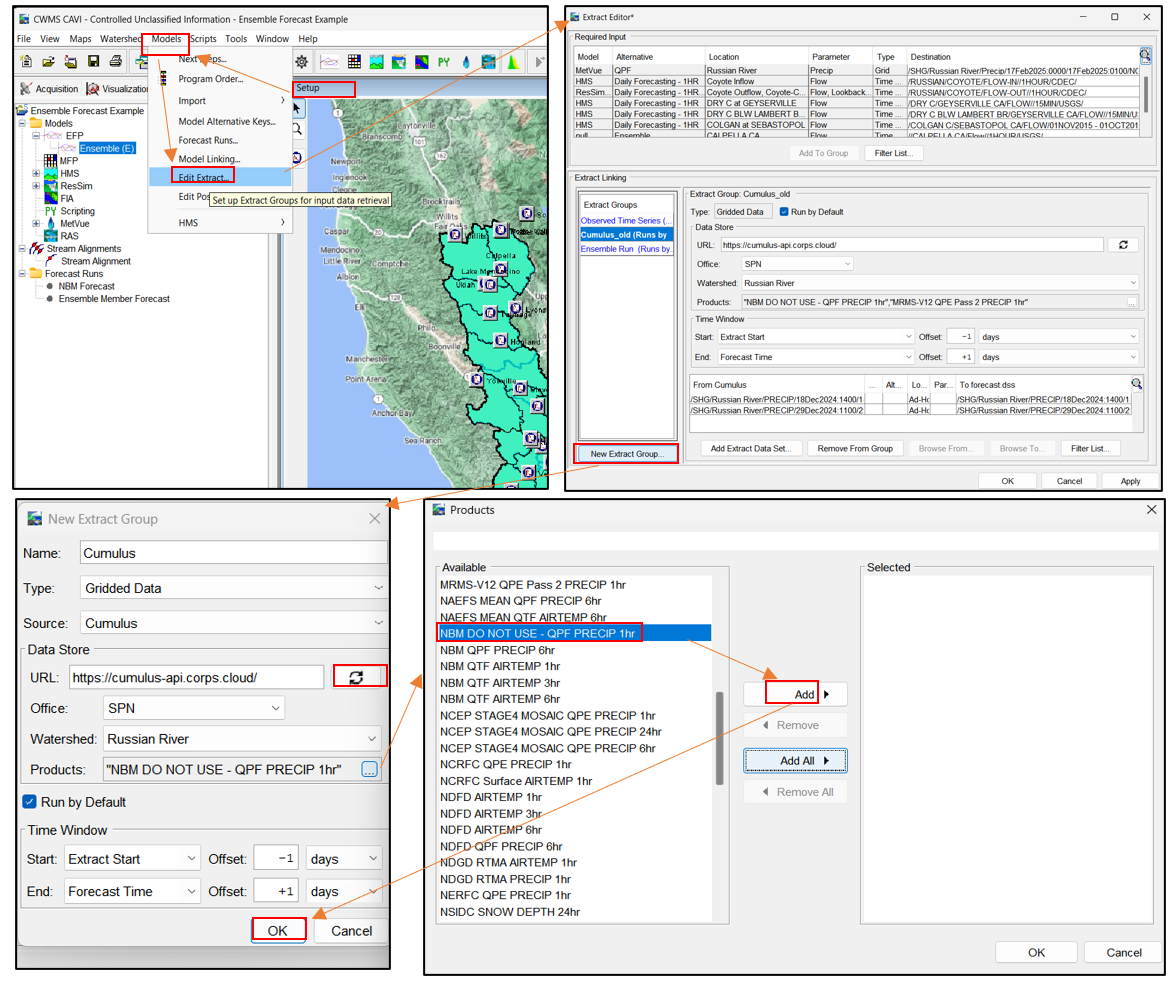
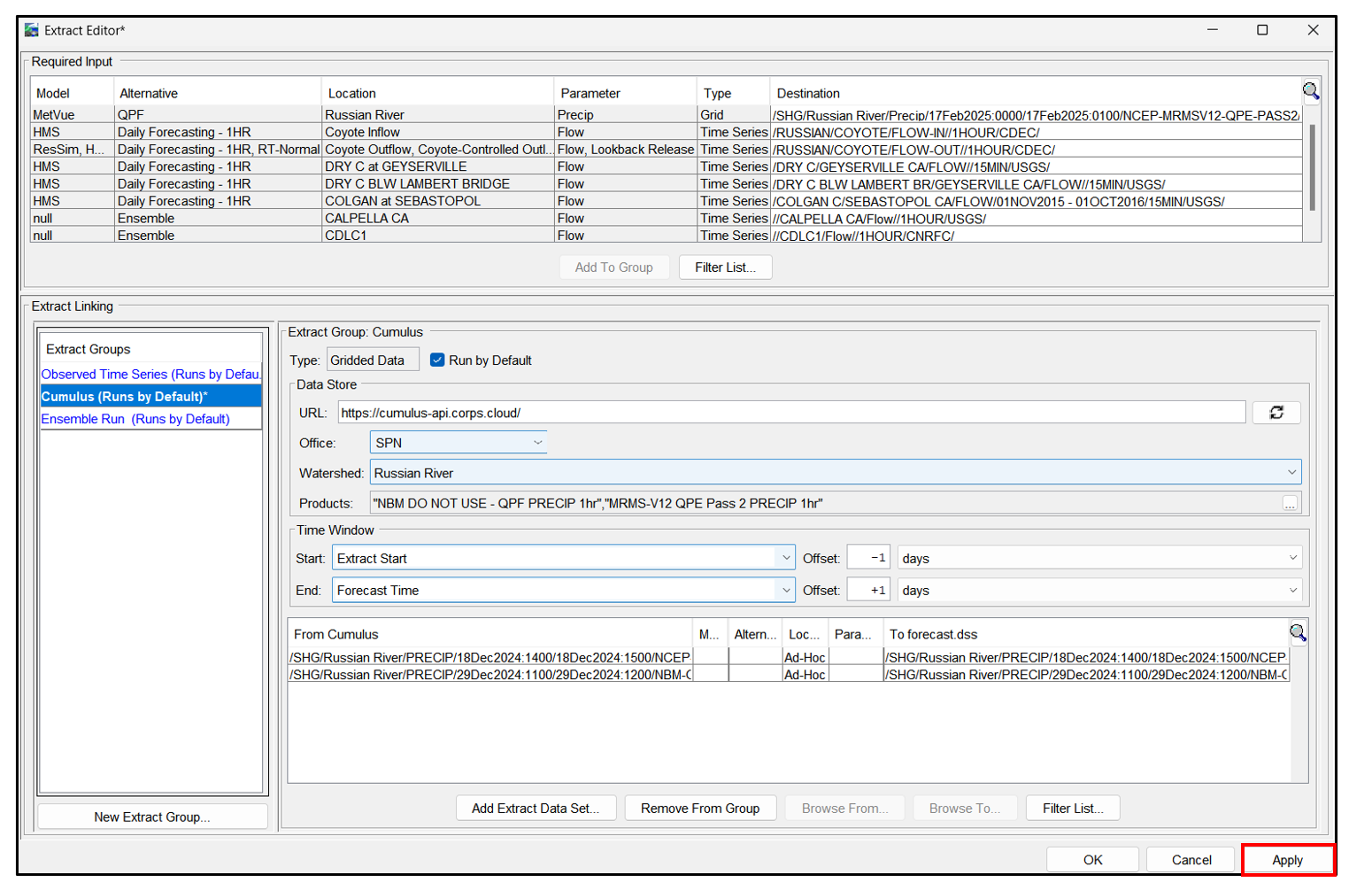
Additional figures demonstrate how to configure the Extract Editor and set up Extract Linking.


The final figure shows the completed Cumulus Extract Group, which incorporates MRMS data for the forecast lookback period and NBM data for the forecast period.
Step 2: Acquire Ensemble Forecast Streamflow Data
- Ensure that the Ensemble Data Acquisition Script (ESP_Import_russain.py) is available in the Script Editor.

- If it is not already listed, locate the script file and add it manually.
- For help setting up a script, refer to resources such as Create a Plot Script.
- For help setting up a script, refer to resources such as Create a Plot Script.
The Ensemble Forecasting Script performs the following actions:
- Downloads ensemble forecast data for selected forecast points over a user-defined time period.
- Processes the data and stores it in an HEC-DSS file.
- Handles errors if a forecast point is invalid or if no data is available.
The script used for this example is custom for the CNRFC and Russian River watershed.
To configure forecast locations:
Ensure the stream gage names defined in the script (e.g., lines 41–51) exactly match those in the River Forecast Center’s data source.
The script will return an error if stream gage names are incorrect or if no data is available for a given location.

Next, run the script:
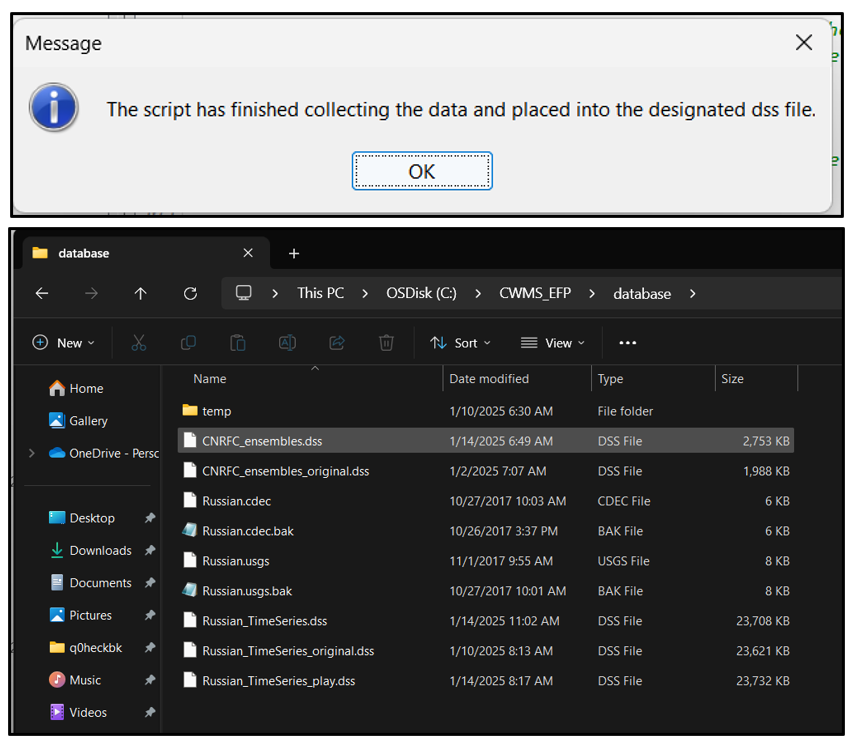
Execute the script in the Script Editor and verify that it runs successfully (see the figure below).
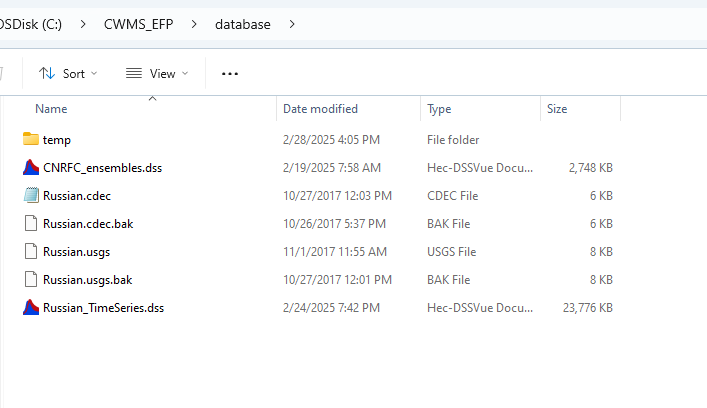
Confirm that ensemble forecast data is saved in the appropriate HEC-DSS file (e.g., C:\CWMS_EFP\database\CNRFC_ensembles.dss).
Note: The script typically retrieves one month of forecast data starting from the current date. To change the time window, manually edit the start and end dates in the script.
- For this example, the data covers December 18, 2024 – January 17, 2025, corresponding to a forecast issued on December 18, 2024.
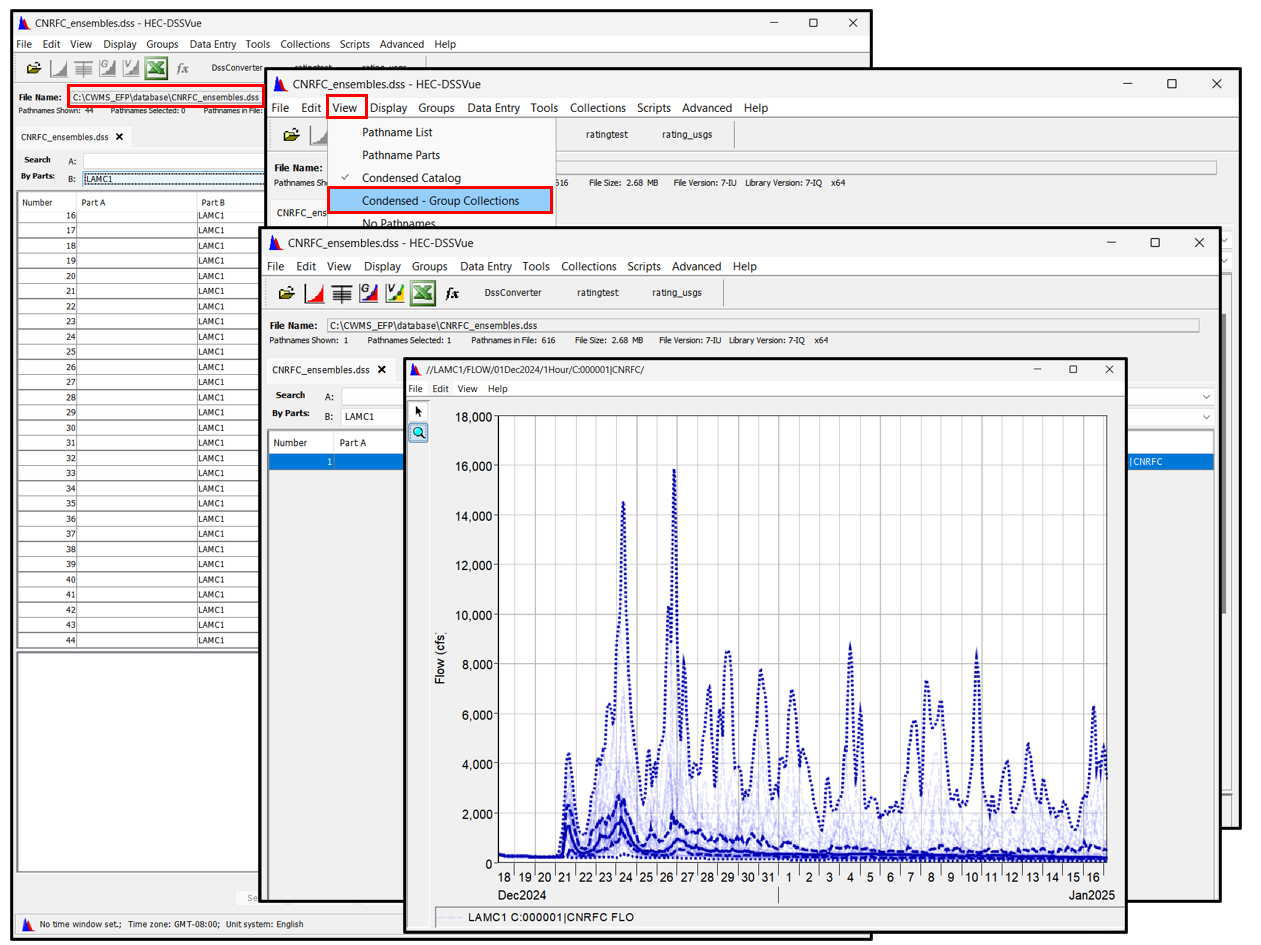
Verify data in the HEC-DSS file to confirm a successful download:
Navigate to the database directory containing CNRFC_ensembles.dss.
Open the file in HEC-DSSVue.
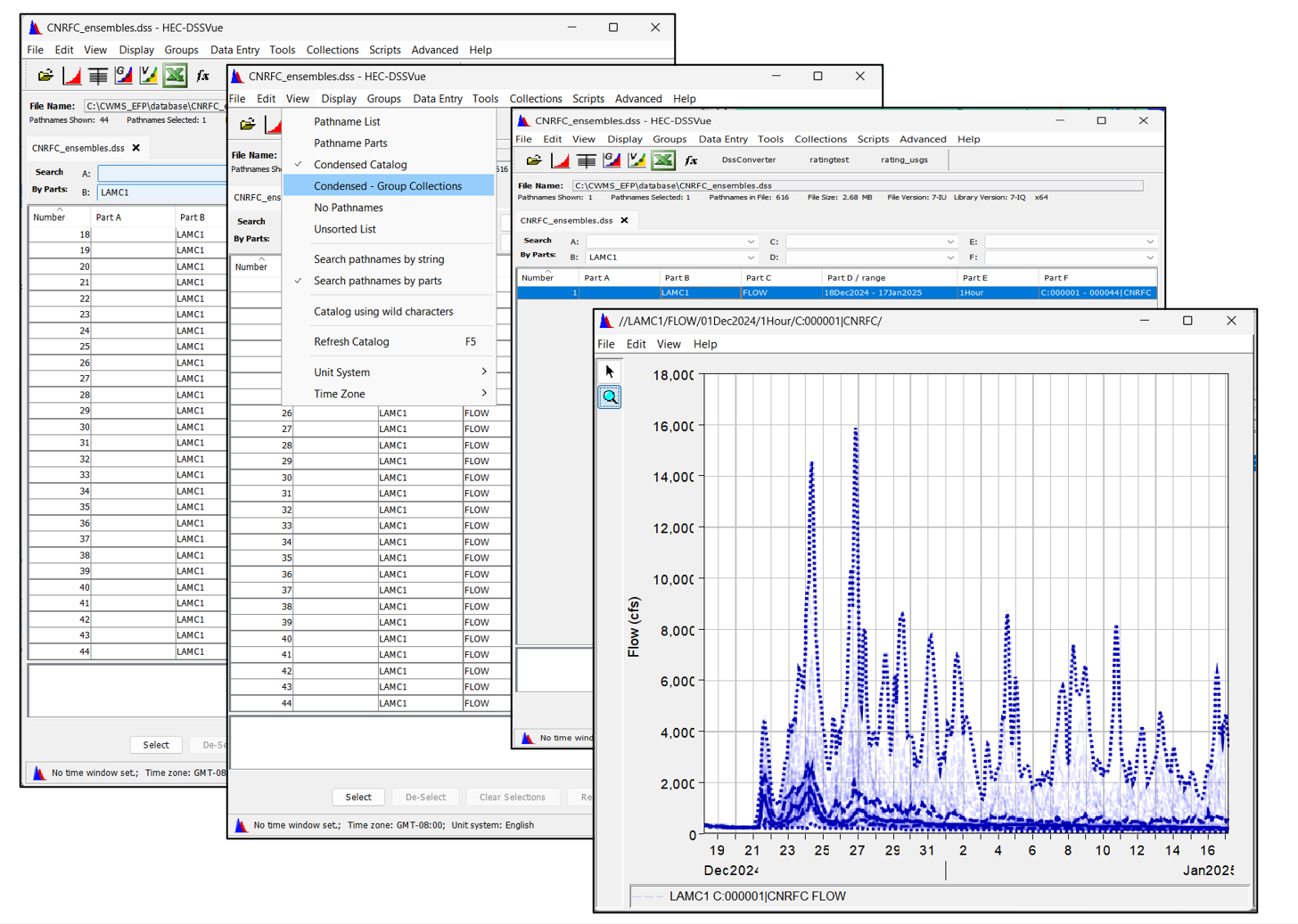
From the View menu, select Condensed - Group Collection.
Plot the ensemble streamflow data to ensure it is available and correct.
The figure below shows ensemble forecast members for the LAMC1 forecast point.
Step 3: Create a new EFP Alternative
To configure the Ensemble Forecast Processor (EFP) in HEC-RTS, follow the steps below to create a new EFP alternative. The EFP setup process is similar to other programs within HEC-RTS.
Note: These steps have already been completed in the example project, but are outlined here for reference.
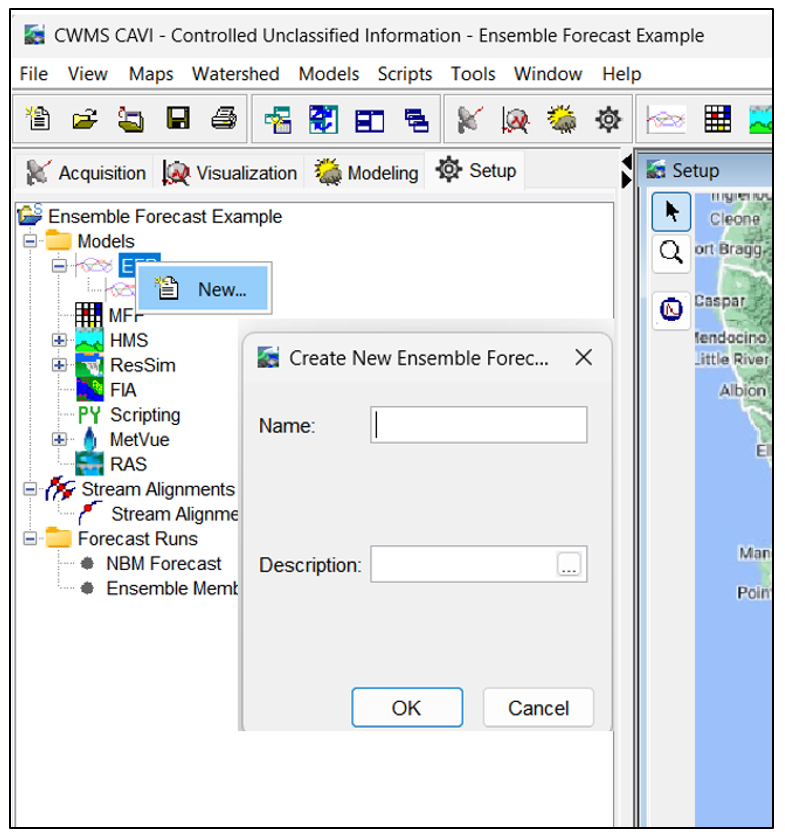
- Navigate to the Setup tab.
- Right-click on EFP in the Watershed Tree.
- Select New from the context menu.
- A Create New Ensemble Forecasting Processor Alternative dialog will appear.
- Enter a Name for your new EFP alternative.
- Optionally, provide a Description for clarity.
- Click OK.
Step 4: Configure Input Settings
Once the new EFP alternative has been created, follow the steps below to configure the input settings:
- From the Setup tab, right-click the newly created EFP alternative.
- Select Edit from the context menu.
- In the dialog, you can modify the Name, Description, Input Settings, and Output Settings.
- Navigate to the Input Settings tab.
- Edit the settings as needed (see below for more details).
- Click Apply.
The Input Settings tab contains two key tabs:
- LookBack – used to define the data inputs for the historical period.
- Forecast – used to configure the inputs for the forecast period.
LookBack Tab
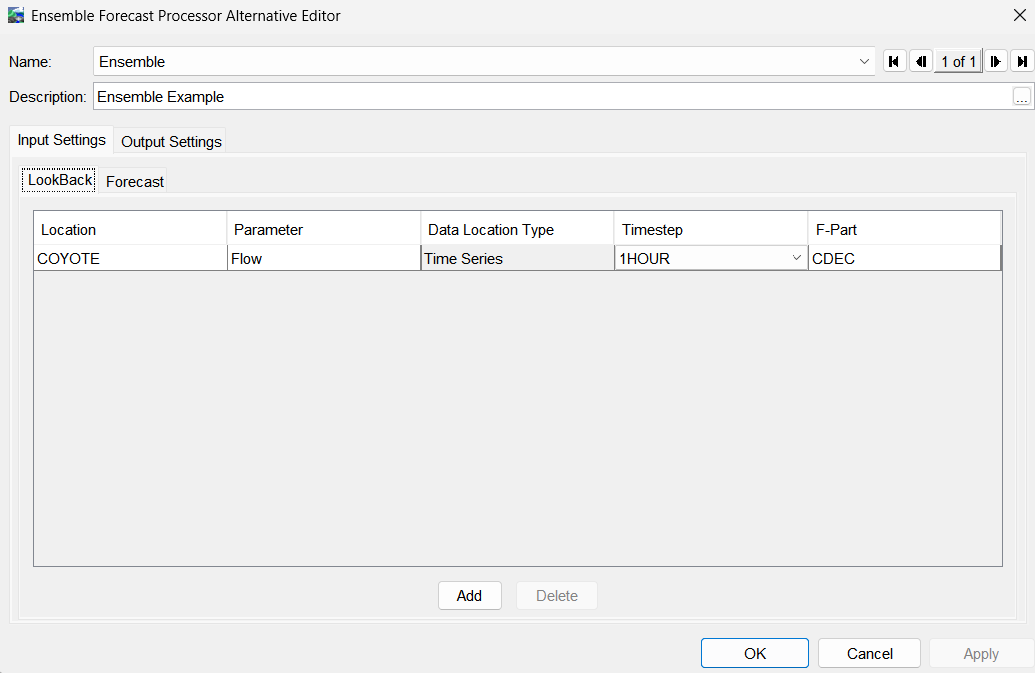
Entering data in the LookBack tab is only required if the Ensemble Member with Closest Volume to Metric Compute option is selected and if you want to merge observed time-series data from the LookBack Period with the ensemble member returned in the Forecast period. As shown in the figure below, we will merge observed streamflow from the lookback period with forecasted streamflow from one of the ensemble members for the forecast period. The observed streamflow will be linked to location information defined on the LookBack tab.
Input the following details when filling out the LookBack tab:
- Location – Enter the B Part of the Pathname. The name must match the B-part pathname for the record referenced and extracted into the Forecast.dss file.
- Parameter – Enter the C Part of the Pathname (must match the associated parameter in the Forecast Period and Compute Location in Output Settings).
- Timestep – Select the timestep from the dropdown list (must match timesteps in the Forecast Period and Compute Location in Output Settings).
- F-Part – Enter the F Part of the Pathname.
Forecast Tab
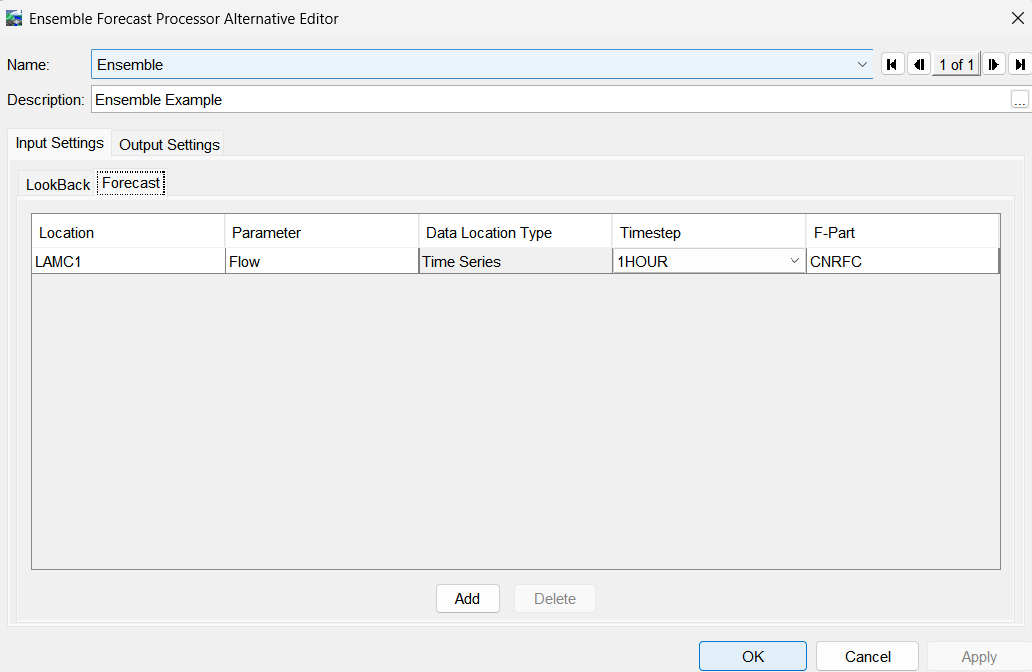
The Forecast Tab specifies forecast time-series data that the EFP will use in computations. To successfully compute an EFP alternative, you must enter at least one location in the Forecast Tab.
Click the Add button to add more data entries as needed. In this example, we are only using ensemble information for the inflow into Lake Mendocino. There are additional points in the watershed with ensemble time-series from the CNRFC; however, the total flow forecast is provided whereas the HEC-ResSim model of the Russian River watershed is configured to bring in local, or incremental, runoff hydrographs. Simulated results from the HEC-HMS model is used at downstream locations. The LAMC1 location corresponds to forecasted inflow into Lake Mendocino.
Input the following details for each location of the Forecast tab:
- Location – Enter the B Part of the Pathname. The name must match the B-part pathname for the record referenced and extracted into the Forecast.dss file.
- Parameter – Enter the C Part of the Pathname (must match the associated Parameter in the Compute Location under Output Settings, see Output Settings in next section).
- Timestep – Select the Timestep from the dropdown list (must match the Compute Location Timestep).
- F-Part – Enter the F Part of the Pathname (only include the identifier, e.g., CNRFC, excluding the collection portion, e.g., C:000001).
Step 5: Configure Output Settings
- Navigate to the Output Settings tab.
- Edit the settings as needed (see below for more details).
- Click Apply.
The tab consists of two separate tabs:
- Locations to Compute Metrics Tab – used to specify locations where ensemble metrics will be computed and defines input data from the LookBack and Forecast time windows.
- Cumulative Volume Scalar Decision Metrics Tab – used to configure the metrics to be calculated for each forecast.
Locations to Computer Metrics Tab
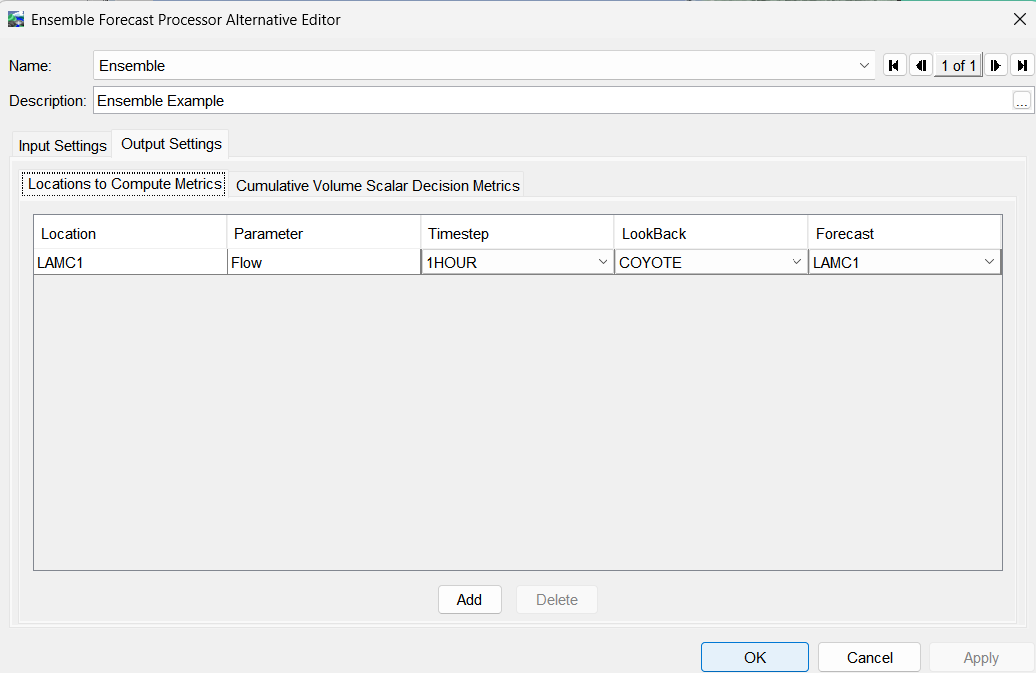
The Locations to Compute Metrics tab lets us specify locations where the EFP will calculate statistical metrics. As shown in the following figure, only the Lake Mendocino inflow location was selected.
Similar to the Input Settings, complete the following for each location:
- Location – Name of the compute location (B-Part of the DSS output pathname).
- Parameter – The time-series parameter (C-Part of the DSS output pathname). Must match corresponding locations in the Lookback and Forecast periods.
- Timestep – Select the timestep (E-Part of the DSS output pathname). Must match corresponding locations in the Lookback and Forecast periods.
- LookBack – Choose the record for the Lookback Period. The LookBack can be left "null" in two cases: (a) where the Ensemble Member with Closest Volume to Compute Metric not selected, or (b) the ensemble time series collection record selected in the Forecast Period covers the entire Time Window of the Forecast (from start of Lookback Period to the end of Forecast).
- Forecast – Select the ensemble time series record for computing metrics at this location.
Cumulative Volume Scalar Decision Metrics Tab
The "Cumulative Volume Scalar Decision Metrics" tab allows us to define metrics to be computed for each forecast. Follow the steps below to configure:
- Enter "Cumulative Volume" – Specify full days (e.g., 1, 3, 5) within the Forecast Time Window for the program to compute the cumulative volume. You can specify more than one volume duration.
- Enable Min, Max, Average, and Standard Deviation if needed. For example, when Min is selected, the program will compute and save the minimum volume from all ensemble members at the specified cumulative volume duration(s).
- Enter Percentiles – Input decimal values (e.g., 0.10, 0.50, 0.90) separated by commas. The program will compute and save volumes for the selected percentiles at the specified cumulative volume durations(s).
- Enable "Ensemble Member with Closest Volume to Metric" if you want to compute this additional metric. This feature identifies and saves the ensemble member (complete time-series) with the closest cumulative volume at user specified cumulative volume duration(s) to the selected metric (min, max, percentiles, average, and standard deviation). Cumulative Volume computations always begin at the Time of Forecast.
- Press Enter to save data.
Notice in the following figure the option to save the Ensemble Member with the Closest Volume to Metric Compute is checked. Also, the 3-day cumulate volume was entered along with the 10th, 50th, and 90th percentiles. In this case, the program will create datasets that combine the observed inflow into Lake Mendocino for the Lookback period with the ensemble members that are closest to the 10th, 50th, and 90th percentile 3-day volume.

Step 6: Complete the Required Modeling Setup
After creating the alternative, complete the following setup tasks:
- Define the program order to specify the sequence in which models are executed.
- Set model alternative keys to identify which model alternatives will be used.
- Create forecasting run alternatives to link model runs with forecast scenarios.
- Set up extract lists to specify the data inputs used by the EFP.
Refer to other HEC-RTS guides for step-by-step instructions on how to complete these tasks.
Step 7: Configure Model Linking
To ensure the proper flow of data between models in your forecast sequence, follow the steps below to set up model linking:
- Navigate to the Setup tab.
- From the Models menu, select Model Linking.
- In the Model Linking Editor, choose the appropriate Forecast Run.
- Then select the Model Requiring Input from the dropdown menu.
Make sure that the selected model receives the correct observed datasets and boundary conditions from the model that precedes it in the compute sequence.
This ensures accurate data flow between models (e.g., EFP to HEC-ResSim).
- Click Apply to save the changes.
- Repeat this process for each forecast run and model requiring input.
Example Configuration
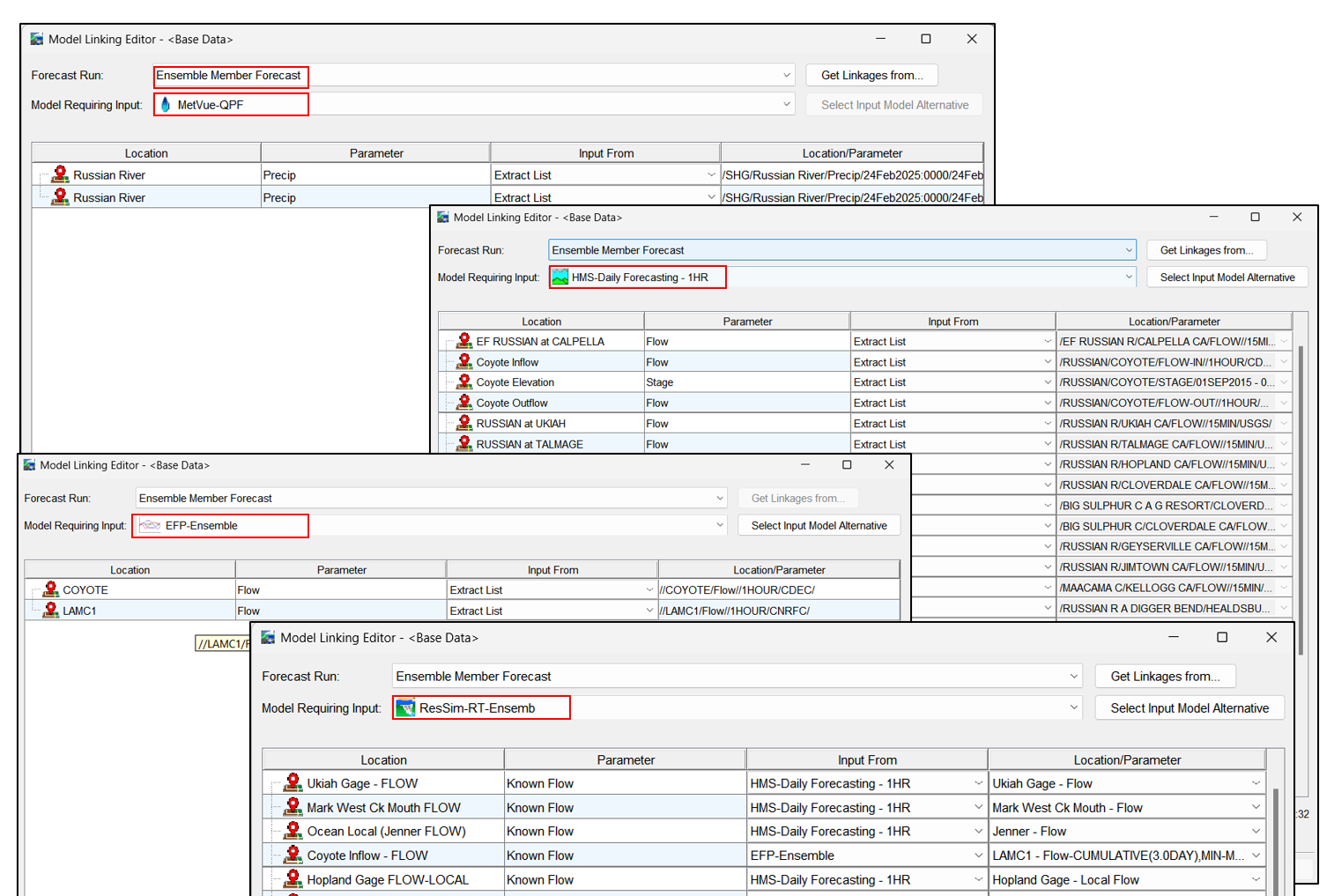
In the example shown below, the HEC-ResSim model alternative is linked to the EFP model alternative.
This setup passes both:
- Observed inflow, and
- Ensemble forecast members (computed by the CNRFC) to the Lake Mendocino reservoir element in HEC-ResSim.
Additionally, HEC-ResSim remains linked to HEC-HMS output for locations downstream of Lake Mendocino.
Special Note for Ensemble Member Forecasts
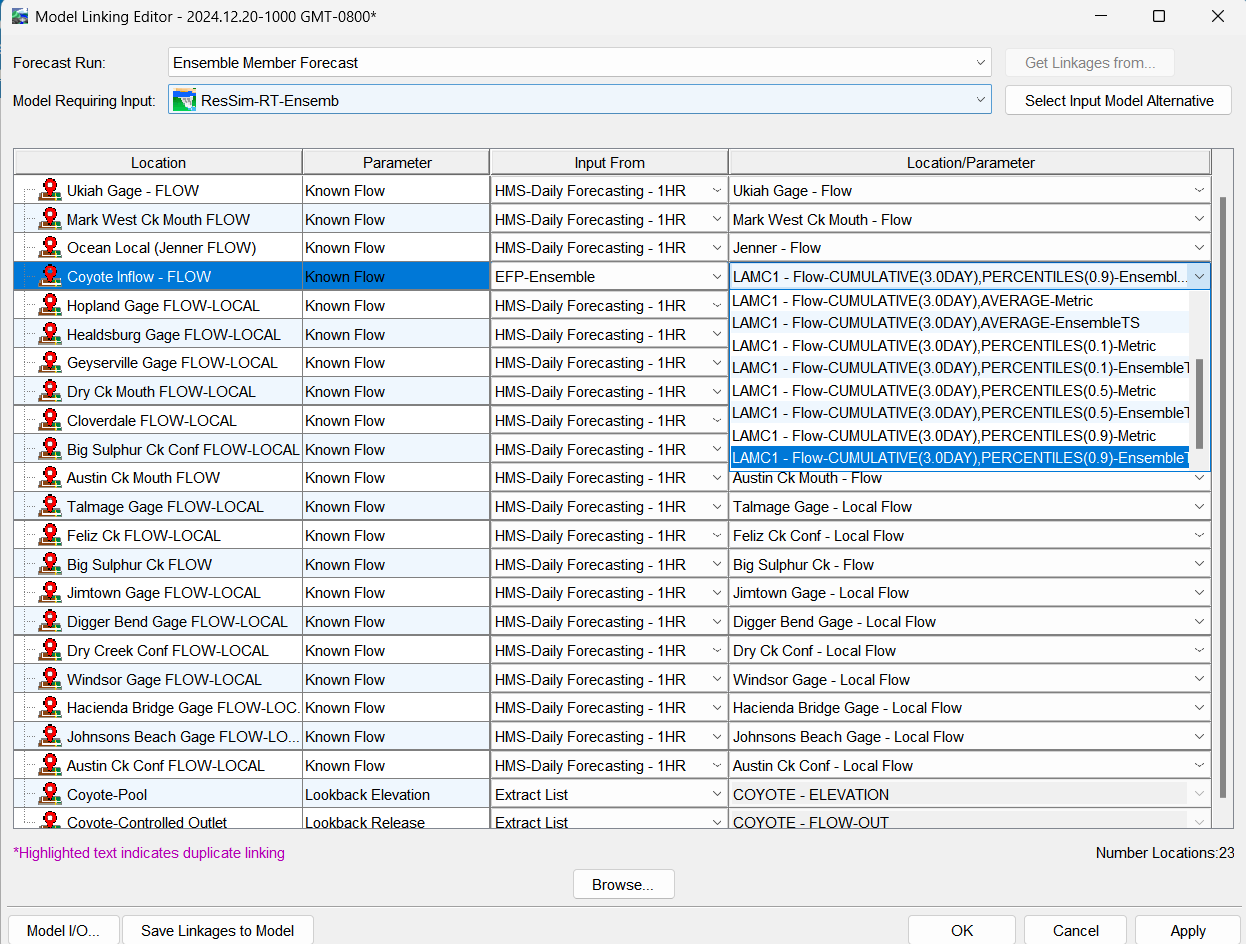
In the Model Linking Editor the COYOTE location must receive input from: //COYOTE/Flow//1Hour/CDEC.
To ensure that the compute does not fail, the A Part of the pathname must be blank. See the figure below for an example.

Step 8: Run the Ensemble Simulations
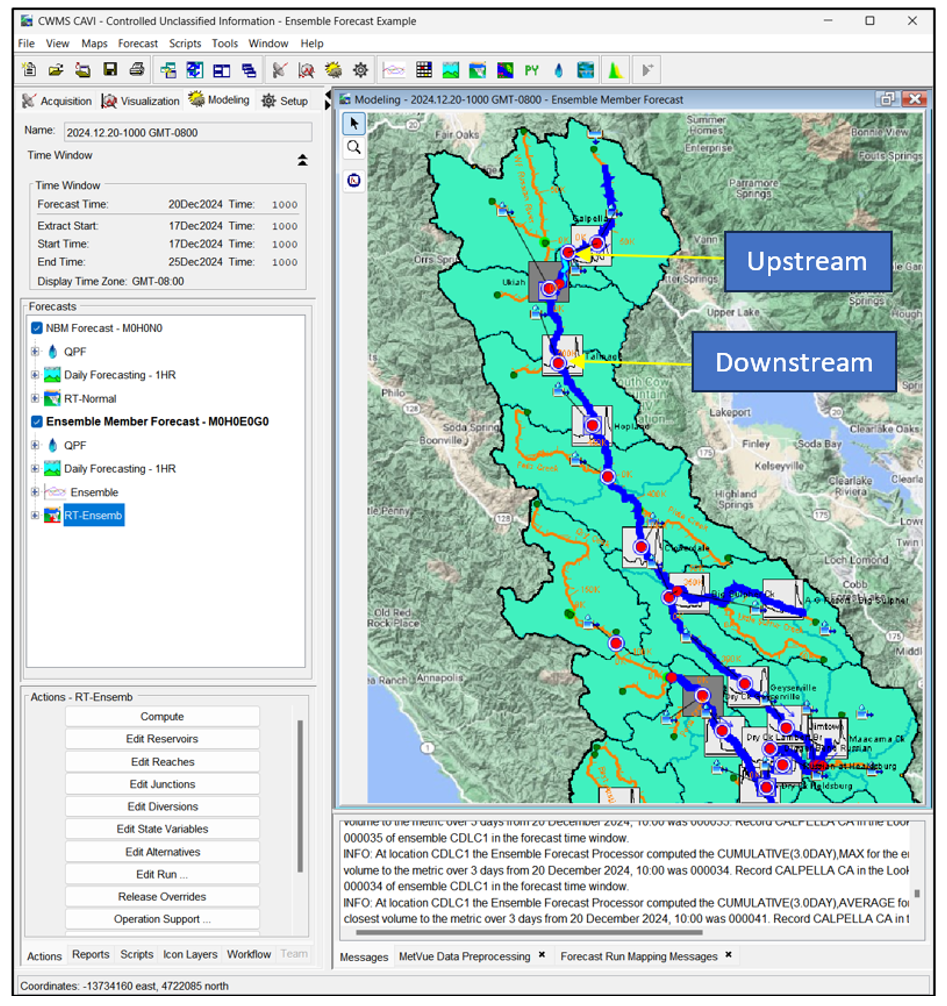
Now you will run and compare forecast simulations for NBM Forecast and Ensemble Member Forecast scenarios, focusing on streamflow at Coyote Junction (upstream of Lake Mendocino) and Talmage Junction (downstream).
Run the NBM Forecast Simulation
- From the Modeling tab, open the forecast named 2024.12.20-1000.
- Compute the NBM Forecast - M0H0N0 forecast run.
- The simulation should complete successfully with no errors.
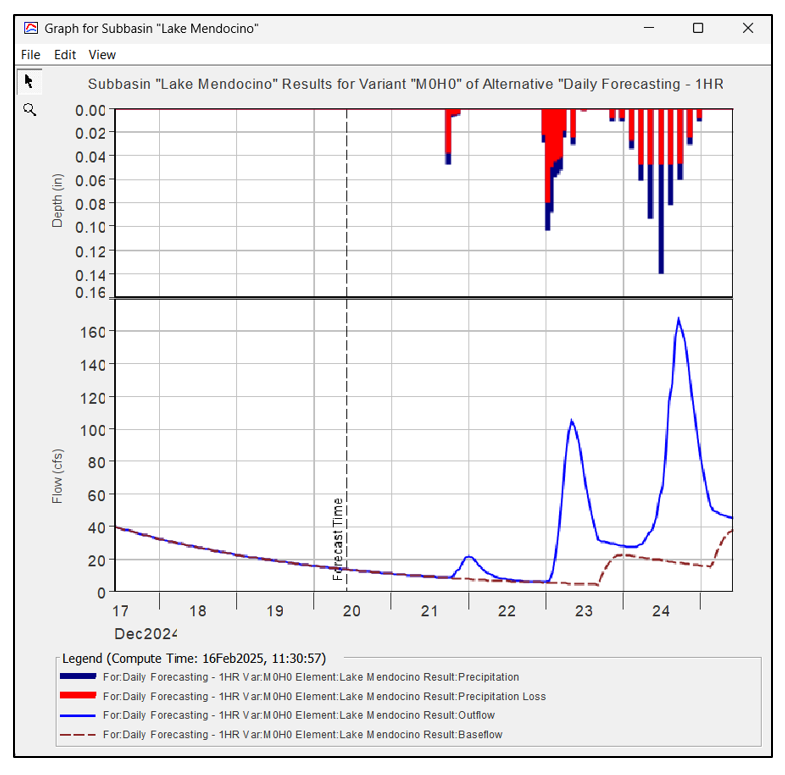
- Use HEC-HMS to check whether precipitation and runoff appear reasonable in the subbasins of interest. The model should show only baseflow during the lookback period, with multiple waves of runoff during the forecast period (see figure below).
- Right-click on Coyote Junction and select Plot.
- Right-click on Talmage Junction and select Plot.

Run the Ensemble Member Forecast Simulation
- Choose an individual ensemble member from the dataset (e.g., the member closest to the 10th percentile 3-day volume).
- Open the Model Linking Editor and link the preferred ensemble member (In this case, the 10th percentile of the three-day volume at the Coyote inflow is selected) to the HEC-ResSim model alternative.

- You must use local runoff, not total runoff, downstream of reservoirs in HEC-ResSim, based on how HEC-HMS and HEC-ResSim are linked.
- Compute the forecast run named Ensemble Member Forecast.
Compare the Simulation Results
- Ensure the NBM Forecast run is also active (checked), and plot results at Coyote Junction and Talmage Junction.
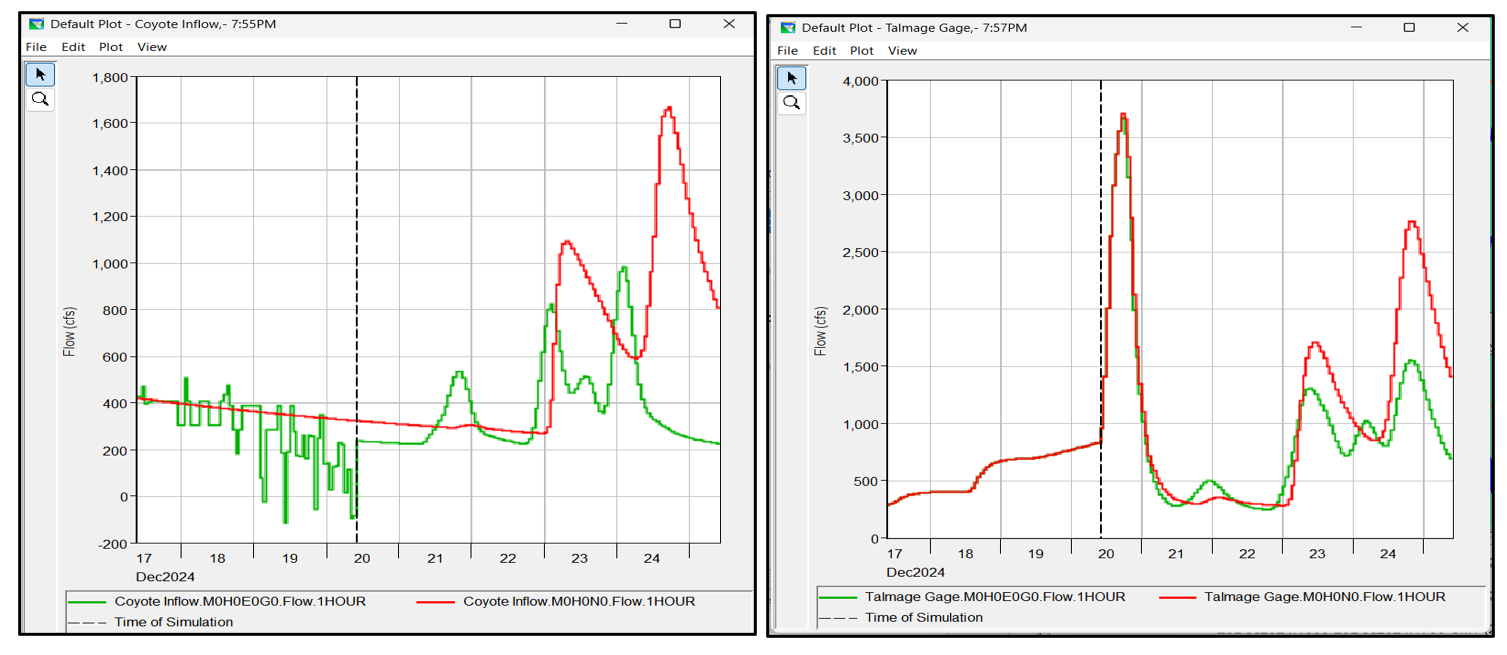
- The figures below compare the NBM Forecast (red line) and the selected ensemble member (green line) for both locations.
- The 10th percentile member shows a different response due to lower inflows and highlighting variability in the forecast.
Run Additional Ensemble Member Scenarios and Compare Results
It is easy to run additional ensemble member scenarios in HEC-RTS.
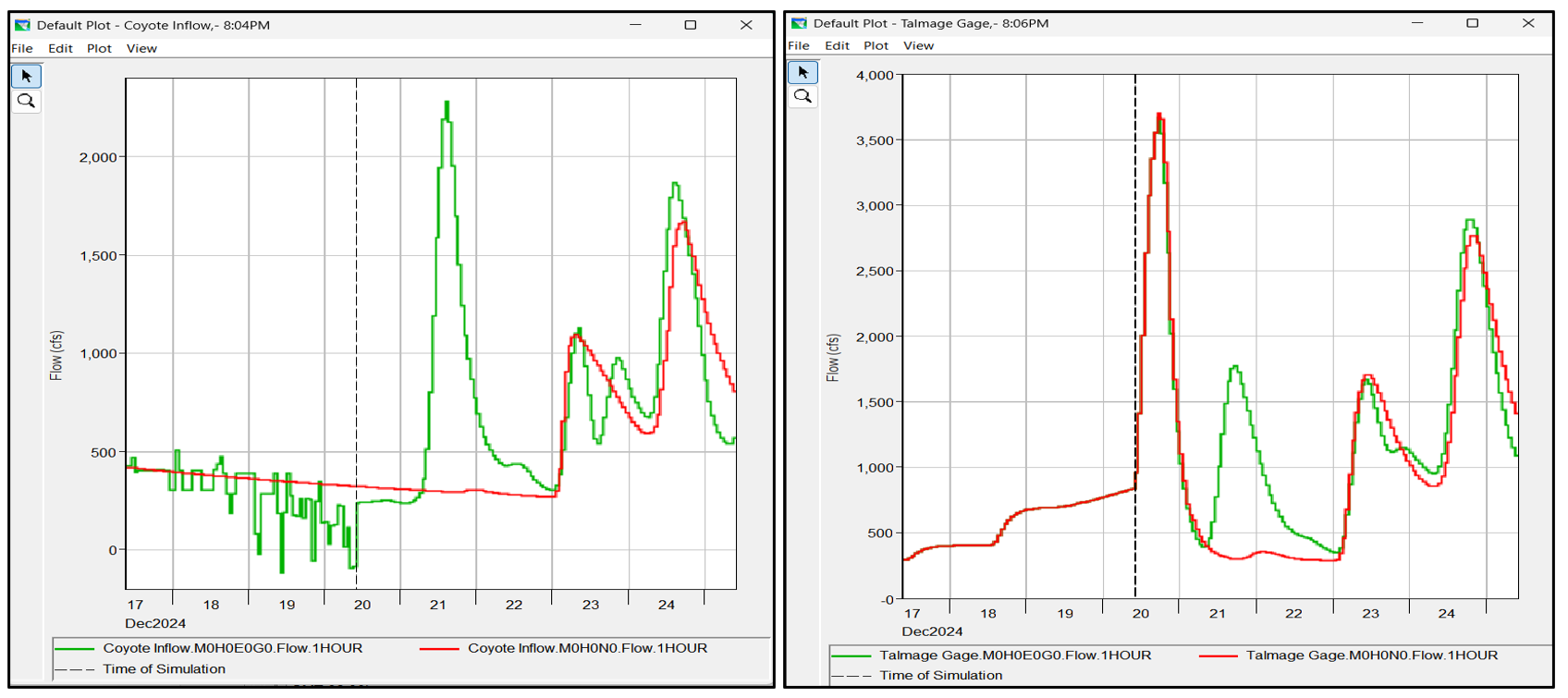
- Open the Model Linking Editor and select the ensemble member closest to the 50th percentile 3-day volume.

- Run the Ensemble Member Forecast again.
- Ensure the NBM Forecast run is also active (checked), and plot results at Coyote Junction and Talmage Junction.
- As shown below, this member captured a significant flood event on December 21, which the NBM forecast missed due to under-predicted precipitation.
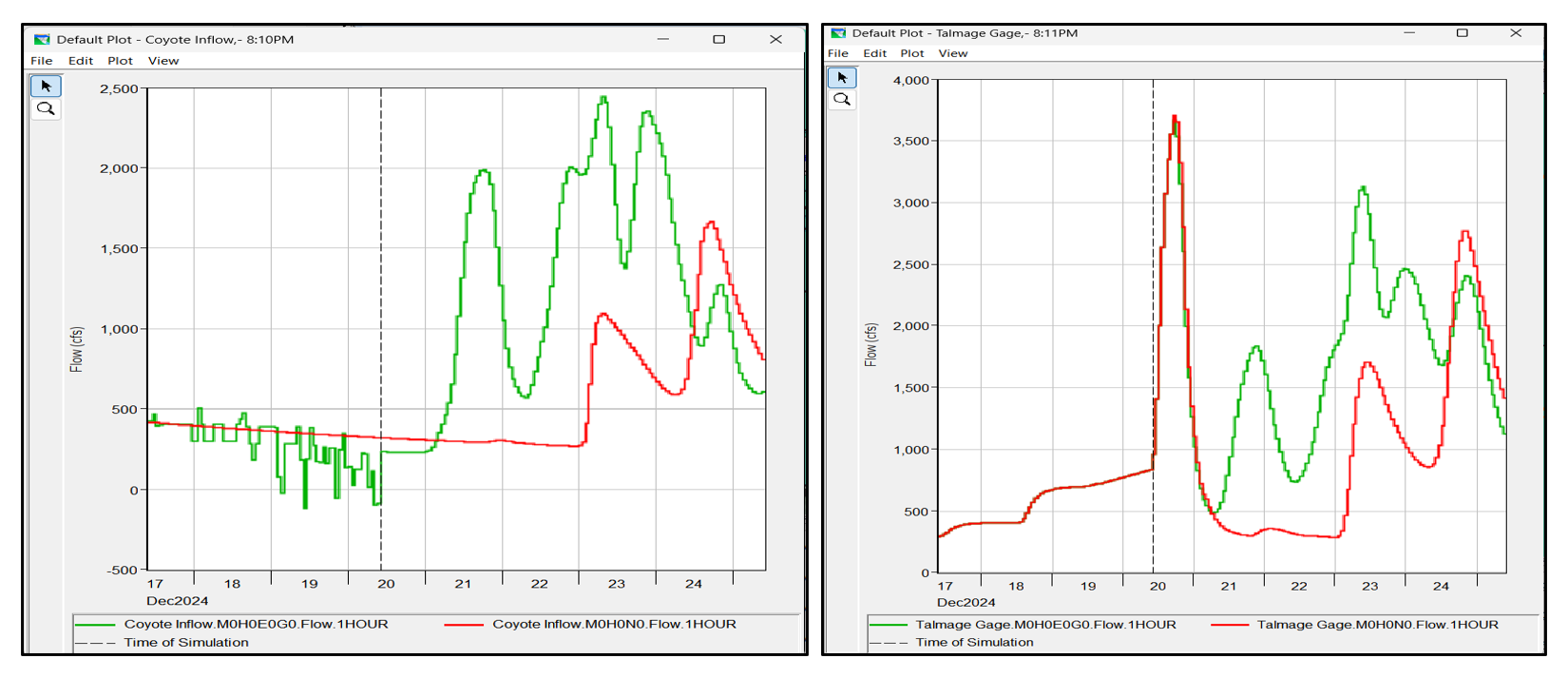
- Repeat the process, this time selecting the ensemble member closest to the 90th percentile 3-day volume.
- Re-run the Ensemble Member Forecast simulation.
- Ensure the NBM Forecast run is also active (checked), and plot results at Coyote Junction and Talmage Junction.
- The 90th percentile ensemble member predicts much higher runoff, further emphasizing the uncertainty in forecasted streamflow.
By running and comparing multiple ensemble members (10th, 50th, and 90th percentiles) against the NBM forecast, you gain a deeper understanding of the range of possible outcomes. This process highlights the value of ensemble forecasting for assessing forecast uncertainty and making informed water management decisions.
Step 9: Review Downloaded Ensemble Streamflow Data
You can examine all ensemble members stored in the downloaded ensemble file (e.g., CNRFC_ensembles.dss) located in the database folder.
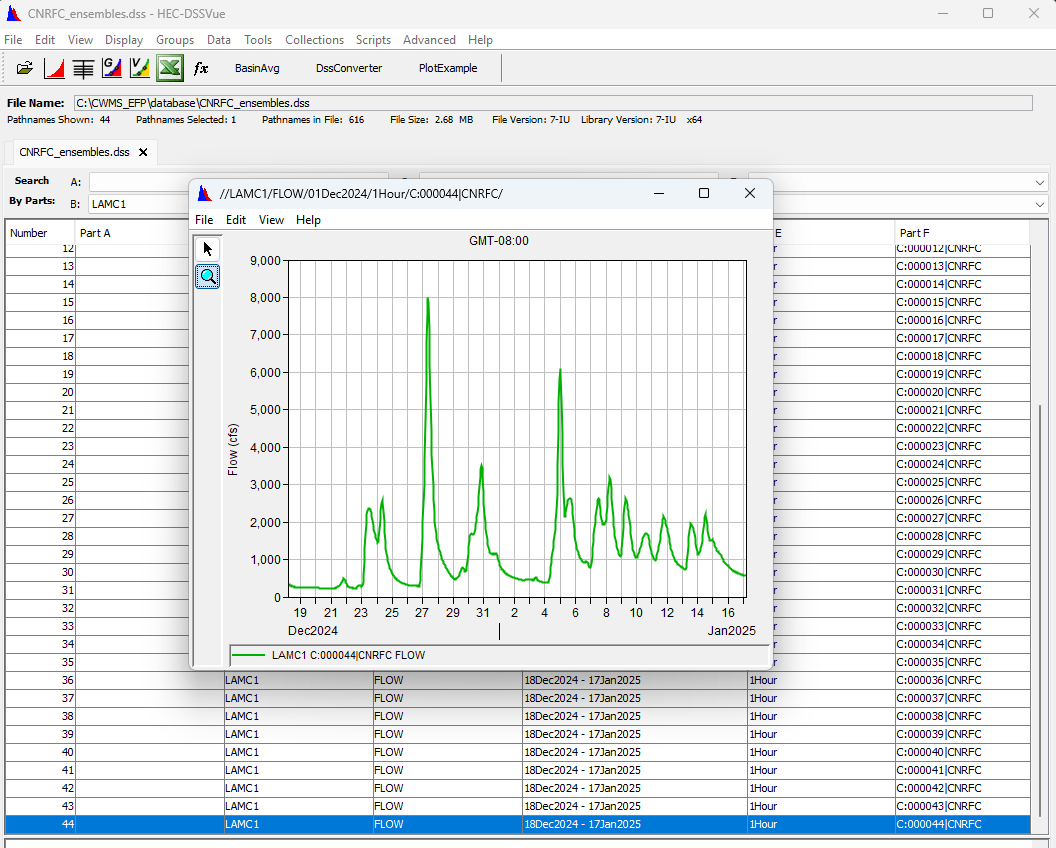
This file includes 44 ensemble members. Any individual member can be plotted in HEC-DSSVue—for example, the 44th member at location LAMC1 is shown below.
To view and plot all ensemble members together, use the Condensed-Group Collection option from the View menu in HEC-DSSVue.
Note: These collection plots are not accessible via the time series icons within HEC-RTS.
Step 10: Analyze a Simulated Percentile Member
For this example, ensemble members nearest to the 10th, 50th, and 90th percentile 3-day volumes were selected. To identify these members, refer to the log file generated during the ensemble forecast run. For instance, the figure below shows members 00007, 00024, and 00018 as closest to the 10th, 50th, and 90th percentile volumes, respectively.

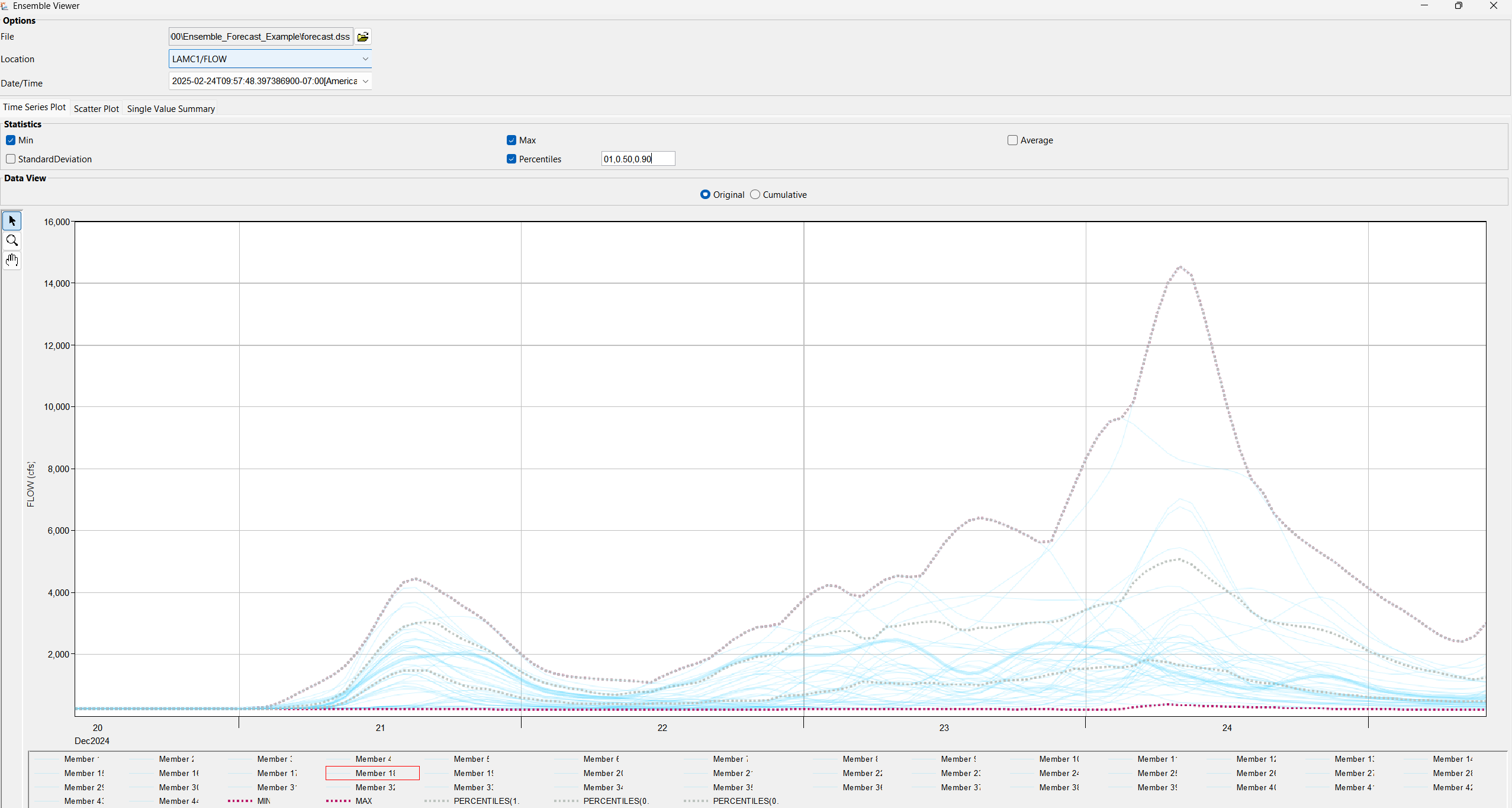
Step 11: Visualize Data in the Ensemble Viewer
You can also visualize ensemble results using the Ensemble Viewer, accessible via the Tools menu in HEC-RTS.
- Select Ensemble Viewer from the Tools menu.
- In the file explorer dialog, locate and open the forecast.dss file.
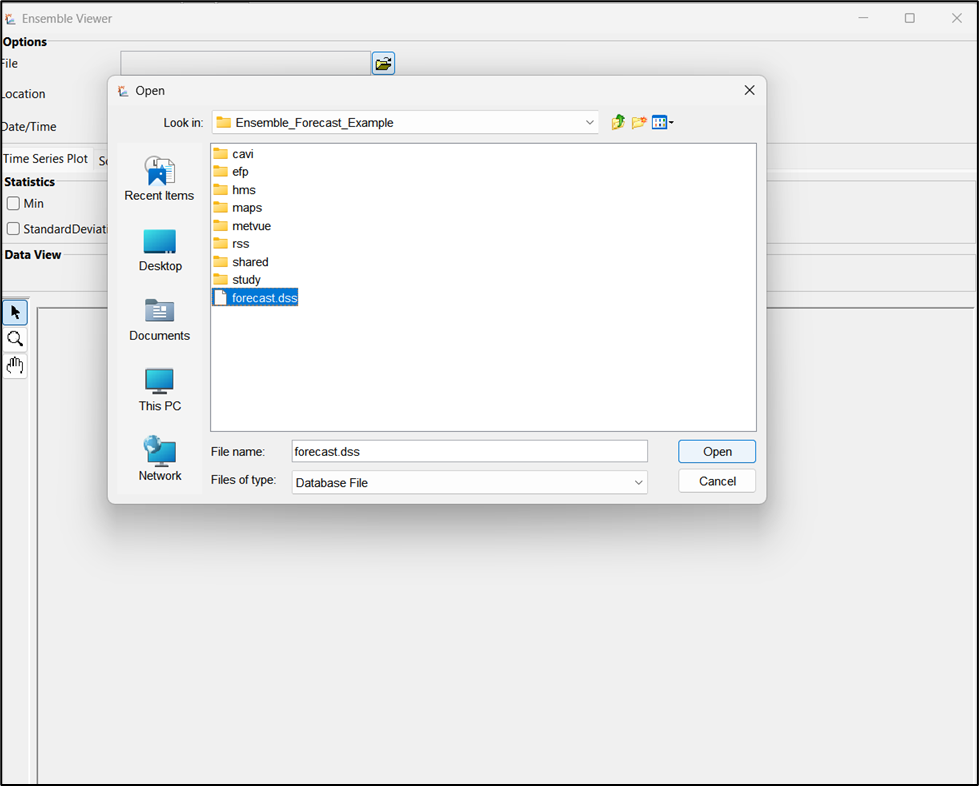
- Once loaded, the viewer will display the ensemble data..
- To adjust the view:
Use the Location tab to select a station with ensemble data.
Choose statistics to display (e.g., Min, Max, 10th/50th/90th Percentiles).
The legend will list ensemble members, allowing you to highlight or modify individual traces.
Final Review
Now that you've completed this tutorial, you should have a clear understanding of how to acquire, configure, and analyze ensemble streamflow forecasts using tools available in HEC-RTS. By applying these tools and techniques, you're now better equipped to implement ensemble forecasting in your own watershed and improve the reliability of forecast-driven decisions.