Editing Time Series Data Using the Validation Editor
The Data Validation Editor in CWMS-Vue allows users to perform automated and manual checks on time-series data to ensure its quality before archival, modeling, forecasting, or other decision-support analyses. It helps identify common issues such as missing values, duplicate records, outliers or spikes, data outside expected ranges, and unit mismatches.
This illustration walks through the main steps to follow when using the Data Validation Editor in CWMS-Vue.
1) Select the Dataset to be Validated
Before initiating the validation process, ensure that you have the appropriate user privileges, are properly connected to the database, and have time-series data available for the locations you wish to validate (i.e., check Time Entry date of the available dataset).
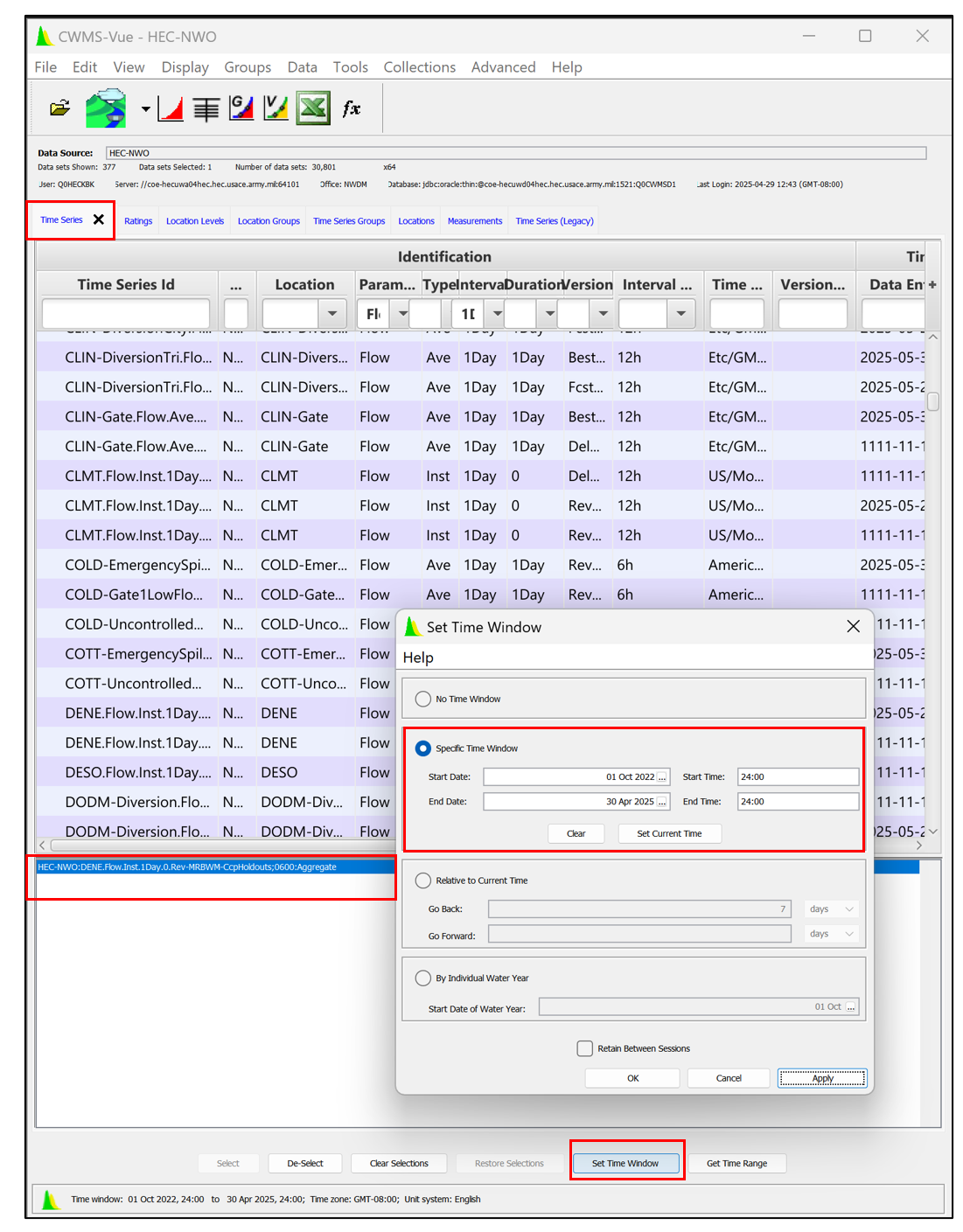
Once these prerequisites are met, navigate to the Time Series tab and select the specific dataset you want to view by choosing the corresponding row. After selecting the dataset, set the desired Time Window to analyze the data. Then, from the top menu bar, click on the Validation Tool to launch the validation process.
In this example, we have considered the time series data from the NWO (Northwest Omaha) district. Figures below show the selected time-series dataset and time window highlighted in the dataset.
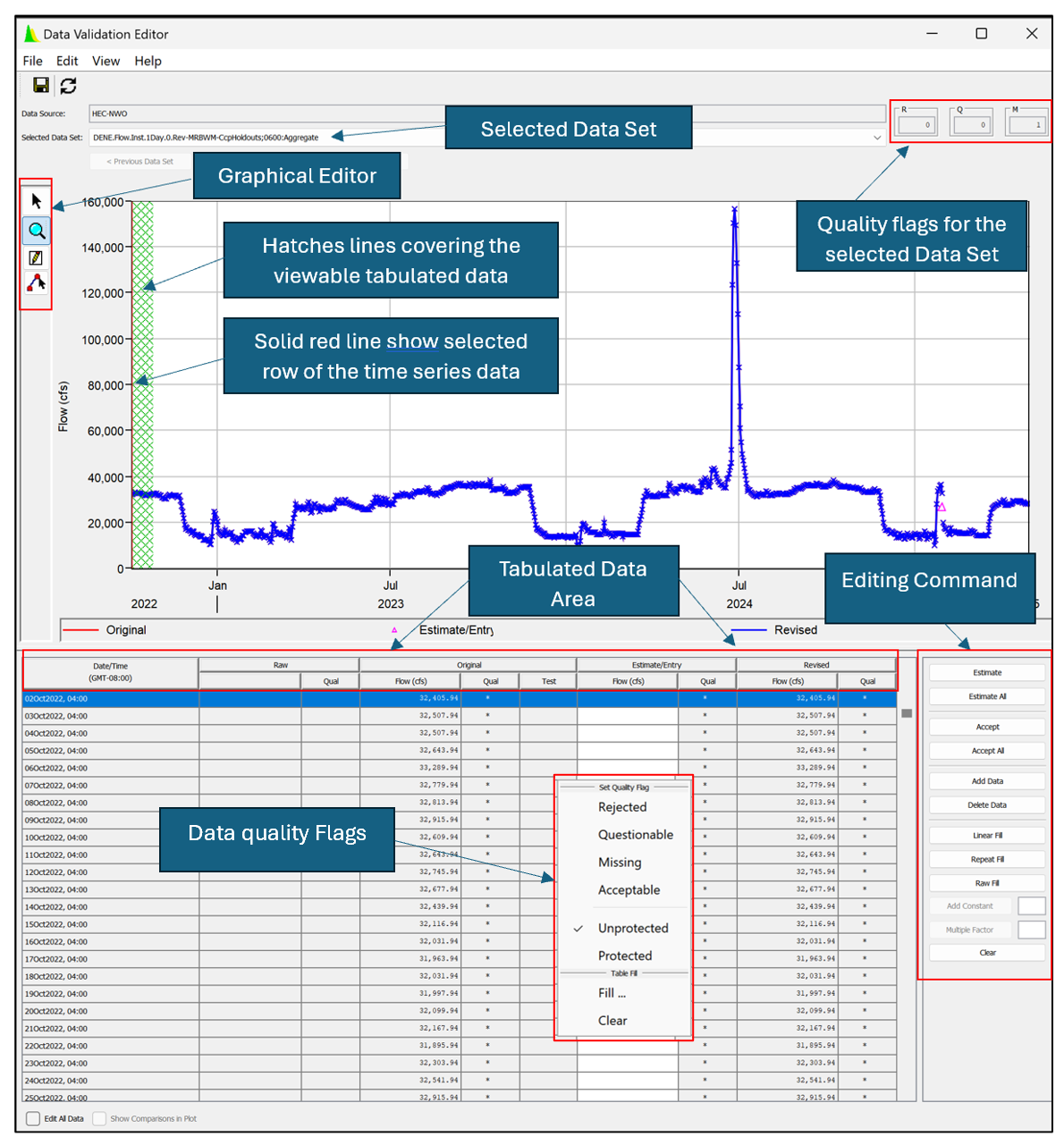
The Validation tool has multiple options for editing and correcting the selected dataset. The figure below shows the main components of the Data Validation Editor. Users can find descriptions of each Tool under the Menu Bar (e.g., File, Edit, View, Options) and the related operations required for the Validation Editor in other resources (see Data Validation Editor: 2024).
2) Using the Editing Command to Change the Selected Dataset
As shown in the Tabulated Data Area, the table header contains several columns, each representing specific information about the data, as detailed below:
Table: Editing Table Column and Description
Column | Description |
Date/Time | Specifies the time zone for the data and lists the specific date and time for each data point. |
Raw | Displays the data received directly from the data streams, along with any quality flags. |
Original | Contains the validated/transformed data that you are reviewing along with any quality flags. |
Estimate/Entry | Allows you to modify data values. When cells in this column are white, you may edit the data. When cells in this column are gray, the rows are protected as being acceptable, having passed validation testing. To allow editing, select Edit Acceptable Data or select Edit Acceptable Data from the Options menu. |
Revised | Displays the values you have accepted. The corrected values appear in the Revised column, along with quality flags. |
Similarly, each quality flag in the data validation table has the following meanings:
Table: Quality Flags for Data Validation
Quality Flag | Meaning |
| Quality Flag | Meaning |
* | No quality (data has not been validated) | NI | Negative incremental (rate of change) | |
Q | Questionable | R | Rejected | |
P | Protected | M | Set to missing | |
K | Keyboard entry | A | Explicit form of blank for manual entry of quality | |
E | Estimate (graphical) | + | Inserted value | |
I | Interpolated | Blank; indicates value passed all tests |
Main editing commands available to edit the dataset are:
- Estimate: will automatically compute a data value for selected rows based on acceptable surrounding data in the original column.
- Estimate All: used to apply the estimate to all applicable data within the table. In addition, you can also multi-select rows (tabular editing) or data values (graphical editing) for estimation, provided that the selected rows are bracketed by acceptable values.
- Accept: clicking on the Accept button will accept the changes for those selected rows and copy the information to the Revised column of the tabular data area. Your changes are stored in memory and are not yet saved to the CWMS database.
- Accept All: allows you to save and accept all applicable data within the table.
- Add Data: allows you to add data values in the tabular data area. Once selected, the Extend Data Set dialog opens as shown in figure below. As shown, the Extend Data Set dialog allows you to add data rows either before or after the current time window.
Insert Before: Specify the number of rows to insert before the start date of the time window.
Append After: Use the Number Rows selector to choose how many rows to add after the end date of the time window. The End Date and Time fields will update automatically. Click OK to apply the changes and close the dialog. The new rows will be added to the table, and you can enter values for the newly added time periods.

- Delete Data: If you wish to delete a data value, select a row from the table, click Delete Data, and the row will no longer appear in the table. When deleting you will not be warned, so be sure you know that you want to delete the data value before clicking Delete Data.
- Linear Fill: allows to change the data to fill the space linearly between the two values chosen.
- Repeat Fill: will repeat the first value in the selection for selected rows.
- Raw Fill: allows users to manually input or modify time series data directly within a table, without applying any automated processing or validation.
- Add Constant: allows the user to add the selected constant to the Estimate/Entry value in selected rows.
- Multiple Factor: allows the user to multiply the selected constant to the Estimate/Entry value.
- Clear: will clear the selected data from a Revised cell.

Note
Clicking the Refresh button  or selecting Restore Original Data from the View menu will revert the dataset to its original values.

If you need to edit data the data, select Edit All Data, or from the Options menu, click Edit All Data.
The figure below shows how CWMS-Vue estimates the Estimate/Entry columns when you apply the Estimate All operation from the main editing commands. This operation automatically updates the data table with the estimated values, which are also plotted in the main window.

3) Using the Graphical Editor Tools to Edit Data
The graphical editing area displays the selected dataset and provides opportunities to edit, modify, and visualize it. By default, a blue line in the plot represents validated and transformed data (revised data), while a green line represents raw data received directly from data streams (not shown here). The figure below shows the four main editing tools and additional editing options (accessible by right-clicking within the plot area, axes, and legend) available in the Data Validation Editor.

Graphical Editing Tools: The first part (#1) of the figure above shows the four main Data Validation Editor tools:
- Pointer/Selector Tool: Navigate within the graphical editing area.
- Zoom Tool: Magnify specific sections of the graphical editing area.
- Single Point Edit Tool: Select individual or ranges of data points, perform estimates, and set quality flags.
- Multi-Point Edit Tool: Edit data by drawing new plot lines in the graphical editing area.
Additional tools and options include:
- Axis Properties Editor (#2): Right-click on any axis to edit the plot axes.
- Curve Properties (#3): Right-click on a selected bar to edit properties, hide or remove curves, or add callouts.
- Specific Record Properties (#4): Customize the vertical red line that indicates the selected record in the tabular data area. Right-click to edit properties, hide or remove curves, or add callouts.
- Legend Properties (#5): Move the legend to the right or bottom of the plot or hide it using the Legend Panel shortcut menu.
Further explanation of each tool and option is available from Data Validation Editor: 2024.