Using the Stochastic Data Importer in an FRA Simulation
This page details how to use the Stochastic Data Importer in an FRA simulation, and follows the instructions for creating a Stochastic Data Importer simulation. This process follows the same steps as creating a new FRA simulation, however uses the Stochastic Data Importer instead of the Hydrologic Sampler plugin as the source of input data for the models.
Create a new FRA simulation by right clicking on an alternative and selecting "New Simulation" or create one via the Alternative and Simulation Manager.
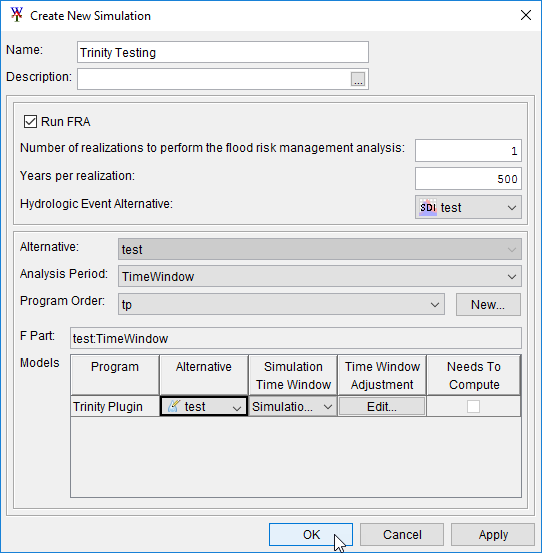
Check the box Run FRA. Set the number of realizations and years per realization based on the size of your input data, and select the Hydrologic Event Alternative as the desired SDI alternative – this list may also contain Hydrologic Sampler alternatives or other Event Generator-type plugins. Choose an analysis period that matches the length of data for your SDI alternative. Then choose the program order appropriate for this simulation and model alternatives for each position in the program order. The editor should look like the figure below.
Model Linking for SDI
Once the simulation has been created, the Model Linking Editor is used to map the data provided by the SDI alternative into the following models. Right click on the new simulation and select Model Linking Editor as shown below.

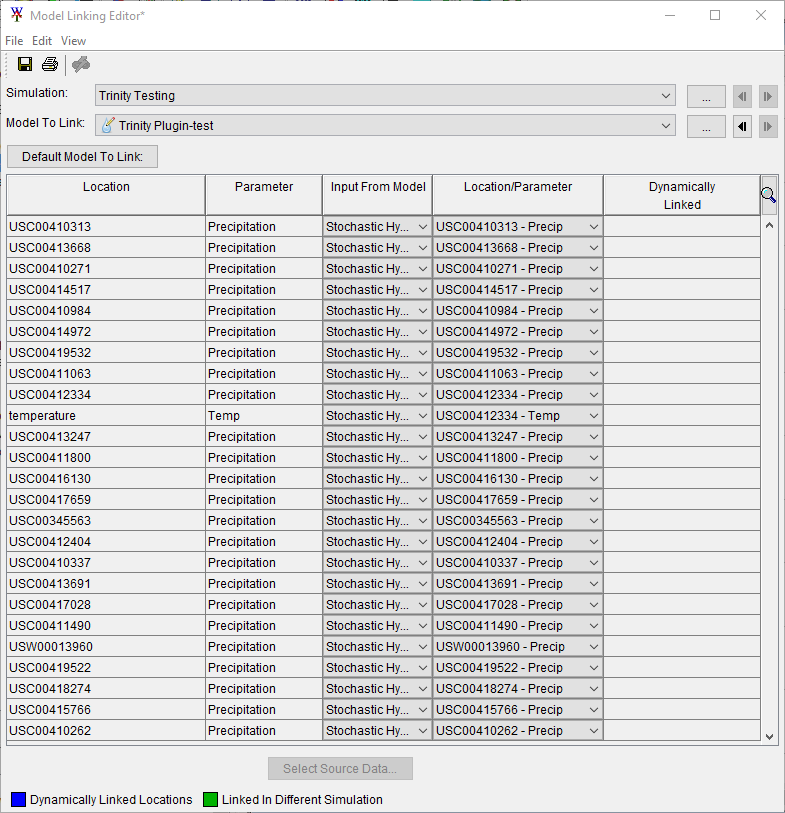
In the model linking editor select each model in the program order as the Model To Link, such as Trinity Plugin-test in the example below, and choose the input for each location in the Input from Model column. If all of the inputs for a model are coming from the SDI plugin, the Default Model To Link button may be used to choose the SDI alternative for all of them. After choosing the "upstream" model for inputs, the Location/Parameter field provides a selection box (drop-down menu) to choose the correct input data to link. The consuming model's location/parameter fields should be reviewed to ensure that the selected SDI plugin outputs are correct.

Model Linking - Always Review Automated Matches
If you are using the Default Model to Link or importing model linking from another simulation, always review the combinations selected in the Location/Parameter column. If HEC-WAT does not find an exact match from the input model, or there is not an existing choice from the other simulation, these may be filled in by the combination that most closely matches by the sequence of characters provided. A slight difference, such as a hyphen versus underscore for a location name may cause HEC-WAT to choose the incorrect input data location.

Once the Default Model To Link button was used to select the SDI alternative, the model linking window should look something like this:
Once the model linking is configured, the simulation with the SDI alternative as the source of input data may be configured and computed as a standard FRA compute following instructions elsewhere in the HEC-WAT user manual.