Managing Map Layers
Map layers are spatial components added to a map window to help visualize a study area. They can be added by the user for visual reference, or as data for import into HEC-WAT, e.g., a river centerline can be added as shapefile to create a river in the HEC-WAT schematic. The user defines a study projection when creating a new study, and all data added to the map window is re-projected in real-time to the study projection. This section describes the general workflow for managing map layers in HEC-WAT.
Add Map Layers
When a map layer is added to a study, HEC-WAT reads the coordinates of points, lines, and polygons on the map layer and resets the geographic extents of the study to the smallest rectangle that will contain all objects in a map layer. A map projection uses mathematical models that transform spherical coordinates (latitude, longitude) to planar coordinates in a map projection (X- and Y-coordinates). Data is projected onto a flat plane (surface) that can be converted without stretching, and features will be referenced by a planar coordinate system. If a map layer is not in the same projection as the study, HEC-WAT can re-project that map layer "on-the-fly", or in real-time.
To add map layers:
- From the Maps menu, click Add Map Layers.
- The Select Map to Add browser will open.

- The browser defaults to the study directory, but map layers can be retrieved from anywhere on a computer. From the study directory is a maps directory, which is the location where it is recommended that users copy various map layers. Using the project's maps directory ensures the map layers are maintained within the project directory when the project is opened on other computers.
- To copy the selected map layer to the study directory, click Create Copy on the Select Map to Add browser.
- From the Select Map to Add browser, select the desired map layer format from the Files of type list, locate the file of the desired map layer format, select filename, and click Open. The Select Map to Add browser will close and the map layer will appear in the active map window. Also, if the user has chosen to have HEC-WAT copy the map layer to the study directory, under the maps folder, the map layer file(s) will appear.
- From the HEC-WAT main window, select the Maps tab; there will now be an entry for the added map layers.

Remove Map Layers
To remove map layers:
- From the HEC-WAT main window, from the Maps menu, click Remove Map Layers.
- The Remove Map Layers from Study dialog box will open.

- From the Existing box there is list of map layers, select a map layer by clicking on the name.
- In the Remove box, the name of the selected map layer will appear in the Name box.
- Click Remove. A Warning message opens requesting the user to confirm the removal of the selected map layer, click Yes.
- The Warning message closes, the Remove Map Layers from Study dialog box closes, and the map layer will be eliminated from the active map window.
Shortcut Menu for Map Layers
The shortcut menu for map layers is accessed by right-clicking on any map layer that is listed in the Maps tab. This list of map layers refers to the currently active map window that is open in the Desktop Pane. The shortcut menu provides several ways to manipulate map layers. This ability to manipulate depends on the type of map layer, since HEC-WAT does not provide the same capabilities to all recognized map layer formats.

The shortcut menu commands and definitions for a map layer include:
- Expand – This command expands the selected map layer's tree; the tree provides information on the available elements of a map layer, and details provided are based on what HEC-WAT recognizes for the individual map layer format.
- Collapse – This command collapses the selected map layer's tree; the tree provides information on the available elements of a map layer, and details provided are based on what HEC-WAT recognizes for the individual map layer format.
- Move To Top – This command moves the selected map layer to the top of the tree.
- Move Up – This command moves the selected map layer up the tree one position.
- Move Down – This command moves the selected map layer down the tree one position.
- Move To Bottom – This command moves the active map layer to the bottom of the tree.
- Show Legend – This command displays the legend for the active map layer in the tree structure.
- Change Label – This command allows the user to change the label of the map layer in the Maps tab. Note, changing the label does not change the filename of the map layer.
- Properties – This command displays the properties of the selected map layer.
- Set Scale for Zoom-in – This command sets the zoom-in visualization scale for the selected map layer.
- Set Scale for Zoom-out – This command sets the zoom-out visualization scale for the selected map layer.
- Remove Scale Factors – This command disables or clears all scale settings for the selected map layer.
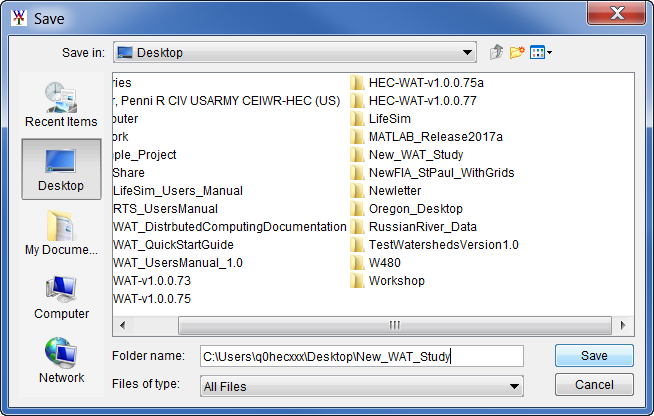
- Copy To – The Copy To command allows the user to make a copy of selected map layer. A Save browser will open, browse to the location on the computer where the map layer is to be copied. Click Save, the Save browser will close and the file containing the copied map layer (e.g., RussianSubbasins.shp) is saved to the identified location (e.g., New_WAT_Study folder).
- Attributes Table – If the selected map layer is a shapefile, click Attributes Table; the Attributes Table dialog box will open. Each shapefile contains a separate file that provides information on the attributes of that shape file. The Attributes Table dialog box provides the user with the attributes of the selected map layer (e.g., RussianSubbasins.shp).

Geographic Reference for Map Layers
Map projections have been developed because the true image of places on earth would have to be a three-dimensional solid (spherical globes). The sets of mathematical models that transform spherical coordinates (latitude, longitude) to planar coordinates are contained within a map projection (X- and Y-coordinates). Data is projected onto a flat plane (surface) that can be converted without stretching, and features will be referenced by a planar coordinate system. The x-coordinate is referred to as "easting" and the y-coordinate is referred to as "northing". The user can select the extent of this grid, the dimensions of the grid's cells, the units of measurement of the grid, and even the location of the grid's origin. Because of this flexibility, a user can specify and use virtually any grid coordinates convenient for water resources studies.
To select the map's grid coordinates:
- From the Maps menu, click Default Map Properties, the Map Default Properties for Study Name dialog box will open. By default, the Map Extents tab is selected.

- The information in the Map Extents tab includes:
- Coordinate System – This box identifies the established coordinate system for a study. To view the coordinate system, click View, and the Map Coordinate Information dialog box will open.

- Extents – Easting Minimum, Maximum, Northing Minimum, and Maximum. These values indicate the location of the left, right, bottom and top borders (respectively) of the grid in the map window.
- Grow to Map Extents – When selected, HEC-WAT automatically sets the geographic extents to define the smallest rectangle that encompasses all the objects in the study.
- Set Map Extents to Display – This will set the limits of the map window. If the user zooms in on an area, and clicks Set Map Extents to Display, the Map Default Properties for Study Name dialog box extents will change to the zoomed area.
Note that the geographic extents of map layers must be selected carefully to ensure that the entire study is included. Further, the extents specified and the coordinate system used must be consistent with the projection of the study.
- Coordinate System – This box identifies the established coordinate system for a study. To view the coordinate system, click View, and the Map Coordinate Information dialog box will open.
Set Visualization Scales - Map Layer
Layers may be set to become visible or invisible as users zoom-in or zoom-out on the active map window. Generally, this capability allows the user to display finer levels of detail as users zoom-in on regions in the map window and avoid clutter when displaying the full area. This might include detailed map layers to become visible, and raster or other images to appear that are not as distinguishable at a courser zoom level.
The easy way to set the visualization scale for map layers is outlined in the following steps:
- From a map window, the user can zoom-in to the point at which a map layer becomes visible.
- From the Maps tab, in the Content Pane, right-click on the map layer. From the shortcut menu, click Set Scale for Zoom-in, the visualization scale is set automatically for that map layer.
- From the map window zoom-out, the selected map layer no longer displays. Inversely, if the user wants the map layer to become visible as the user zooms-out, from the shortcut menu click Set Scale for Zoom-out.
- Visualization scale settings can be cleared or disabled for a map layer. From the shortcut menu, click Remove Scale Factors, the current visualization scale for that particular map layer is cleared.
Adjust Map Layers
Once map layers are in an HEC-WAT study, the user can make adjustments to those map layers. From the HEC-WAT main window, click the Maps tab. Now the user can see which map window is currently active and what layers make up that map window.
To change the color and the fill aspects of a shapefile do the following:
- From the Map Layers tree, right click on a map layer (e.g., RussianSubbasins.shp) which happens to be a shapefile. The shortcut menu that appears is for shapefiles. The selected map layers shortcut menu allows the user to expand or collapse the selected map layer; move the shapefile to different positions in the Map Layers tree (Move To Top/Move To Bottom, Move up/Move Down); show the legend of the shapefile; change the label of the shapefile; edit the properties of the shapefile; set or remove scale factors; copy the map layer to another location; and open the attribute table of the shapefile.

- From the shapefile shortcut menu, click Properties, the Edit Polygon Properties dialog box opens. The selected shapefile is a polygon shapefile. To edit the fill of the active map layer, from the Fill tab, change the color or turn off the fill. For the example the image below, the fill will be turned off. Click the Display Fill checkbox to
 uncheck the box, meaning that fill is turned off.
- To change the outline color of the shapefile layer, from the Edit Polygon Properties dialog box, click the Border tab. From the Color list, select a color (e.g., darkred). Click OK, the Edit Polygon Properties dialog box closes and the changes will appear in dark red in the map window.
- To turn off a map layer - click in the checkbox by a map layer, that map layer no longer displays in the map window.
- To display the map window zoomed in, select the Zoom tool. Draw a box around the map layers that are displayed in the map window. From the Maps menu, click Default Map Properties, the Default Map Properties for Study Name dialog box opens. Click Set Map Extents to Display, click OK. The Default Map Properties for Study Name dialog box will close.
- The extents for the map window update so that when the study is opened the next time the map window will be zoomed in to the tighter area as specified in the Default Map Properties for Study Name dialog box.
Add the Background Internet Map
Knowing where the watershed is located in reference to known locations can be quite helpful when communicating with the PDT and stakeholders. From the Maps menu, point to Add Internet Map, from the available list select the internet map that would be a good background (Open Street Map) map for the watershed. The selected internet map will load and appear in the active map window.
Loading an internet map layer in the background might help with adding additional streams to the stream alignment; locations of reservoirs; levees, other measures; impact areas; and, common computation points (CCPs). Based on the known extents of the study area, the layer provides a view of the watershed and surrounding area.
Map Layer Formats
Digital maps, Graphical Information System (GIS) layers are referred to as map layers in HEC-WAT. When a map layer is included in a watershed, the software displays the map layer as GIS features, points, lines and polygons. Table 2 provides a list of supported map layer formats by HEC-WAT.
| Table 2 Map layer formats supported by HEC-WAT. | |
| Common Filename |
|---|---|
Shapefile | .shp |
GeoTIFF | .tif |
Image | .img, .jpg, .gif |
USGS DEM | .dem |
ASCII DEM | .asc |
Virtual Format | *.vrt |
USGS Digital Line Graph (.dlg)
U.S. Geological Survey (USGS) Digital Line Graphs (DLG) are created from two sources using manual and automated digitizing methods. The two sources are aerial photographs or cartographic sources. DLG files are vector representations of the data. When HEC-WAT interacts with a .dlg file a .dlgbin file is automatically generated for use.
Shapefile (.shp)
Shapefiles are a common file for geospatial data. Shapefiles store geometry and attribute information for the features of a geospatial dataset. Usually there are four files associated with a shapefile: .dbf, .shp, .prj, and .shx. The .shp file contains the features (point, polylines, or polygons) that are displayed in the layer. Each feature has a record in the .dbf file containing descriptive attributes. The .prj file contains the projection information for the shapefile. The .shx file contains an index that links each shape to its record in the .dbf file.
GeoTIFF (.tif)
A metadata standard which allows geo-referencing information to be embedded into a Tagged Image File Format (TIF) file. The added metadata could be map projection datums, coordinate systems, and any other information that will establish spatial references. A TIF file stores raster graphic images and data within a single file.
Image
In order to add an image to HEC-WAT, create a .img file that defines the Image West, Image North, Image East, and Image South of the underlying image file. These coordinates allow for the geospatial reprojection of the data. The .img file must also contain the Image URL. The formats supported by HEC-WAT are JPEG format (.jpg) and Graphics Interchange Format (.gif). The image projection must match the extents of the image and must be in the coordinate system of the study see the Map Default Properties to identify the correct projection for the study. See the example contents of a .img file below:
Image West=2051443.
Image North=355443.
Image East=2054925.6
Image South=351947.4
Image URL=/maps/myfile.jpg
USGS DEM (.dem)
Prior to 2006, the USGS delivered data as a Digital Elevation Model (USGS DEM) file format (as of 2006 USGS no longer directly distributes elevation data in the DEM format). A raster file format, .dem files usually contain terrain elevations, but the file format can be used for representing any surface. The format, published by the USGS, allows internal documentation of coordinate system, date of publication, etc. These values are referenced horizontally, either to a Universal Transverse Mercator (UTM) projection or to a geographic coordinate system.
ASCII DEM (.asc)
An DEM file is an ASCII file format representation of a grid. The file consists of keywords followed by values defining the number of columns, number of rows, lower left corner, cell size, no data value, and each cell value.
Virtual Format (.vrt)
The .vrt format is a format driver for Geospatial Data Abstraction Library (GDAL) and allows for a virtual GDAL dataset to be composed of other GDAL datasets. The primary use of this format is to group together a series of grids that should be associated together. This file format allows multiple depth grids for the same event to create a mosaic single grid. Relative file paths are saved in an XML format, as well as a histogram describing the frequency of cell values across all grids within the vrt.